Appearance - demos, home builder, header, footer, colours
Switch design presets, rearrange the home page, edit header and footer, and change colours and fonts without touching code.
Appearance in the sidebar controls how your storefront looks. Changes are saved as overrides on top of the chosen preset, so you can switch designs without losing your content.
Demos (design presets)#
Appearance > Demos shows a gallery of the 19 presets (10 classic, 6 marketplace-style and 3 studio designs; a new store starts with the classic Tech Store (Treva)) - see Demo presets for descriptions, and Product page layouts and Blog layouts for the two layout pickers.
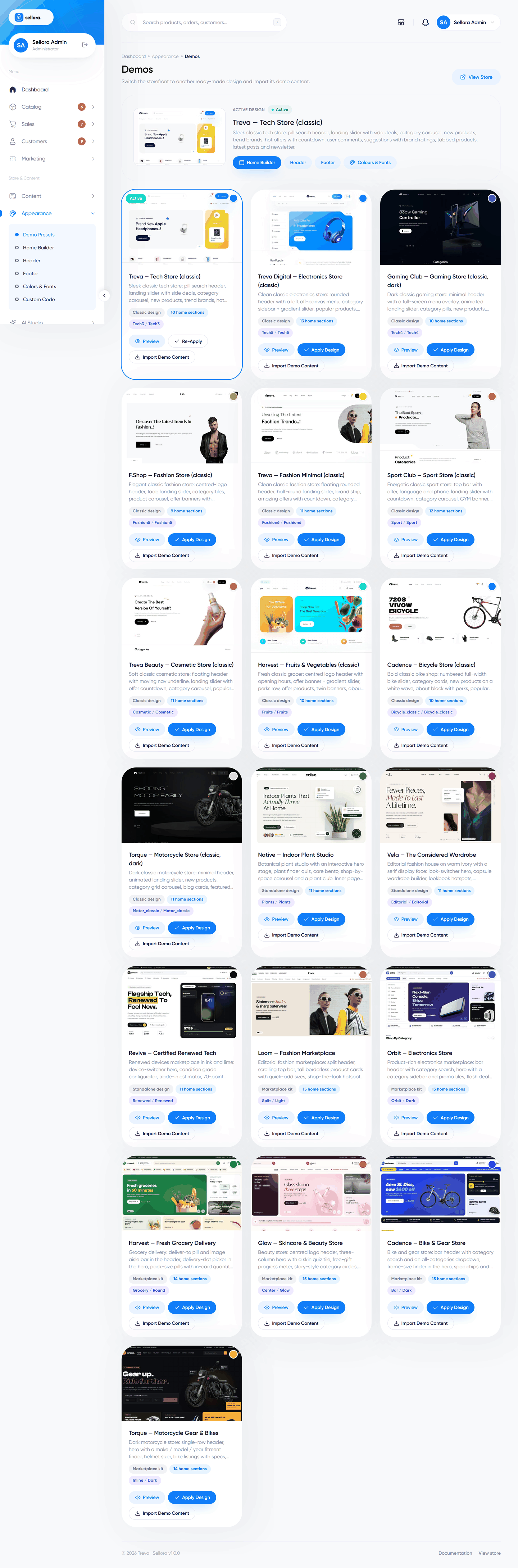
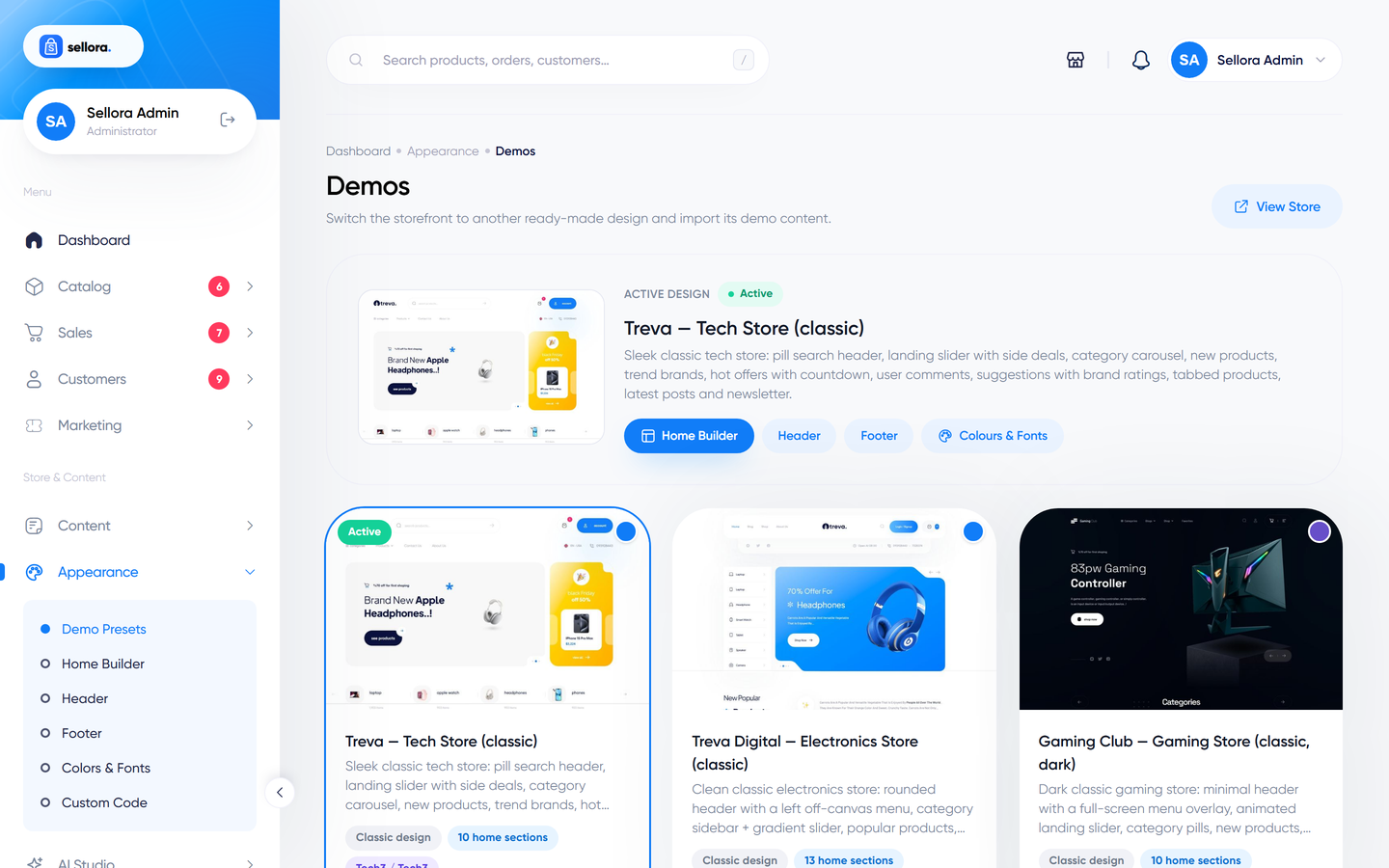
- Preview opens the storefront with the chosen preset without changing your live store. Visit
/?theme_preview=0to leave the preview. - Apply switches the live design. A dialog lets you keep your current home-page sections instead of replacing them with the preset's.
- Import demo content loads the sample products, categories, brands, banners, blog posts and so on for that preset, via an AJAX import. Importing adds demo records; remove demo content with the one-click reset before adding your own products. The reset only removes records marked as demo content.
Warning
Importing demo content on a store that already has products adds sample products next to yours. Do this on a fresh store, or remove the demo afterwards.
Home page builder#
Appearance > Home builder lists the sections of your home page, in order.
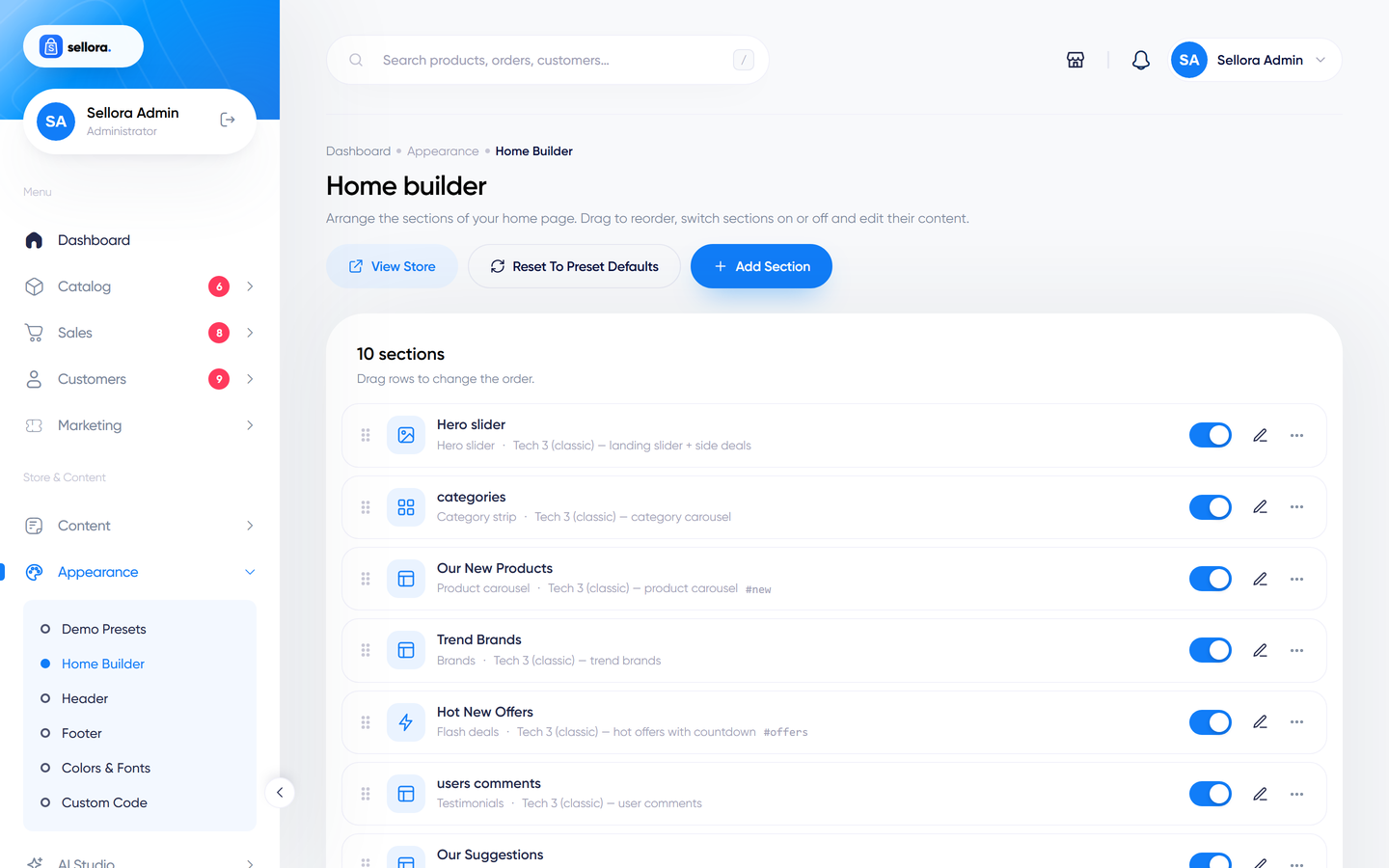
- Reorder sections by dragging; toggle each on or off.
- Add a section from the catalogue of types (hero, services strip, category strip, product carousels and tabs, flash deals, promo banners, feature band, bundles, brands, blog teasers, testimonials, FAQ, newsletter, custom HTML ...).
- Duplicate or delete sections, or reset to the preset's default arrangement.
- Edit a section: heading texts, the product source (featured, new, best sellers, on sale, top rated, flash sale, a category, a tag, a brand or hand-picked products, recently viewed), the number of items, links, images and layout variant. Fields marked translatable have one tab per language.
- The Preview link opens the home page at that section.
Each preset only offers layout variants that have a finished view; a section with a variant that is not available shows a note to administrators and renders nothing for visitors.
Header#
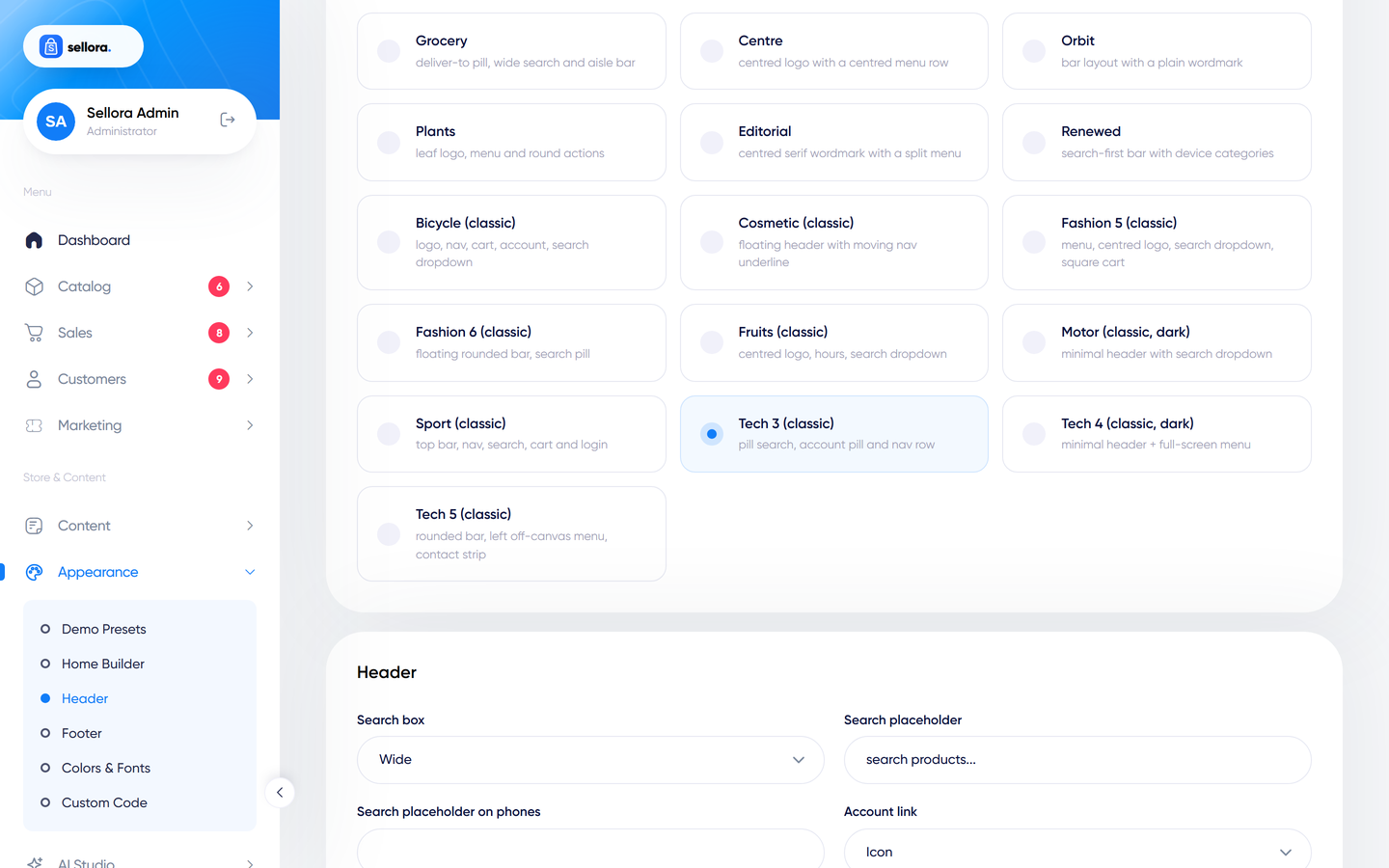
Appearance > Header adjusts the active preset's header: layout variant, navigation menus and limits, search style and placeholder, account and cart style, top bar messages and links, mobile bottom navigation, and the sticky-header option. The sticky-header switch pins the header while scrolling (the rule is part of the shared storefront styles).
Note
The mobile bottom bar and some classic designs have their own fixed elements, so check the header on a phone after changing the sticky option.
Footer#
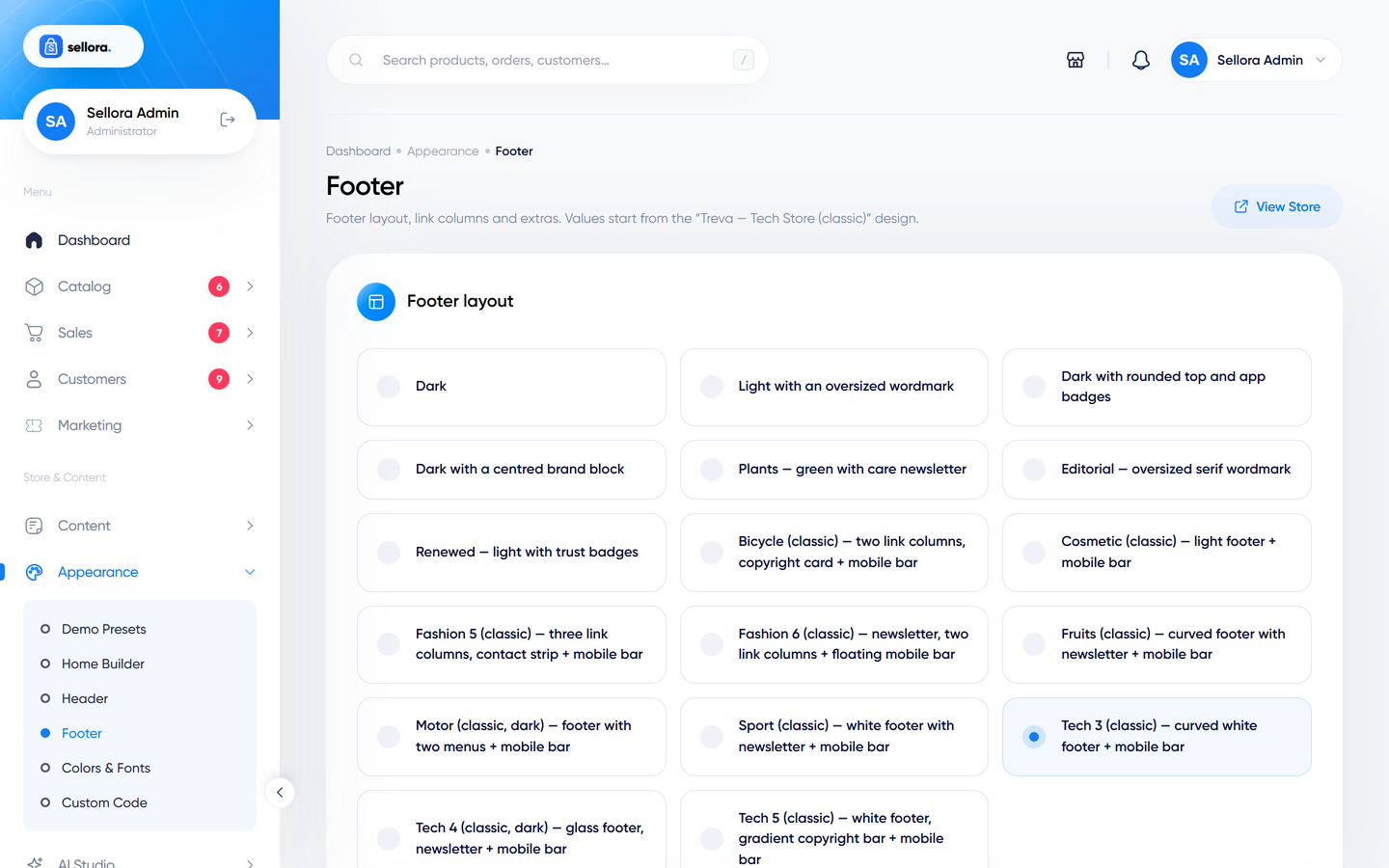
Appearance > Footer: layout variant, about text, phone, menus shown, newsletter box, payment icons, apps links and the pre-footer banner. Social links come from Settings > Store; the footer's social icons can be switched off in the footer options (implemented, not toggled during testing).
Colours and fonts#
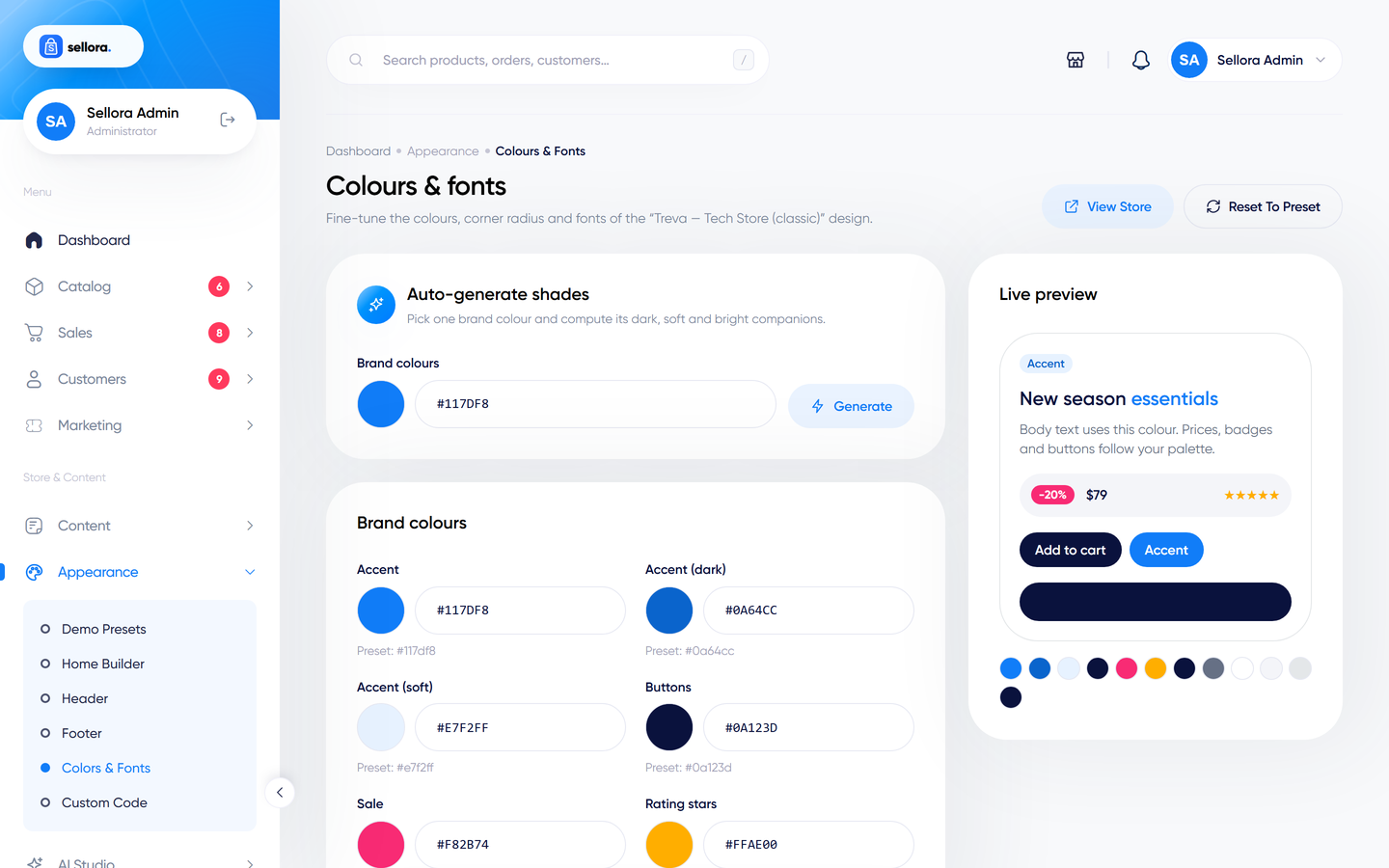
Appearance > Colours edits the design tokens of the preset: the primary colour and the other brand colours, with automatic shade generation. Pick display and body fonts from the list.
- Fonts marked local (Gilroy, Helvetica Now Display, Clash Display, Ivy Mode) ship with the package.
- The Google fonts in the list (Plus Jakarta Sans, Inter, Nunito, Roboto, Public Sans, Space Grotesk, Barlow) are requested from Google's servers and need an internet connection; check your privacy rules before using them. When you save a Google font the storefront loads it from Google's servers. The loading is implemented, but it was not exercised with a saved font during testing, so verify the result on your storefront.
- The logo can be an image or text (set the text mode and wordmark here).
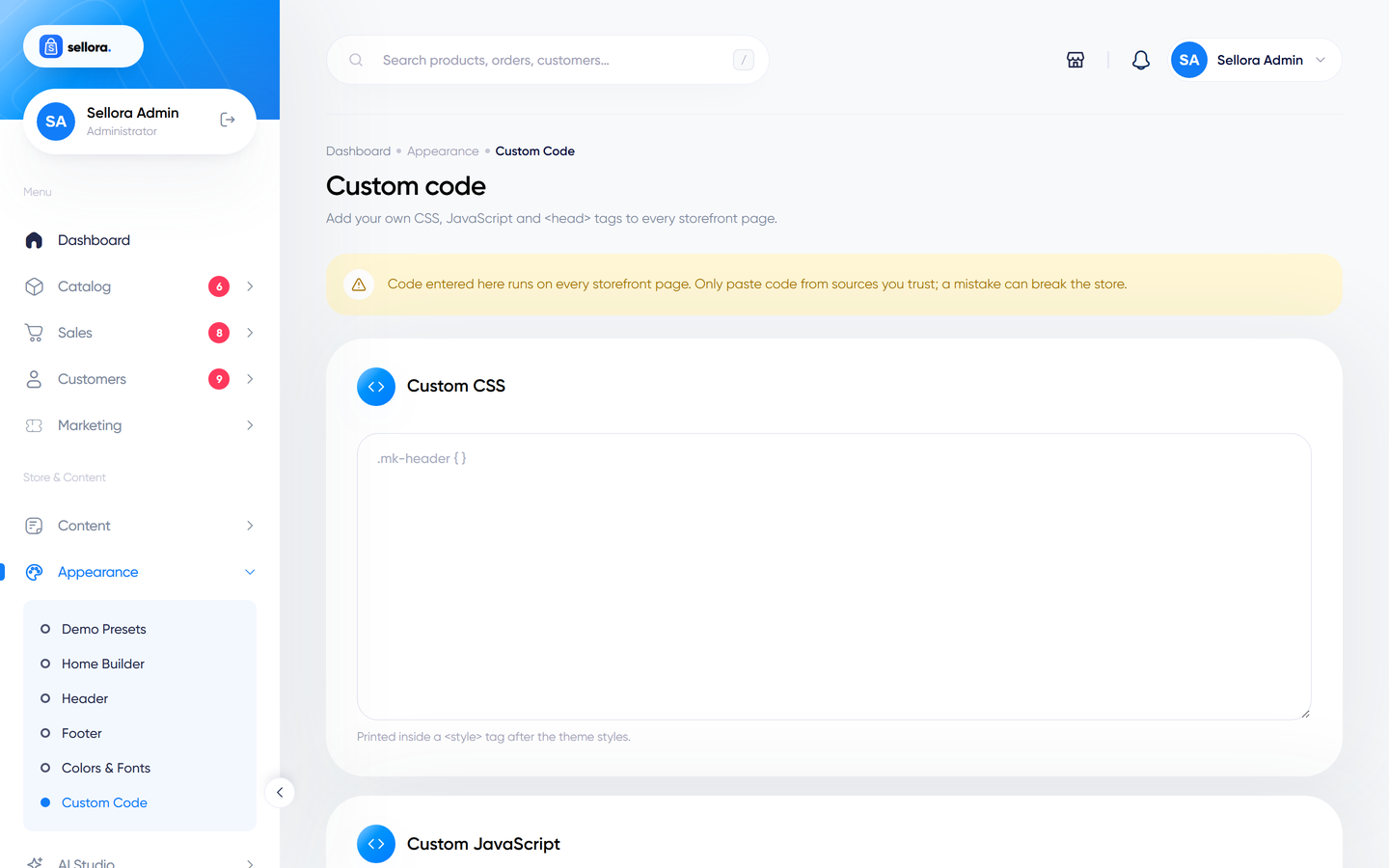
Custom code#
Appearance > Custom code accepts your own CSS, JavaScript and <head> tags for every page. It is stored in the database, so it survives updates. Use it for small tweaks and tracking snippets only; broken JavaScript here affects every page.