Roles, permissions and staff
Give your team the access they need and nothing more.
Staff accounts#
System > Users lists administrators and staff. Create a user with a name, e-mail, password and one or more roles. Only people with a role can enter the admin panel; ordinary customers cannot.
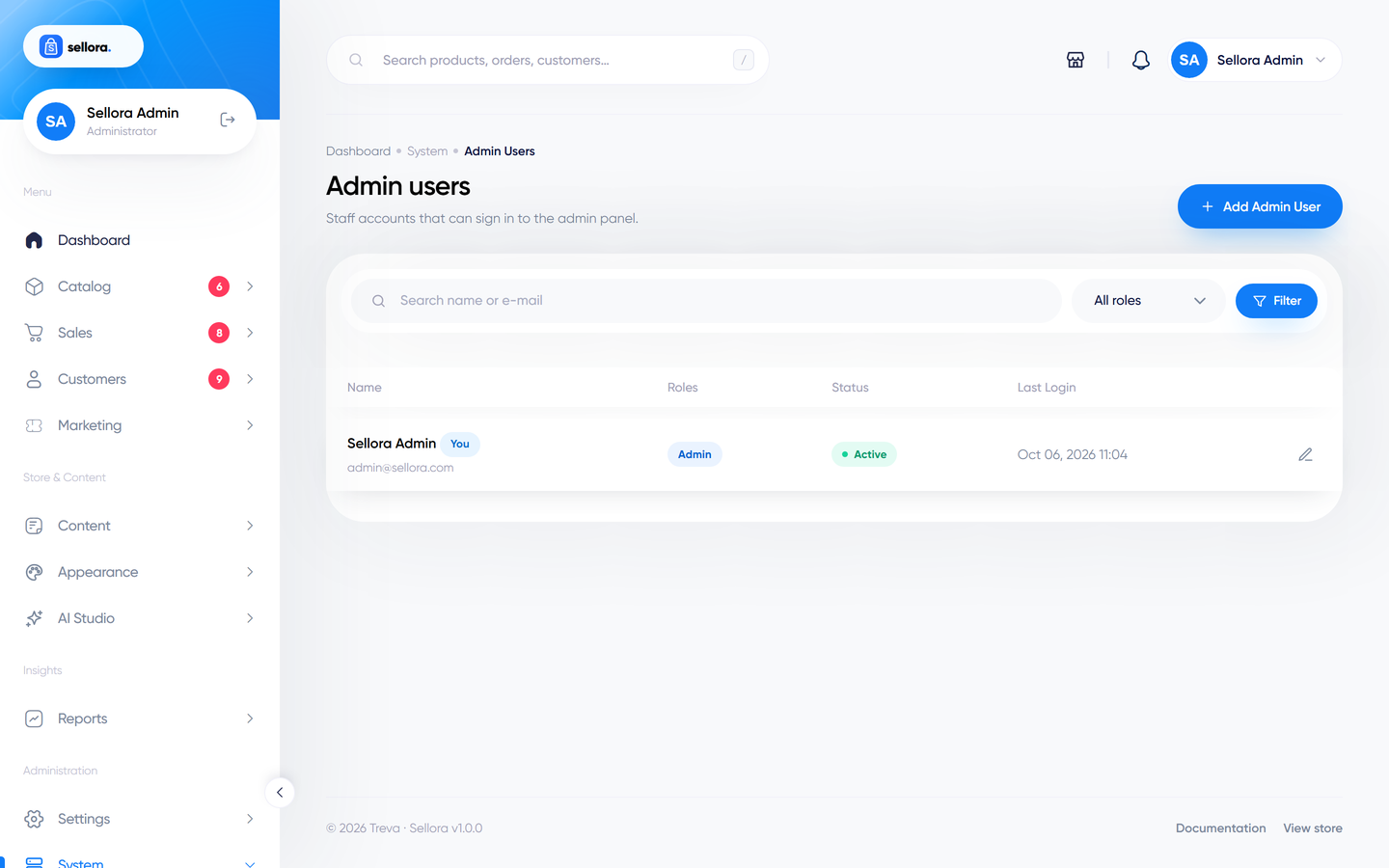
Safety rules: you cannot delete yourself, and the last administrator cannot be deleted or demoted.
Roles#
System > Roles defines what each role may do.
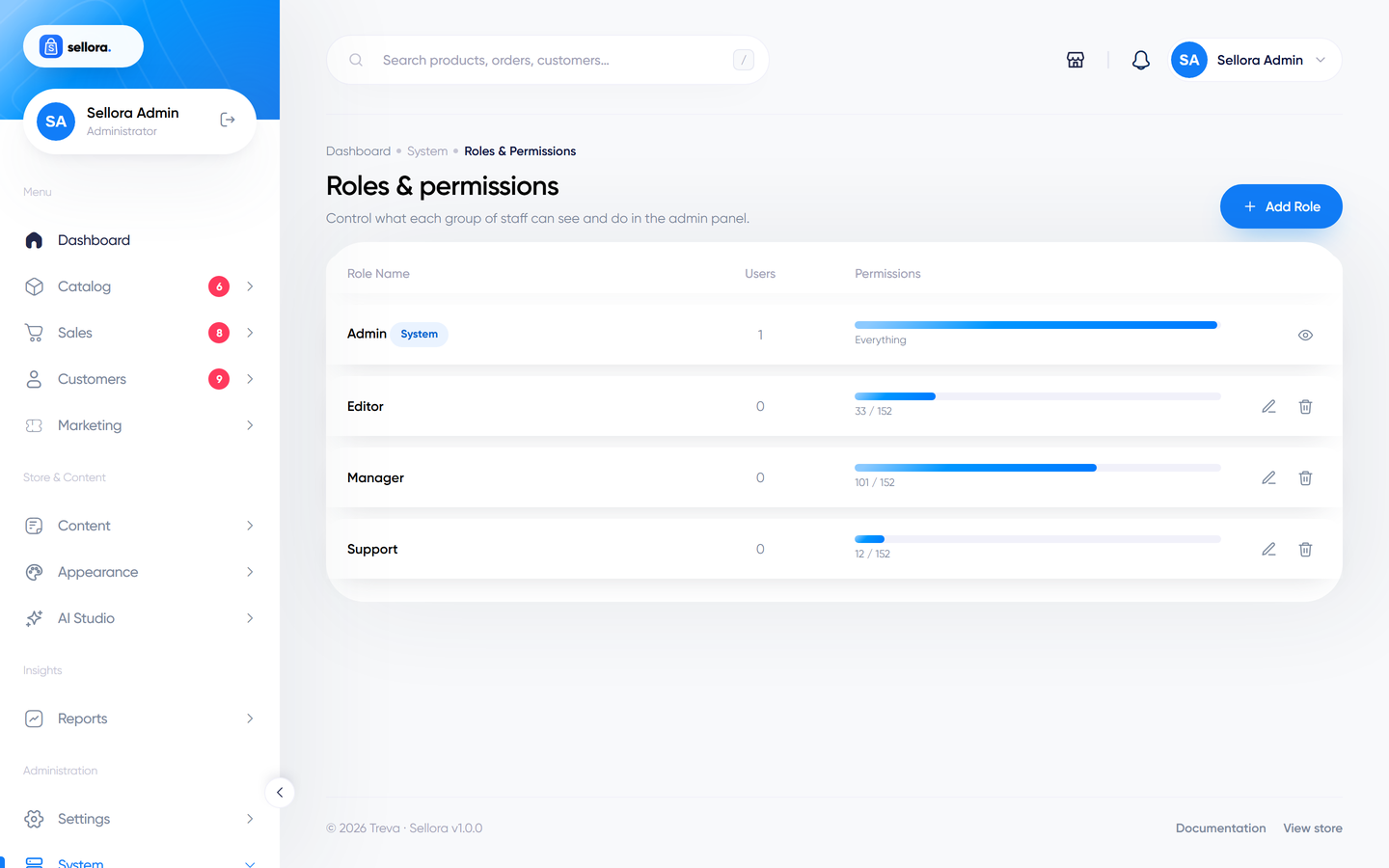
Sellora ships with four roles:
| Role | Intended for |
|---|---|
| admin | Full access to everything (this role bypasses permission checks). |
| manager | Day-to-day store management. |
| support | Customers, orders and tickets. |
| editor | Content: pages, blog, banners. |
Click a role to see its permission matrix - view, create, edit and delete rights for each area (products, orders, customers, content, appearance, each settings page, AI Studio, system tools and so on). Create your own role by choosing exactly the permissions you want.
Menu items and screens are hidden from staff who lack the permission, and direct access to a forbidden page shows a "403 Forbidden" error.
Tip
Create the role first, then the user. Test a new role by signing in as that user in a private browser window.
Activity log#
System > Activity records who did what: product, order, setting and role changes with the user, time and IP address. You can filter it and prune old entries.
Two-step verification#
Two-factor authentication is not part of this version. Use strong, unique passwords, keep your server up to date and restrict the number of administrators. Settings > Security lets you set the number of failed login attempts before lockout and enable reCAPTCHA on forms.