
Migrate from WooCommerce
Move categories, products, customers (with their passwords), orders, coupons, reviews and sales history from a WooCommerce store into Sellora.
Sellora can copy a complete WooCommerce store in one guided run. A small WordPress plugin, Sellora Migrator, exposes your shop data through a secure, read-only API; the wizard in System > Migrate from WooCommerce reads it page by page and creates the matching Sellora records. Your WordPress site is never modified.
The migration works on shared hosting: it runs in short steps driven by the open browser tab, so no queue worker or SSH access is needed. You can pause it, close the browser and resume later, and you can run it again at any time to pick up new and changed records.
Before you start: take a backup of the Sellora database. If you are moving a live shop, run a first migration, check the result, then run Sync again shortly before you switch your domain to Sellora.
Requirements#
| WordPress | 6.0 or newer |
| WooCommerce | 7.0 or newer (HPOS and legacy order storage are both supported) |
| PHP on the WordPress server | 7.4 or newer |
| Sellora permission | Migrate from WooCommerce (admin.migration.manage, group System; administrators have it) |
The Sellora server must be able to open your WordPress site over HTTP(S). A site behind a login wall, a maintenance page or a firewall that blocks the REST API cannot be read.
Step 1 — Install the plugin#
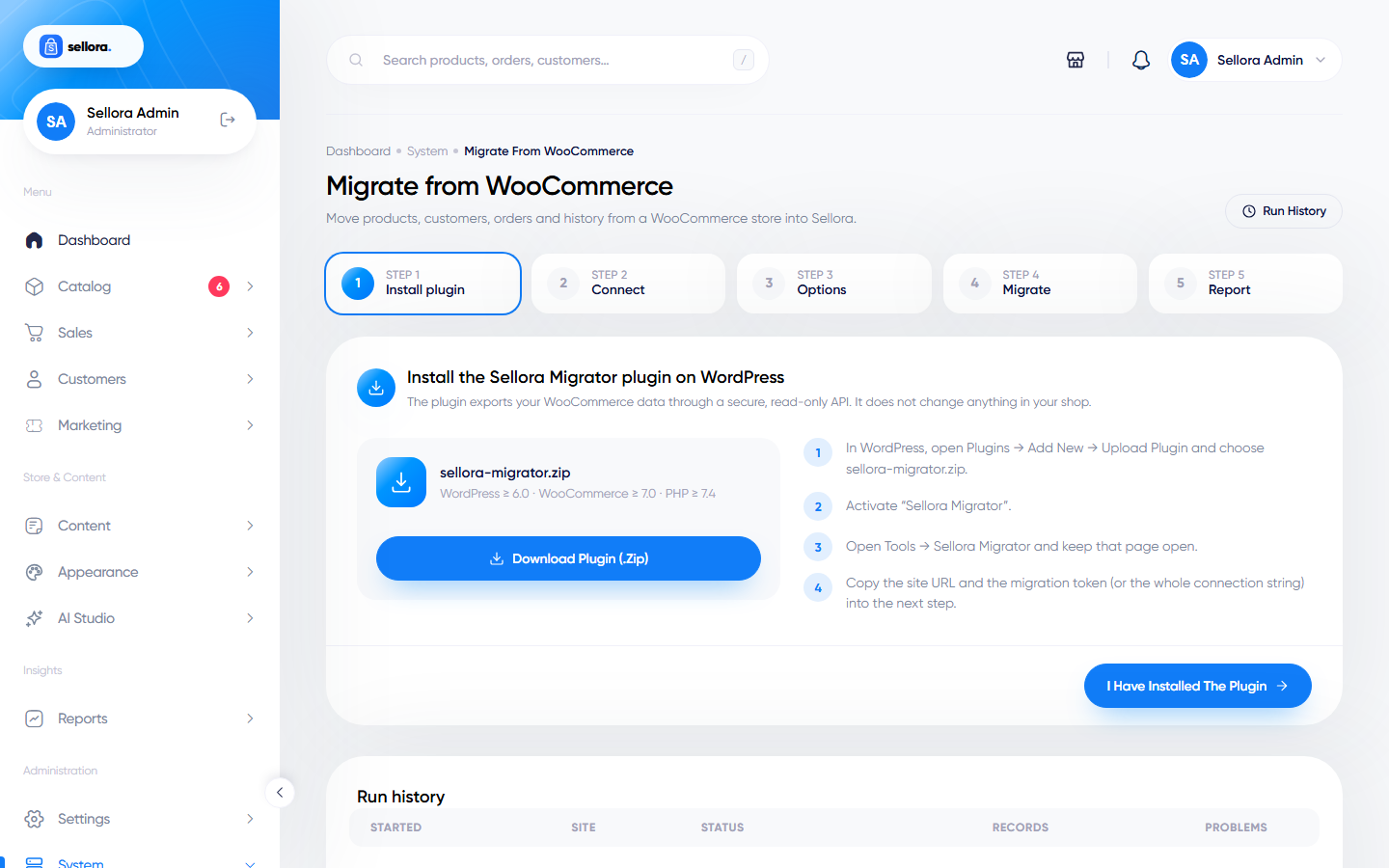
- Click Download plugin (.zip) in Sellora.
- In WordPress, open Plugins > Add New > Upload Plugin, choose
sellora-migrator.zipand click Install now, then Activate. - Open Tools > Sellora Migrator. The page shows the site URL, a migration token, the plugin and WooCommerce versions and how many records were found. Keep it open.
- Click I have installed the plugin.
The plugin settings page has an Allow password hash export checkbox (on by default). Leave it on if you want customers to keep their WooCommerce passwords. You can regenerate the token at any time; do it after the migration so the old token stops working.
Step 2 — Connect#
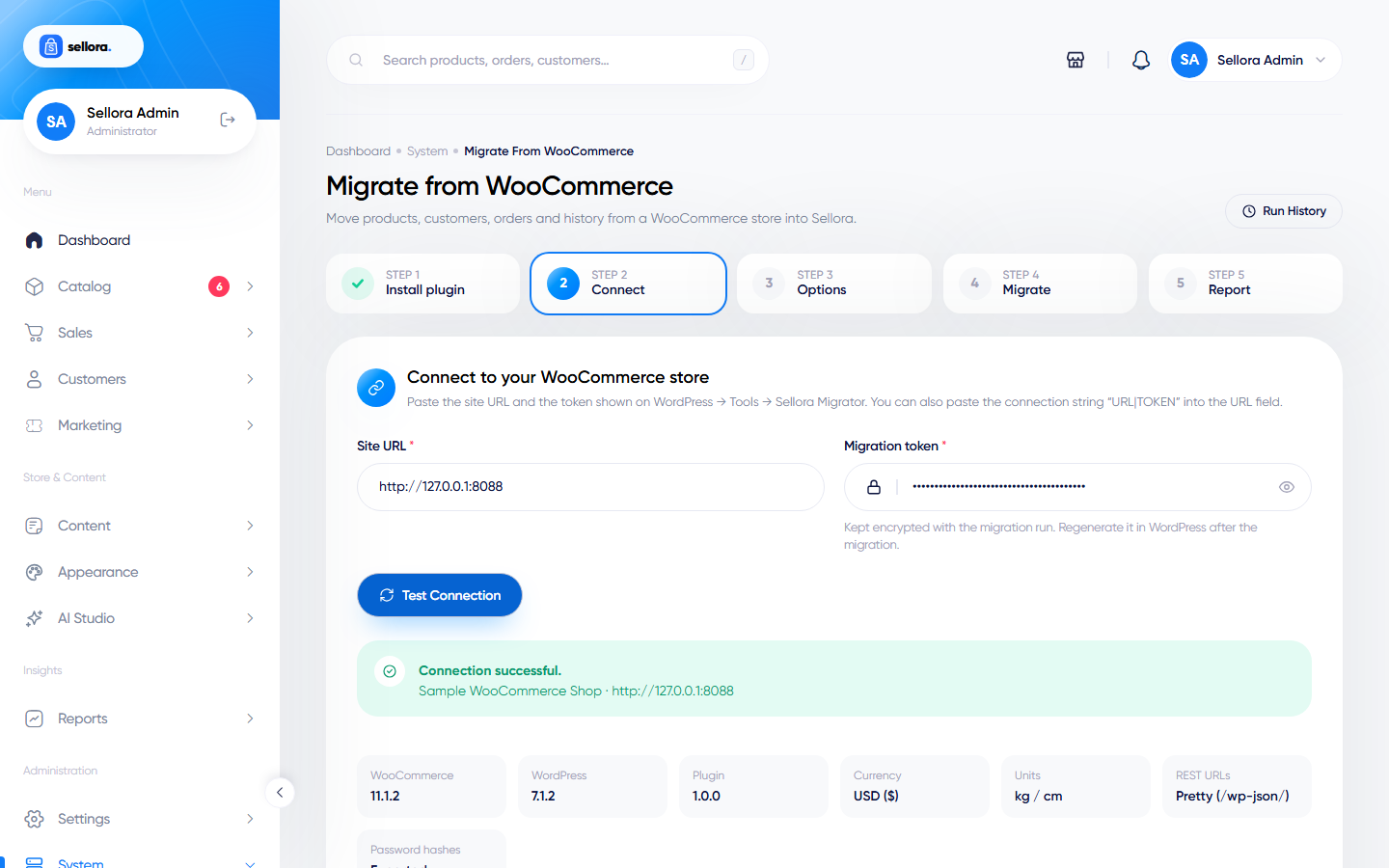
Paste the Site URL and the Migration token. You can also paste the whole connection string URL|TOKEN from the plugin page into the URL field: Sellora splits it for you. Click Test connection.
On success Sellora shows the store name, the WordPress, WooCommerce and plugin versions, the shop currency, the weight and dimension units, which REST URL style was detected, whether password hashes are exported, and a count per data type. It also lists warnings:
- Currency differs — WooCommerce prices and order totals are copied as numbers, they are not converted. Make the WooCommerce currency your Sellora default currency (Settings > Currencies) before migrating, or accept that the numbers keep their original currency.
- Units differ — weights and dimensions are converted to the units set in Settings > Shipping.
- Password export disabled — customers will need Forgot password (or the optional e-mail in step 3).
- Prices include tax — check Settings > Taxes so Sellora treats the imported prices the same way.
If the test fails, the message says why: wrong token, plugin not found, site unreachable, or a security/cache plugin answering with HTML instead of JSON. Sellora automatically falls back to ?rest_route= URLs on sites without pretty permalinks, and sends the token as a query parameter when a host strips custom HTTP headers.
Step 3 — Options#
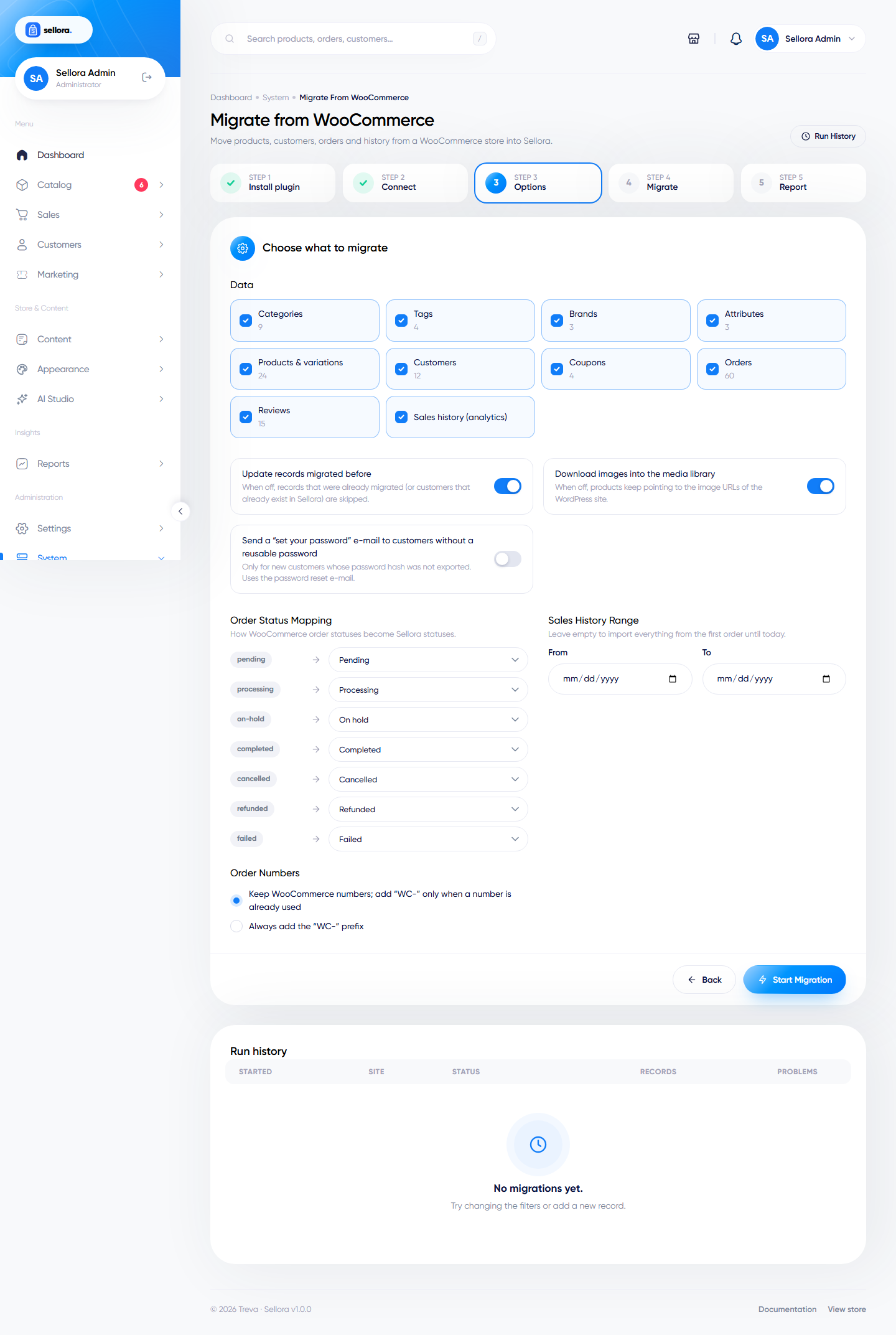
- Data — tick what to migrate. Everything is selected by default. Types the plugin cannot provide (for example Brands when no brand taxonomy exists) are disabled.
- Update records migrated before — on: a re-run updates records it created earlier (and customers that already existed in Sellora); off: those are skipped.
- Download images into the media library — on: images are downloaded into Content > Media (folder
woocommerce) and get the same resized versions as your own uploads; off: products keep pointing at the image URLs of the WordPress site. - Send a "set your password" e-mail — only for new customers whose password hash was not exported. Off by default.
- Order status mapping — one select per WooCommerce status. Defaults: pending → Pending, processing → Processing, on-hold → On hold, completed → Completed, cancelled → Cancelled, refunded → Refunded, failed → Failed. Custom statuses become Pending.
- Order numbers — keep the WooCommerce numbers and add
WC-only when a number is already used in Sellora (default), or always addWC-. - Sales history range — empty imports everything from the first order until today.
- Run in the background — only shown when
QUEUE_CONNECTIONis notsync. Use it only if a queue worker is running (see Cron and queues); otherwise keep the page open.
Click Start migration.
Step 4 — Migrate#
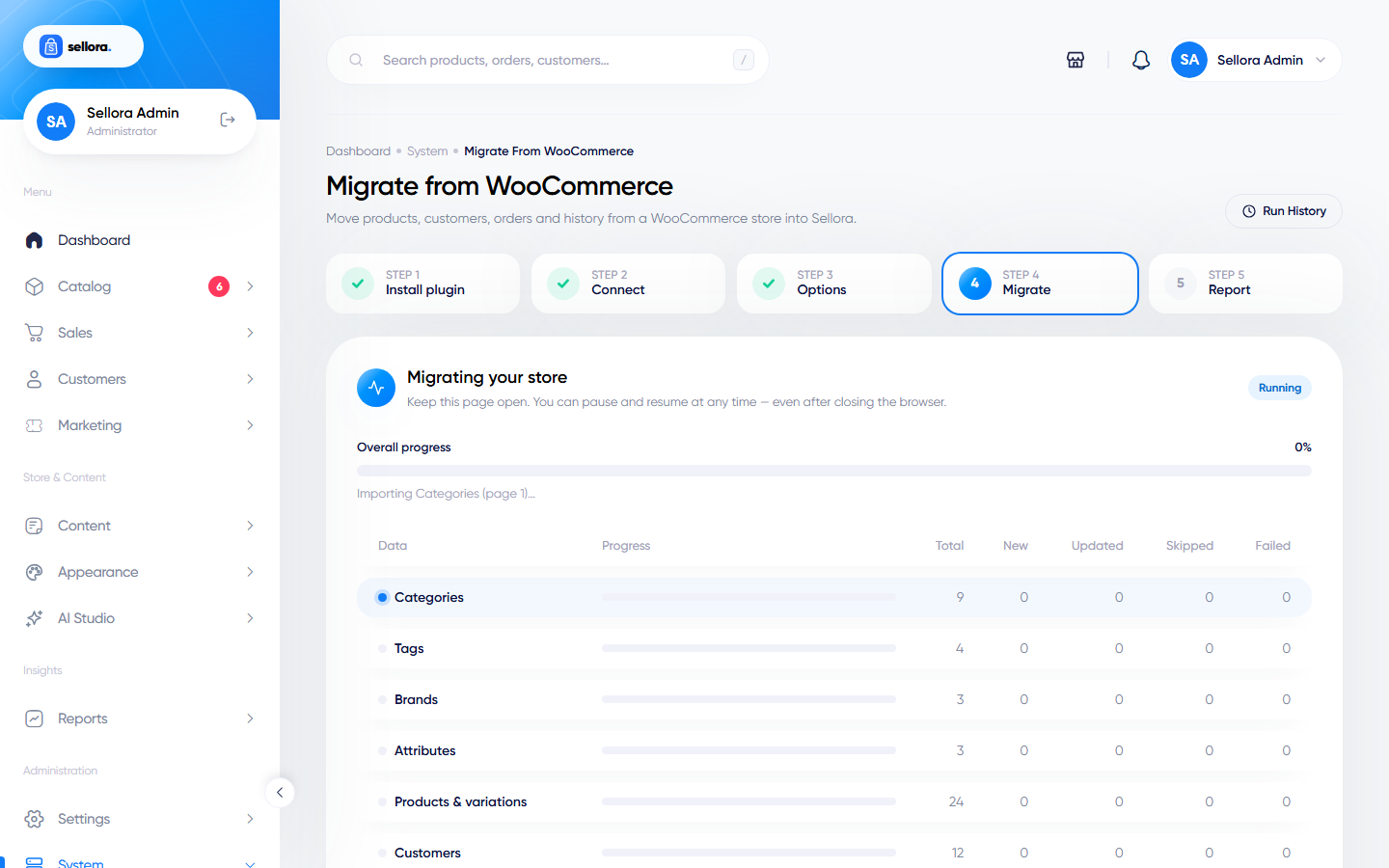
Data is imported in dependency order: categories, tags, brands, attributes, products, customers, coupons, orders, reviews, sales history. Each bar shows the total and how many records were new, updated, skipped or failed. Problems (an image that could not be downloaded, an invalid e-mail address…) appear in Messages; one bad record never stops the run.
- Pause stops after the current step. Resume continues where it stopped — also after you closed the browser: open the page again and the running or paused migration is shown.
- Cancel ends the run. Everything imported so far stays; a new run continues from there without duplicates.
- Each request processes at most about 20 seconds of work; on slow sites Sellora automatically requests smaller pages. Connection errors are retried 3 times with increasing waits, and the run pauses itself after 5 failed steps in a row.
Step 5 — Report#
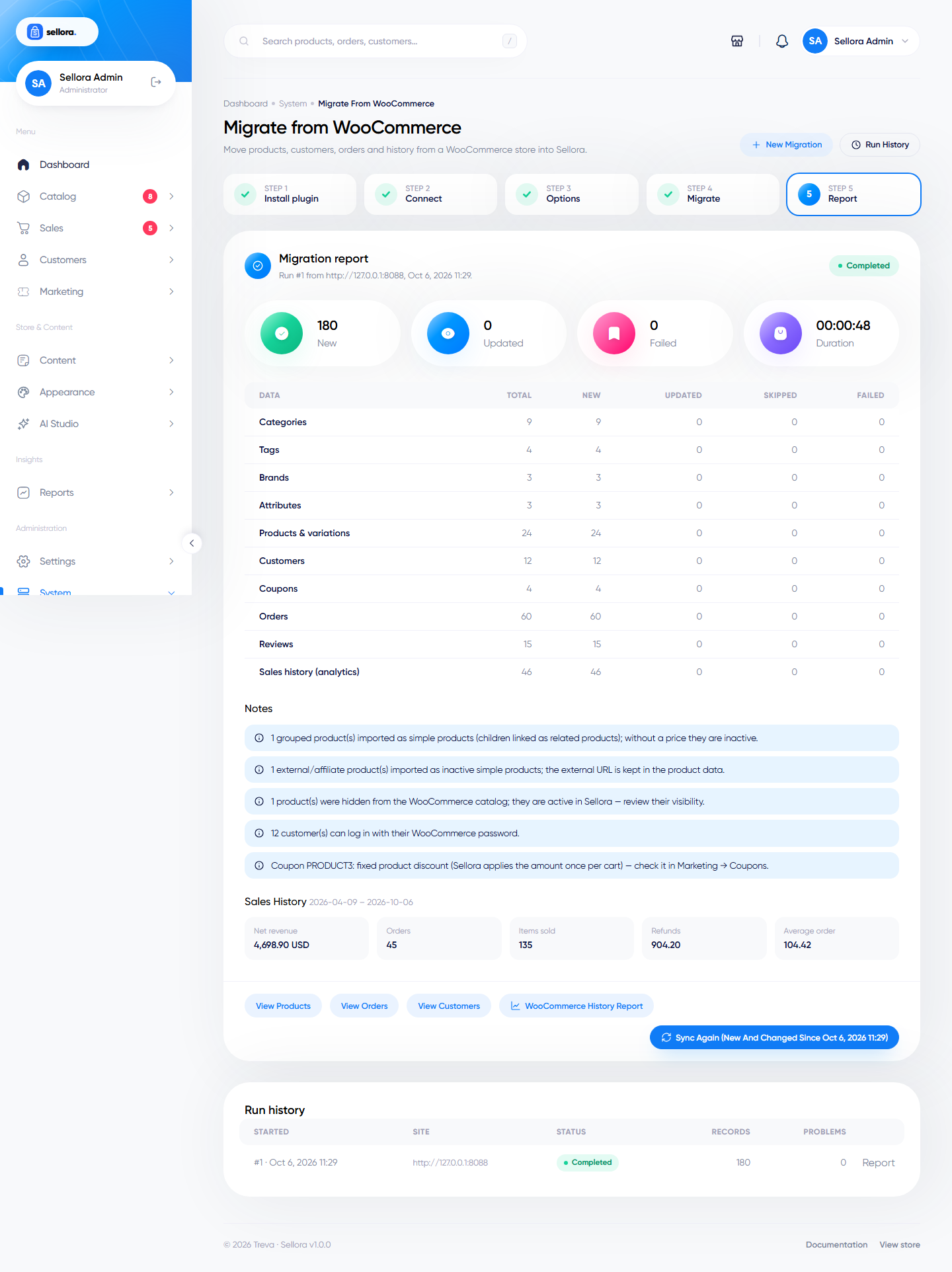
The report lists the totals per data type, notes that need your attention (external products, grouped products, prefixed order numbers, customers without a reusable password, coupon rules Sellora does not support) and the last 50 messages, with links to Products, Orders and Customers.
Sync again (new and changed since …) starts a new run that only asks WordPress for products, customers, coupons, orders and reviews created or changed since the previous run started. The Run history table at the bottom keeps every run with its report.
WooCommerce history report#
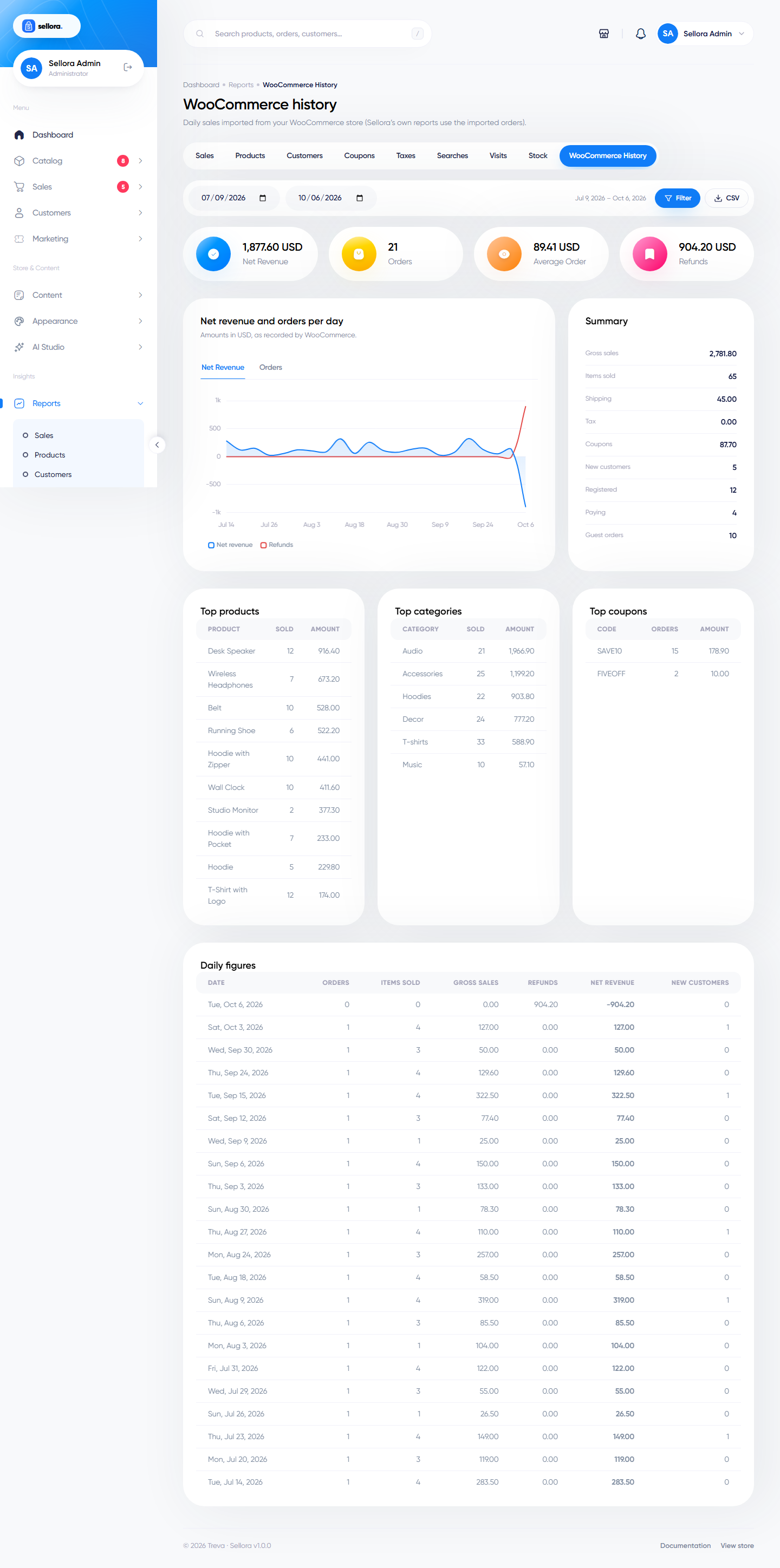
The daily sales figures of your WooCommerce shop (orders, items, gross, refunds, net, shipping, tax, coupons, new customers) are stored separately and shown in Reports > WooCommerce history with a date range, a chart, totals, the top products, categories and coupons, and a CSV export. The entry appears in the menu once history has been imported. Sellora's own reports keep using the imported orders.
What is migrated#
| WooCommerce | Sellora | Notes |
|---|---|---|
| Product categories (tree, image, description, SEO title/description) | Categories | Parents are linked even when a child comes first. A slug that is already used gets a -2 suffix. |
| Product tags | Tags | |
Brands (product_brand, Perfect Brands, YITH Brands) |
Brands | The term image becomes the logo. |
Global attributes (pa_*) and terms |
Attributes and values | An existing Sellora attribute with the same slug (e.g. color) is reused. Swatch colours and images are kept. Swatch attributes become swatch type. |
| Simple product | Simple product | |
| Variable product + variations | Variable product + variants | One variant per variation, with SKU, price, sale price and schedule, stock, weight, image and status. Any values are expanded to every option. The default attributes select the default variant. |
| Grouped product | Simple product | Children become related products; inactive when it has no price of its own. |
| External/affiliate product | Simple product, inactive | The external URL and button text are kept in the product data (extra.external_url). |
| Local (custom) product attributes | Attributes | Created by name. |
| Regular / sale price, sale dates | Price / special price (fixed) and schedule | |
| Stock status, manage stock, backorders, low-stock amount, sold individually | In stock, manage stock, quantity, allow backorders, low-stock threshold, max. quantity 1 | |
| Weight and dimensions | Weight, length, width, height | Converted to the Sellora units. |
| Main image + gallery | Main image + gallery | Downloaded once per URL, even when used by several products. |
| Downloadable files | Product downloads | Copied into private storage; files that cannot be fetched are kept as external links in the product data and listed in the report. |
| Up-sells / cross-sells | Up-sell / cross-sell relations | |
| Yoast / Rank Math SEO | Meta title, description, keywords | |
| Total sales, average rating | Sold count, rating | Recomputed from the imported orders and reviews when those are migrated. |
| Customers (billing and shipping address) | Customers and addresses | Matched by e-mail: an existing Sellora account is linked and its password is never changed. |
| Password hashes | Kept | See Passwords. |
| Orders (all statuses except drafts) | Orders | Number, status, dates (created, paid, completed), billing/shipping address, items linked to the imported products and variants, subtotal, discount, shipping method and cost, taxes per rate, total, payment method, customer note, IP. Fees and extra coupon codes are written into the internal admin note. No stock is moved and no e-mail is sent. |
| Order notes | Order history | Customer notes are marked as sent to the customer. |
| Refunds | Refunds | Payment status becomes Refunded or Partially refunded. |
| Transaction ID | Transaction | Gateway = WooCommerce payment method. |
| Reviews with a rating | Reviews | Approved → visible, verified owner → verified purchase. Comments without a rating and replies are skipped. |
| Coupons | Coupons | percent → percent; fixed cart → fixed; fixed product → fixed limited to its products. Limits, expiry, minimum/maximum spend, usage count and free shipping are copied. |
| WooCommerce Analytics | WooCommerce history report | Daily totals plus top products, categories and coupons. |
Passwords#
WordPress stores passwords as hashes; Sellora copies them unchanged, and the login page understands them:
$P$…hashes (WordPress before 6.8, phpass) and very old MD5 hashes;$wp$2y$…hashes (WordPress 6.8 and newer);- plain bcrypt or Argon2 hashes set by security plugins.
When a customer logs in for the first time, Sellora checks the password against the WordPress hash and immediately replaces it with a native Sellora hash. The same works for the REST API login used by mobile apps. Customers whose hash was not exported get a random password; they can use Forgot password, or you can let Sellora send them a "set your password" e-mail during the migration.
Running it again#
The migration remembers which WooCommerce record became which Sellora record (table migration_maps). Running it again therefore never creates duplicates: records are updated (or skipped, when Update records migrated before is off). If you delete a migrated record in Sellora and run again, it is created again. Customers who already changed their password in Sellora keep it.
Limitations#
- External/affiliate products are imported inactive: Sellora has no "buy on another site" button. Activate them only after deciding how to sell them.
- Guest customers (orders placed without an account) are not created as customer accounts. Their orders keep the name, e-mail and addresses.
- Multi-currency: amounts are copied in the WooCommerce shop currency without conversion. Orders keep the currency they were placed in.
- Units are converted (kg, g, lb, oz; m, cm, mm, in, yd). Other units are copied as-is.
- Coupons: e-mail restrictions, individual use only, exclude sale items and limit usage to X items have no Sellora equivalent and are listed in the report. Fixed product discounts are applied once per cart in Sellora.
- Subscriptions, bookings, memberships, product add-ons and other extensions are not migrated. Custom product fields are stored in the product data (
extra.woocommerce.meta) for reference. - Taxes: order taxes are copied per rate as they were charged. Tax classes and rates are not created; set them up in Settings > Taxes.
- Shipping zones and payment gateways are not migrated; configure them in Settings.
- URLs change: WooCommerce product and category slugs are kept, but the URL structure is Sellora's. Add redirects from your old URLs (for example
/product/{slug}/to/product/{slug}) in your web server if you move a live domain. - The demo installation blocks migrations.
Troubleshooting#
| Message | What to do |
|---|---|
| The migration token was rejected | Copy the token again from Tools > Sellora Migrator; it changes when you click Regenerate. |
| The Sellora Migrator plugin was not found | Check that the plugin is activated and that the URL is the WordPress address (not a sub-page). |
| … answered with HTTP 403 (text/html) instead of JSON | A security plugin (Wordfence, iThemes…), Cloudflare or a cache blocks /wp-json/. Allow /wp-json/sellora/v1/* or temporarily disable the rule. |
| Image could not be downloaded | The image URL returned an error; Sellora also tried the plugin's media endpoint. Add the image by hand, or fix it in WordPress and run Sync again. |
| The run stops at the same page | Large products with many images can be slow. Sellora lowers the page size automatically; resume the run. On very slow hosts turn off Download images, migrate, then run again with images on. |