
AI Studio overview and setup
What the AI features do, which providers you can connect, how to get an API key and how to switch AI on.
AI Studio adds optional writing and assistance features to the admin panel and, if you wish, a shopping assistant to the storefront.
Not tested with a live provider
The connection code for every provider was verified against the providers' API documentation using simulated responses. No live API key was available during development, so no real model has been called. Use the Test connection button first, and always read and edit anything the AI writes before publishing it.
What you can do#
- Write product descriptions, short descriptions, highlights, tags and SEO text (right inside the product editor).
- Translate texts and interface strings.
- Write blog posts and e-mail campaigns.
- Write image alt text and category descriptions.
- Summarise product reviews on the product page.
- Ask questions about your own store ("what sold best last week?") and read a daily briefing.
- Let shoppers chat with a storefront assistant that recommends products.
See AI Studio tools and Storefront assistant and privacy.
Menu items#
AI Studio in the sidebar has AI Studio (the tool gallery), AI Settings and AI Logs. Your role needs the AI permissions (see Roles).
Choose a provider#
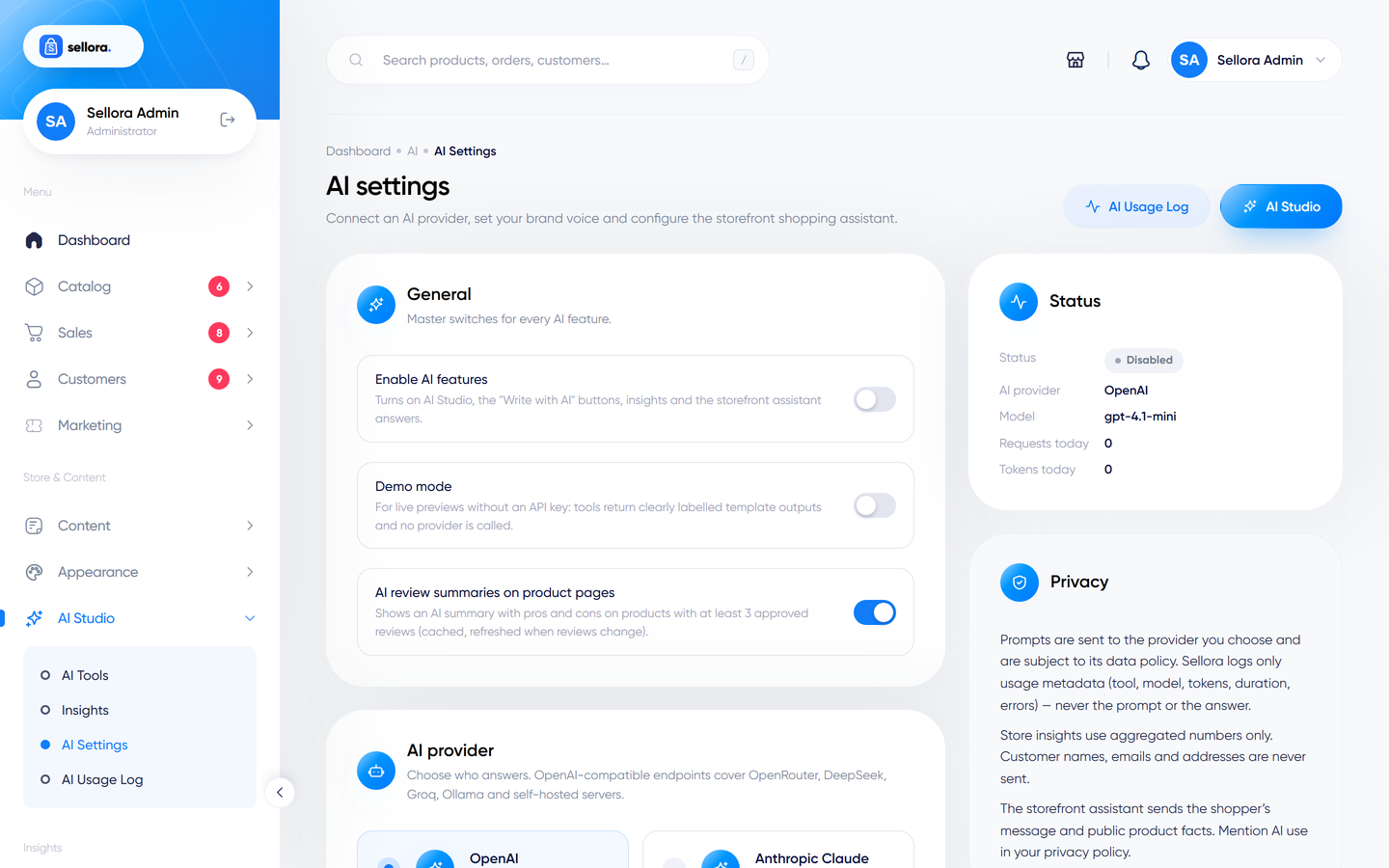
Open AI Studio > AI Settings.
| Provider | Needs a key | Default model | Where to get a key |
|---|---|---|---|
| OpenAI | Yes | gpt-4.1-mini |
platform.openai.com/api-keys |
| Anthropic Claude | Yes | claude-sonnet-4-5 |
console.anthropic.com |
| Google Gemini | Yes | gemini-2.5-flash |
aistudio.google.com/app/apikey |
| OpenRouter (many models, one key) | Yes | openai/gpt-4.1-mini |
openrouter.ai/keys |
| DeepSeek | Yes | deepseek-chat |
platform.deepseek.com |
| Groq | Yes | llama-3.3-70b-versatile |
console.groq.com/keys |
| Ollama (self-hosted, on your own server) | No | llama3.2 |
ollama.com |
| Custom OpenAI-compatible endpoint | Depends | you enter the model | your server's documentation |
Model lists change quickly: pick a suggested model or type any model name your provider supports.
Step by step#
- Create an account with a provider and add billing (most charge per use). Create an API key.
- Open AI Studio > AI Settings.
- Switch on Enable AI features.
- Choose the provider, paste the API key (it is stored encrypted and never sent to the browser) and optionally change the model or base URL (only for proxies or regional endpoints).
- Click Test connection. It sends a tiny request with the values on the page and reports the response time, or a clear error (wrong key, no credit, rate limit).
- Set your brand voice: what your store sells, the default output language and guidelines such as "warm, short sentences, no exclamation marks". These are applied to every generated text.
- Adjust creativity (temperature), max output tokens (long blog posts need 3000 or more) and the daily limit per admin to control cost.
- Save.
Demo mode#
Switch on Demo mode to try every tool without an API key. Tools return clearly labelled template outputs and no provider is called. Demo mode wins over a configured provider, so switch it off when you are ready for real output.
Costs#
AI providers bill you directly according to their prices. Sellora does not add a charge. AI Studio > AI Logs shows usage (tool, model, tokens, duration, errors) and AI Settings shows today's request and token counts. Use the daily limit per admin to cap spending.
Not configured?#
If AI is disabled or not configured, the "Write with AI" buttons stay hidden, and the storefront assistant (if switched on) still answers with a smart catalogue search.