Admin panel tour and dashboard
Find your way around the admin panel - sidebar, search, notifications and the dashboard.
Signing in#
Open https://your-domain.com/admin. Staff sign in with their e-mail and password. Customers cannot see the admin panel, and staff only see the menu items their role allows - see Roles, permissions and staff.
The layout#
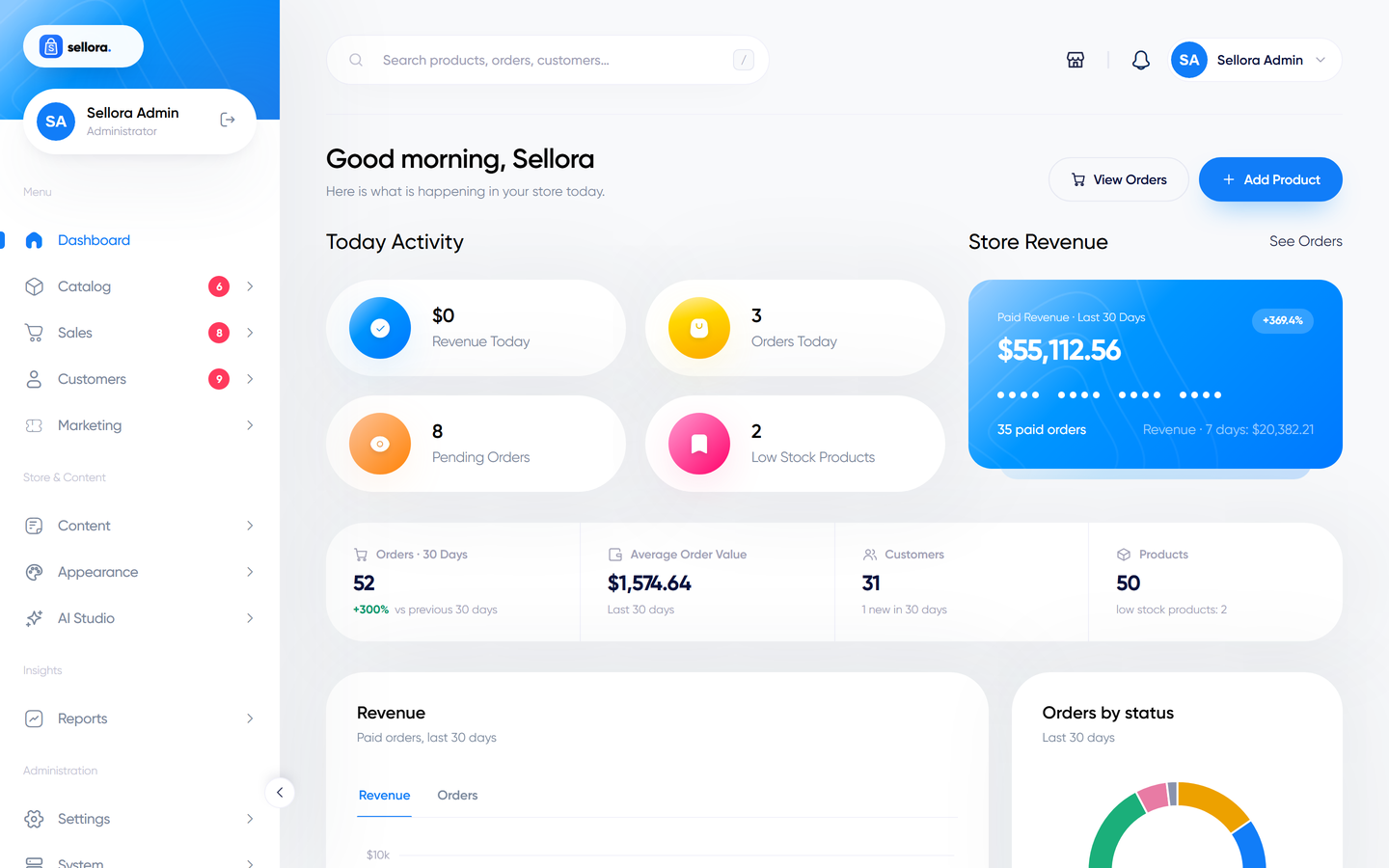
- Left sidebar - grouped into Catalog, Sales, Customers, Marketing, Content, Appearance, AI Studio, Reports, Settings and System. It can be collapsed to an icon rail. Badges on menu items show things that need attention (for example orders waiting for action).
- Top bar - global search, notifications, your profile and sign-out.
- Global search finds products, orders and customers (up to five of each, only the kinds you have permission to see) as you type.
- Notifications list new orders, new tickets and other events. Click one to jump to the record.
The dashboard#
The dashboard summarises how the shop is doing:
- Key figures: store revenue, revenue and orders today, average order value, pending orders, pending reviews, customers and products.
- Revenue and orders charts, and an orders-by-status breakdown.
- Latest orders and top products.
- Low-stock warnings and recent activity, plus quick links for adding a product or viewing orders.
- When the AI Studio is enabled, a daily AI briefing about your shop (see AI Studio overview).
Dashboard figures are cached for about two minutes, so a brand-new order may take a moment to appear in the totals.
For deeper analysis use the eight Reports.
Your profile#
Admin > Profile (top-right menu) lets you change your name, avatar and password.
Media library#
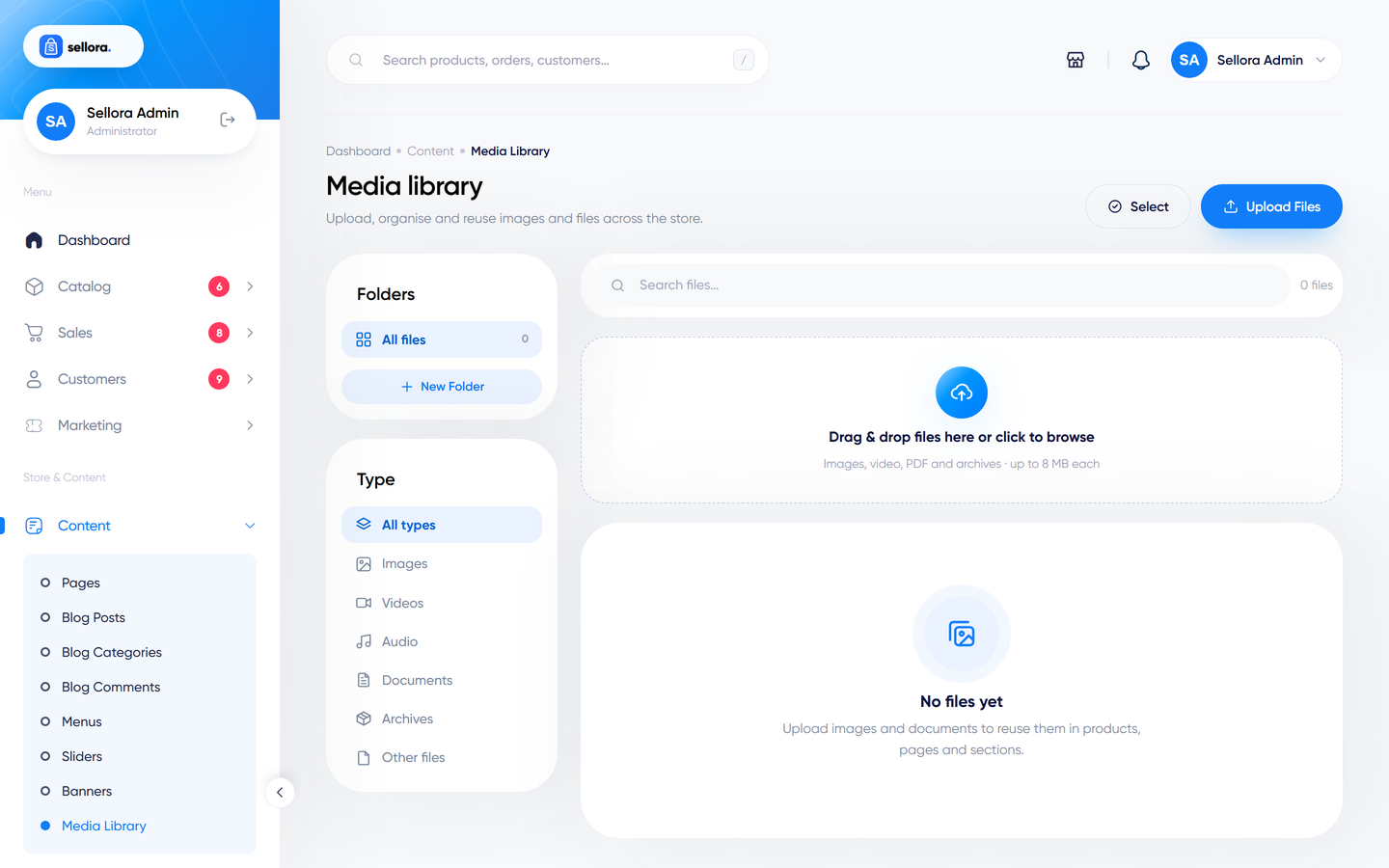
Content > Media is the central library for images and files you upload. Pick from it whenever a form asks for an image. Files must be 8 MB or smaller; allowed image types are JPG, PNG, GIF, WebP, SVG and AVIF.