
Products
Create simple and variable products, options, downloads, bulk actions, CSV import and export.
Open Catalog > Products.
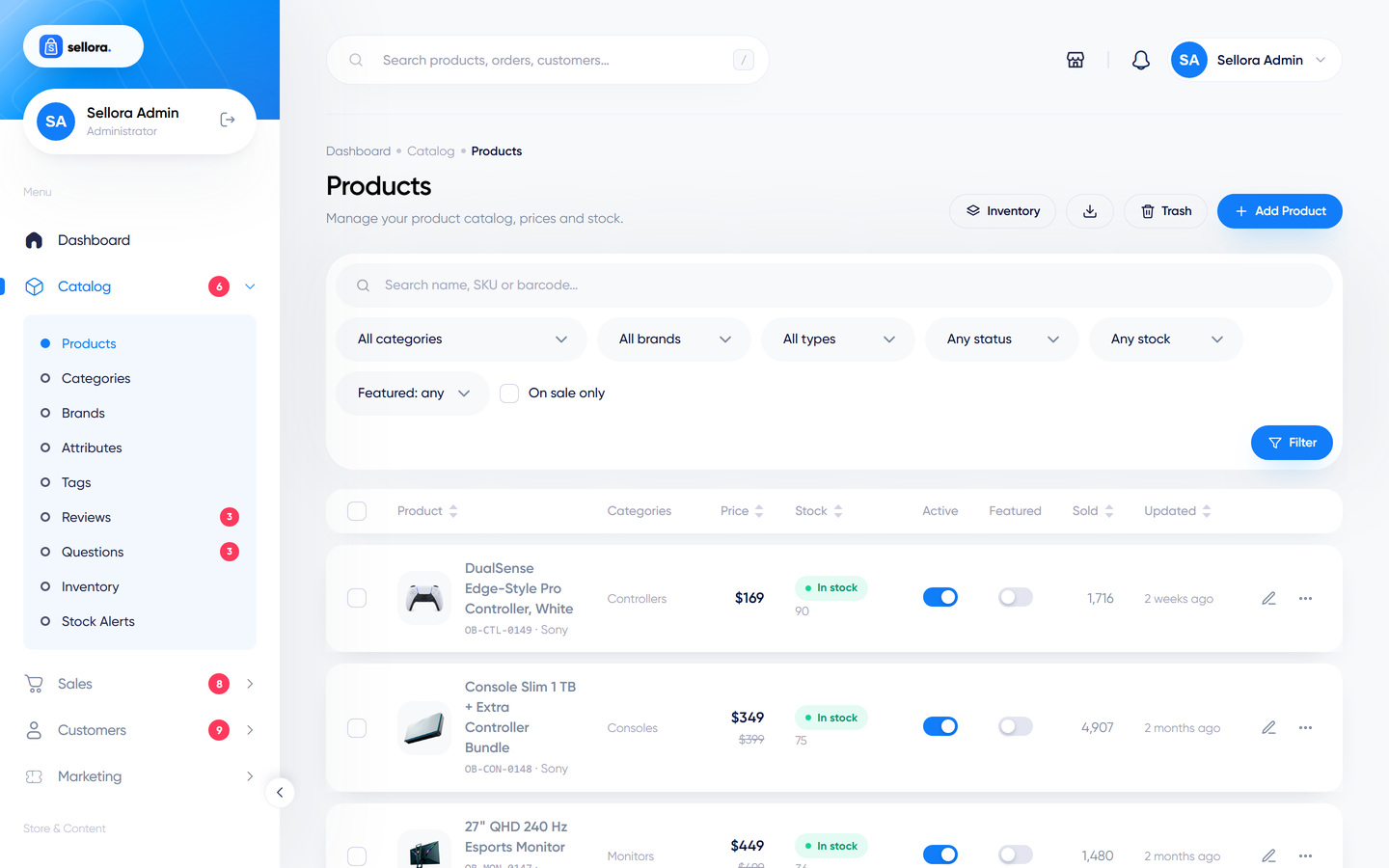
The product list#
- Filters: search, category, brand, type, status, stock (in stock / low / out), featured, on sale, plus sorting and items per page.
- Quick toggles: switch Active and Featured directly in the list.
- Bulk actions: activate, deactivate, feature, unfeature, move to trash, restore, delete permanently.
- Trash: deleted products go to the trash first (use the Trash filter to restore them).
- Duplicate: copies a product as an inactive draft with a new slug and SKUs.
Create a simple product#
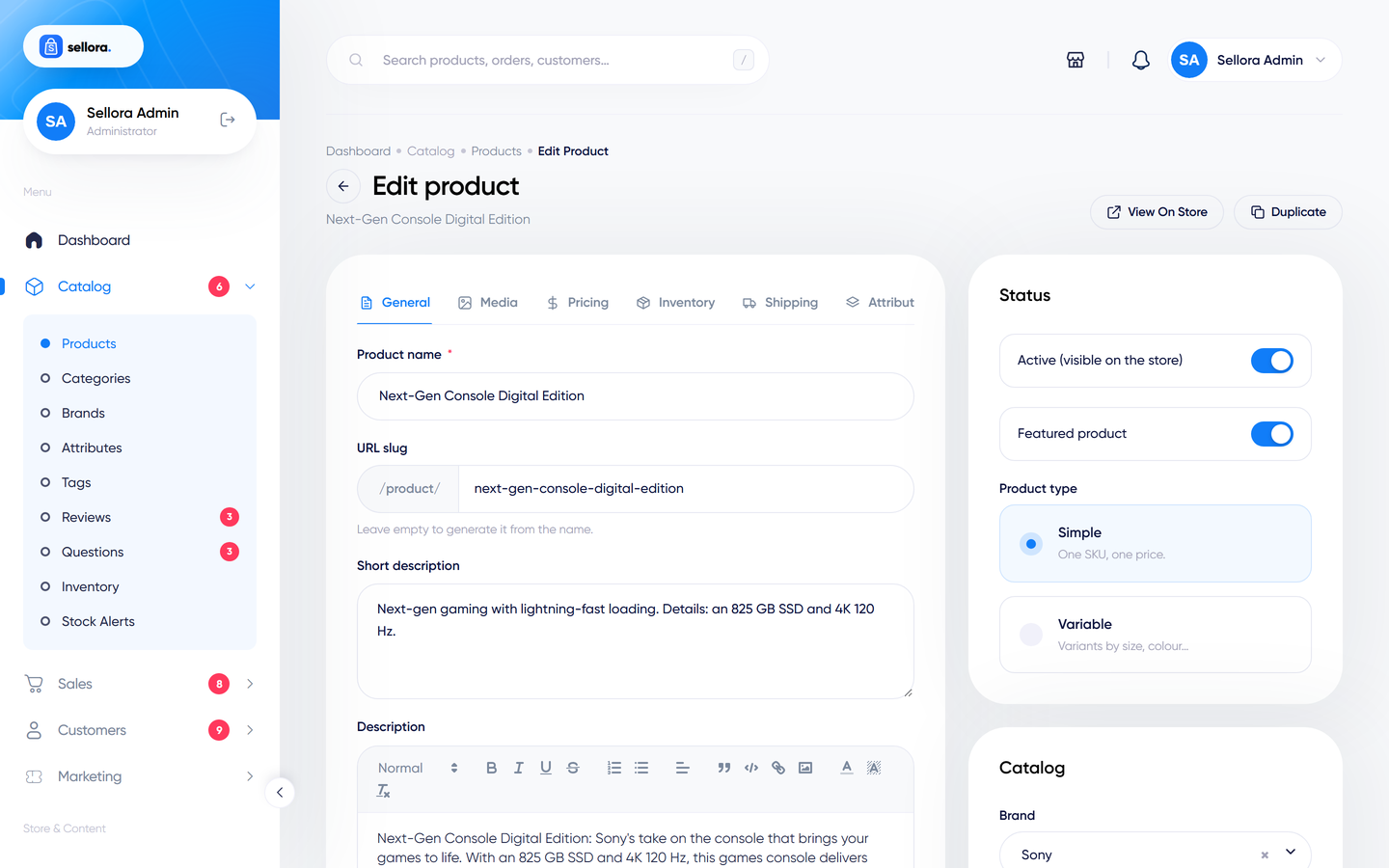
A simple product has one price and one stock quantity (a T-shirt in one size, a book).
- Click Add product.
- Name and description (the short description appears next to the price on the product page). Use the language tabs if you run several languages.
- Pricing: regular price, optional special price (with start and end dates), cost price (for your own margin reports) and tax class.
- Inventory: SKU, barcode, Manage stock with quantity, stock status, and whether to allow backorders.
- Images: upload or choose from the media library; the first image is the main one. Drag to reorder.
- Organisation: categories (a product can sit in several), brand, tags (type a new tag and press Enter to create it).
- Specifications: key/value pairs shown on the product page (material, weight ...).
- SEO: meta title and description, with a live search-result preview, and a slug check that warns about duplicates.
- Optional: Product page layout in the Catalog card. Leave it on Store default to use the store's layout (Sticky unless you changed it), or pick Sticky, Gallery, Full width, Tabs or Kit for this product only. See Product page layouts.
- Switch Active on and click Save.
Write with AI
When the AI Studio is enabled and you have permission to use it, "Write with AI" buttons next to the description and SEO fields draft text from the product name, category and brand. Always read and edit the result.
Create a variable product#
A variable product has choices such as size and colour, each combination with its own price, SKU, stock and image.
- First create the attributes (Size, Colour) with their values - see Categories, brands, attributes and tags.
- Create a product and set its type to Variable.
- In the Variations section choose the attributes and values to use (for example Size: S, M, L and Colour: Black, White).
- Click Generate variations. Sellora creates every combination (up to 300) and skips ones that already exist, so you can add a new value later and generate again without losing edits.
- Fill in price, SKU, stock and image for each variation. The bulk edit row applies one value (for example a quantity) to all variations at once.
- Choose the default variation shown first.
- Save. Customers pick options on the product page; the price, stock text and image update instantly.
A variable product shows the price of the cheapest in-stock variation ("from ...") in listings.
Note
Duplicate variation SKUs are rejected with a highlighted error; the editor keeps your other changes.
Custom options#
Options are extra choices that do not create separate stock items: an engraving text, a gift wrap tick-box, a drop-down for a pre-installed extra. Add them in the Options section: choose the type, label, whether it is required and the values (each can add a fixed or percentage price). Option prices are added to the product price in the cart.
Digital downloads#
In the Downloads section upload files (stored privately, not reachable by direct URL). Customers get a download link in their account area after purchase - see Customer account area.
Related products, up-sells and cross-sells#
Pick related products, up-sells (shown on the product page) and cross-sells (shown in the cart) with the product pickers.
Import and export#
Export#
Products > Export downloads a CSV of the products matching your current filters, including variations as separate rows (type = variant with parent_sku). Columns include name, slug, SKU, brand, categories, tags, prices, stock, images, descriptions, attributes, SEO fields, status and featured.
Import#
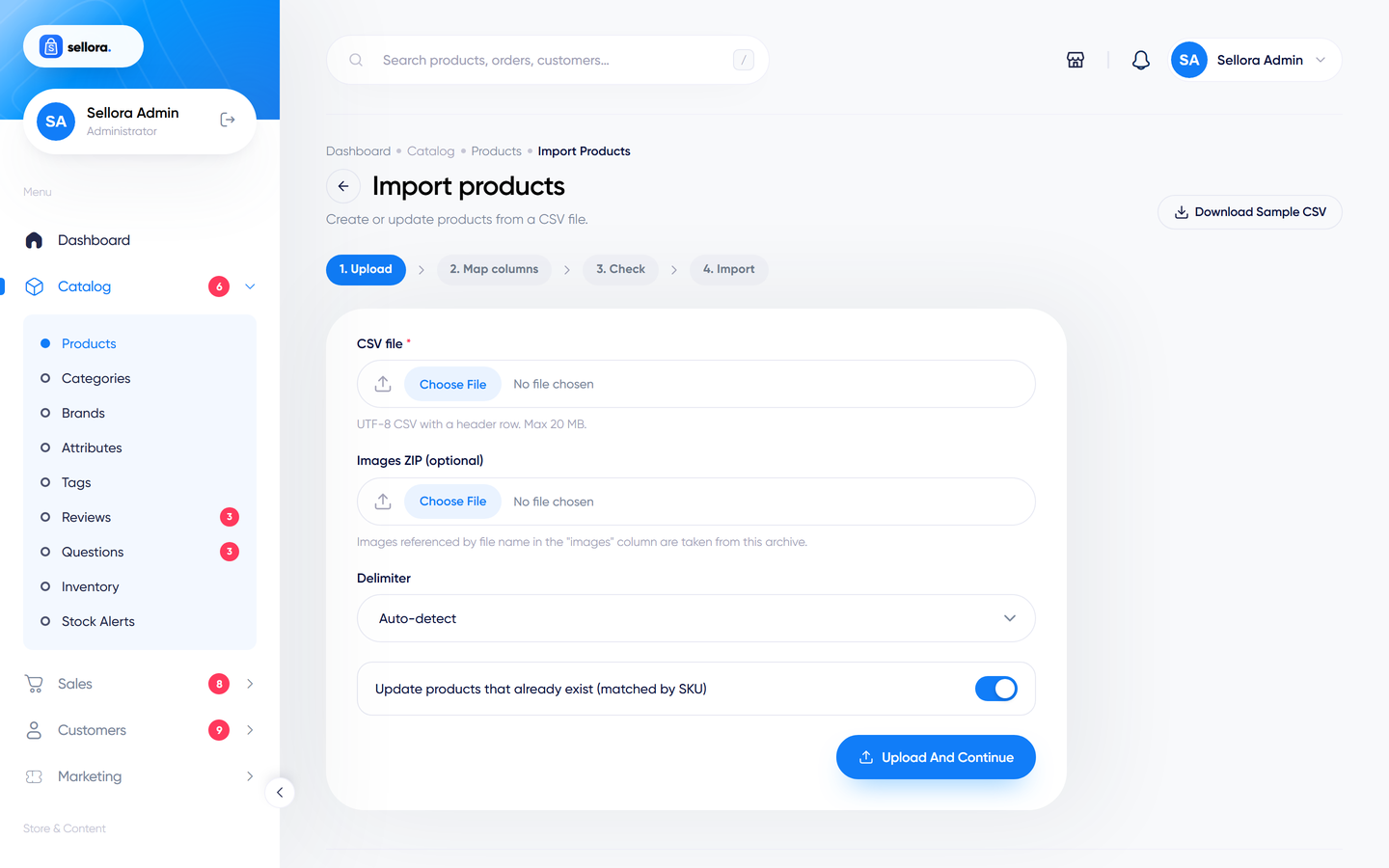
Products > Import is a three-step wizard:
- Upload a CSV (download the sample file from the same page to see the format) and, optionally, a ZIP of images.
- Map columns - tell Sellora which CSV column holds which field.3. Run - the import processes rows in small batches with a progress bar and shows an error report. A dry run option lets you check the file first.
How the import behaves:
- Products are matched by SKU: existing ones are updated, new ones are created. You can export, edit in a spreadsheet and re-import.
- Brands, category paths (
Women > Dresses), tags, attributes and attribute values are created automatically. - Variation rows are matched by SKU or by their combination of values.
- Image URLs starting with
httpare stored as given and are not downloaded. Use a ZIP, or local file names that already exist in the media folder. - Imported text is saved in the default language only.
- SVG images in a ZIP are skipped for safety.
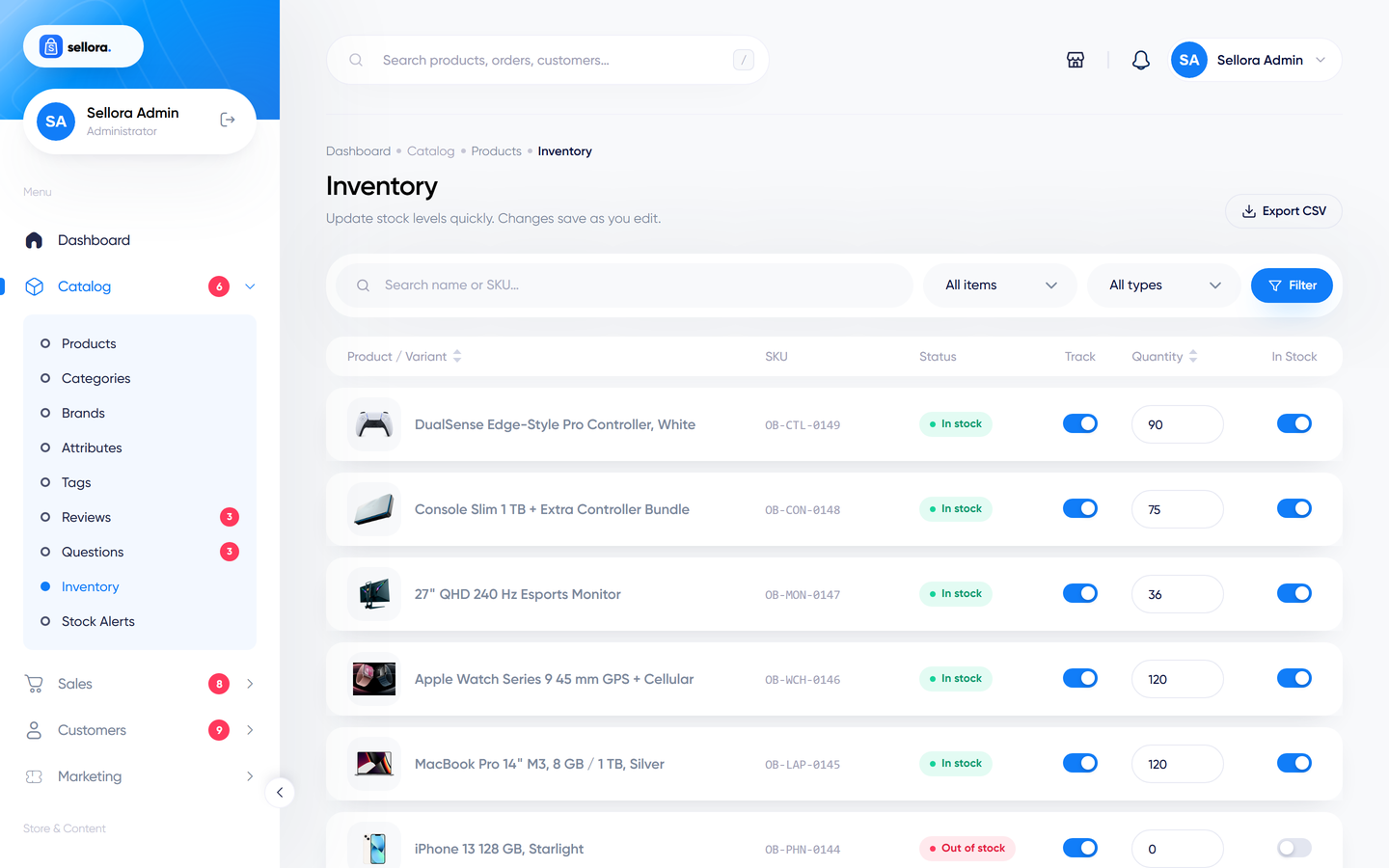
Inventory screen#
/admin/inventory (reachable from the admin search and your browser address bar) is a spreadsheet-style view for editing stock quantities and in-stock flags quickly, with CSV export. Low-stock items are highlighted using the threshold in Settings > Catalog.
Stock alerts#
When a customer asks to be told about a sold-out product, the request appears under Catalog > Stock alerts. After restocking, click Notify now to e-mail everyone waiting.