
PWA (installable app)
The web app manifest, icons and offline page that let customers add your store to their phone's home screen.
A progressive web app lets customers add your store to their home screen so it opens like an app, full screen and with your icon.
Open Settings > PWA.
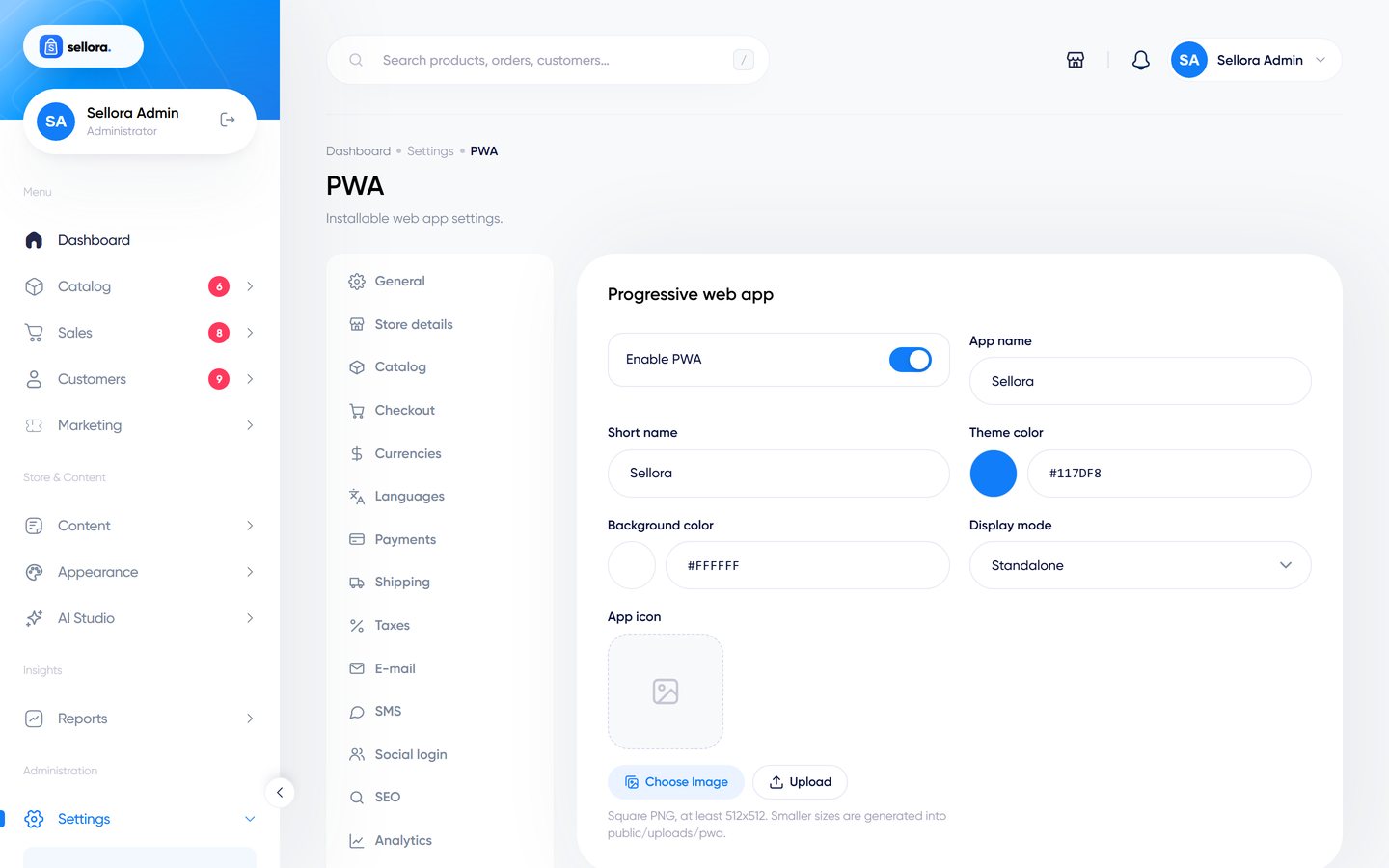
| Field | Meaning |
|---|---|
| Enable PWA | Publishes the web app manifest (/manifest.json) and links it from every page. |
| App name, Short name | Full name and the short label under the home-screen icon. |
| Theme color, Background color | The browser bar colour and the splash background. |
| Display mode | How the app opens (for example standalone or fullscreen). |
| App icon | Upload a square PNG (512 x 512 recommended). Sellora generates the icon sizes it needs. |
Requirements#
- Your store must run over HTTPS.
- Upload an icon and set a short name before testing.
How to test#
On an Android phone open your store in Chrome, open the menu and choose Add to Home screen (or Install app). On an iPhone use Safari's Share > Add to Home Screen.
Offline mode
When the PWA is enabled (and the store runs over HTTPS), the storefront registers the service worker public/sw.js and serves an offline page (/offline). The manifest, icons and home-screen shortcut are generated from your settings. Registration is implemented and was checked in code, but it was not inspected in the browser's developer tools, and install prompts differ per browser and device, so test on your own phone. The worker is registered as sw.js?v=<build version>. Every npm run build that changes a file changes that version, so browsers install the new worker, which deletes the old caches when it activates. Versioned CSS/JS and fonts are cached; pages are always fetched from the network first (the cached copy is only an offline fallback). Cart, checkout, account, admin and API requests are never cached. See Front-end assets build.