Orders, refunds and invoices
Process orders, change statuses, issue refunds, print invoices, create manual orders and follow transactions.
Open Sales > Orders.
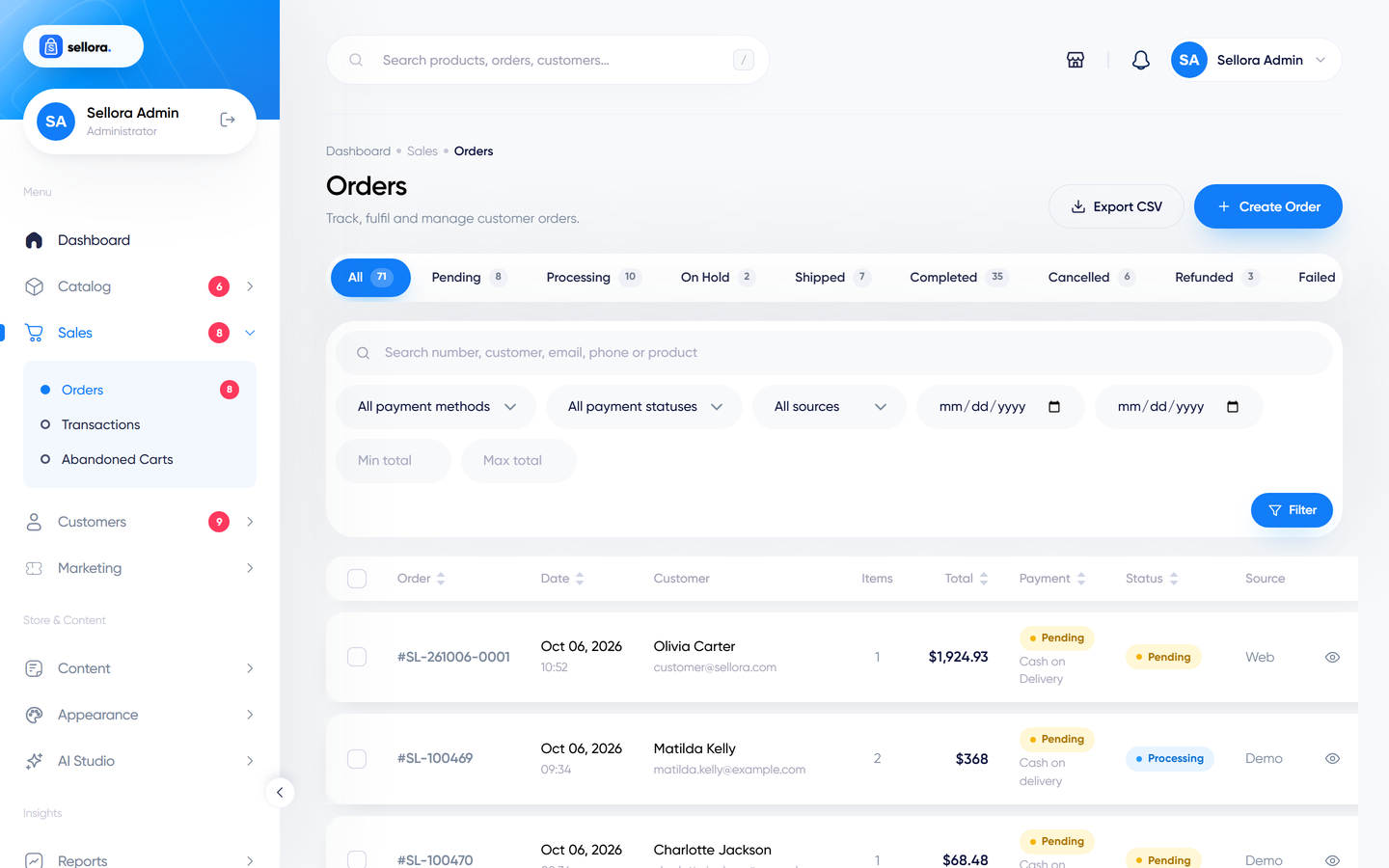
The orders list#
Filter by status, payment status, date, customer, payment method and order total, or search by order number, name or e-mail. Select several orders to change their status in bulk. Export downloads the filtered list as CSV.
Order statuses#
| Status | Meaning |
|---|---|
| Pending | Placed, waiting for payment or confirmation. |
| Processing | Paid or accepted; you are preparing it. |
| On hold | Paused, for example waiting for a bank transfer or a customer reply. |
| Shipped | On its way to the customer. |
| Completed | Delivered. |
| Cancelled | Cancelled by you or by the customer. |
| Refunded | Fully refunded. |
| Failed | Payment failed. |
The payment status is tracked separately: pending, paid, failed, refunded or partially refunded.
When you change the status you can tick notify the customer to e-mail them. Stock is released automatically when an order is cancelled, refunded or an unpaid order expires (the expiry time is set in Settings > Checkout, Unpaid order expiry).
The order page#
Click an order number.
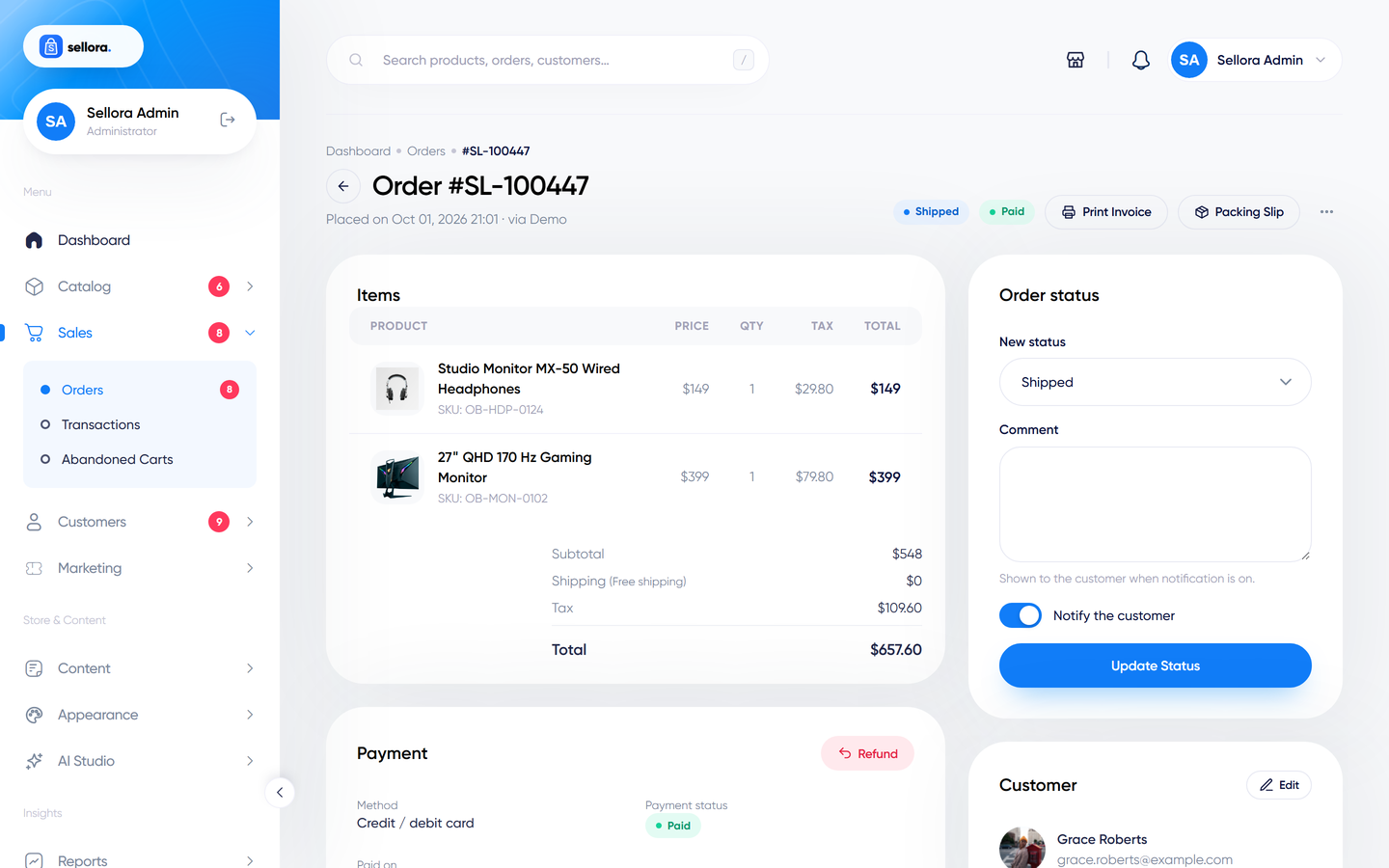
You can:
- See items, options, totals, taxes, shipping method, coupon, addresses and the customer's note.
- Change the status (and notify the customer) and see the full status history.
- Add an internal note that customers never see.
- Enter tracking details (carrier, number, link), which are shown to the customer.
- Mark as paid (for example after a bank transfer arrives); the customer gets a payment e-mail.
- Send the order e-mail again.
- Download the invoice and the packing slip as PDFs. Invoice numbers use the prefix from Settings > Checkout (default
INV), and order numbers default to the prefixSL.
Refunds#
Use Refund on the order page:
- Enter the amount to refund in the order's currency (partial or full) and a reason.
- If the payment was made with a gateway that supports refunds - Stripe, PayPal, Razorpay, Paystack, Flutterwave and Mollie - Sellora sends the refund to the provider.
- For other methods (offline gateways, Paytm, SSLCommerz, Instamojo, iyzico) Sellora records the refund but you must send the money back yourself, outside Sellora.
- A full refund moves the order to Refunded and releases stock and reward points. A partial refund keeps the order status and marks it partially refunded.
Warning
Gateway refunds are only verified against provider documentation and test responses. Try one refund in your gateway's sandbox before relying on it.
Create a manual order#
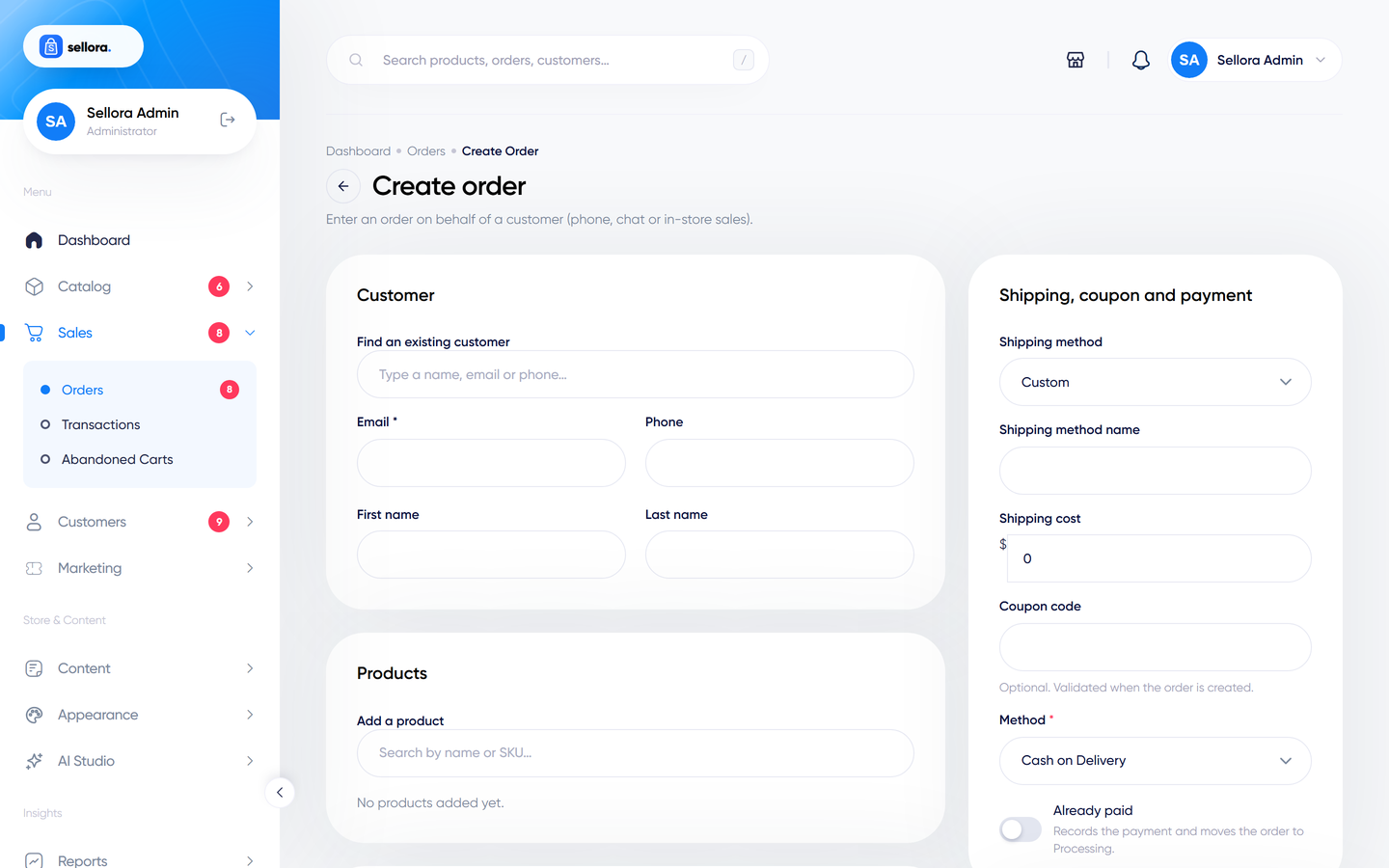
Use Orders > Create order for phone and walk-in orders:
- Pick an existing customer or enter a new one.
- Search and add products (with variations and options) and quantities.
- Choose shipping and payment methods, add a coupon and notes.
- Optionally mark it as paid and notify the customer.
Tax and coupon discounts are calculated when you save. Manual orders are created in your default currency. To repeat a past order, open it and use Duplicate, which pre-fills this form.
Transactions#
Sales > Transactions lists every payment, refund and gateway event with provider reference, amount and status, and exports to CSV. Use it to reconcile with your payment provider's dashboard.
Abandoned carts#
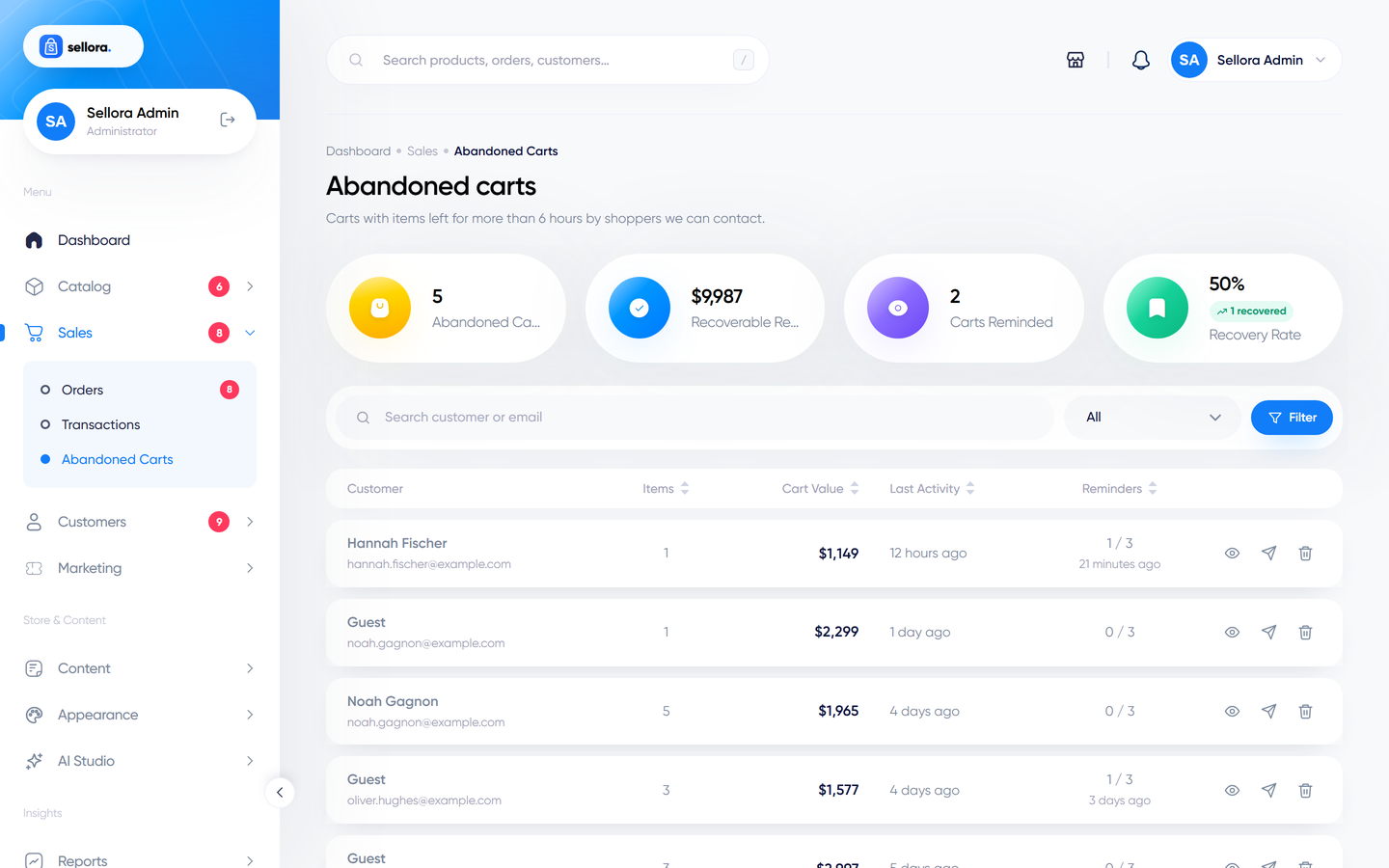
Sales > Abandoned carts lists carts with an e-mail address that were left behind. Send a reminder manually, or let the scheduler do it: after the number of hours you set in Settings > Checkout an automatic reminder e-mail is sent, optionally with a coupon code. This needs the cron job.