
Pages, blog, menus, sliders and banners
Edit your CMS pages, publish blog posts, build menus and manage the sliders and banners on your home page.
All of these live under Content in the sidebar.
Pages#
Content > Pages manages pages such as About us, FAQ, Privacy Policy, Terms and Conditions, Shipping Policy and Returns and Refunds. Sellora includes sample text for these six pages: replace it with your own before launch - especially the legal pages.
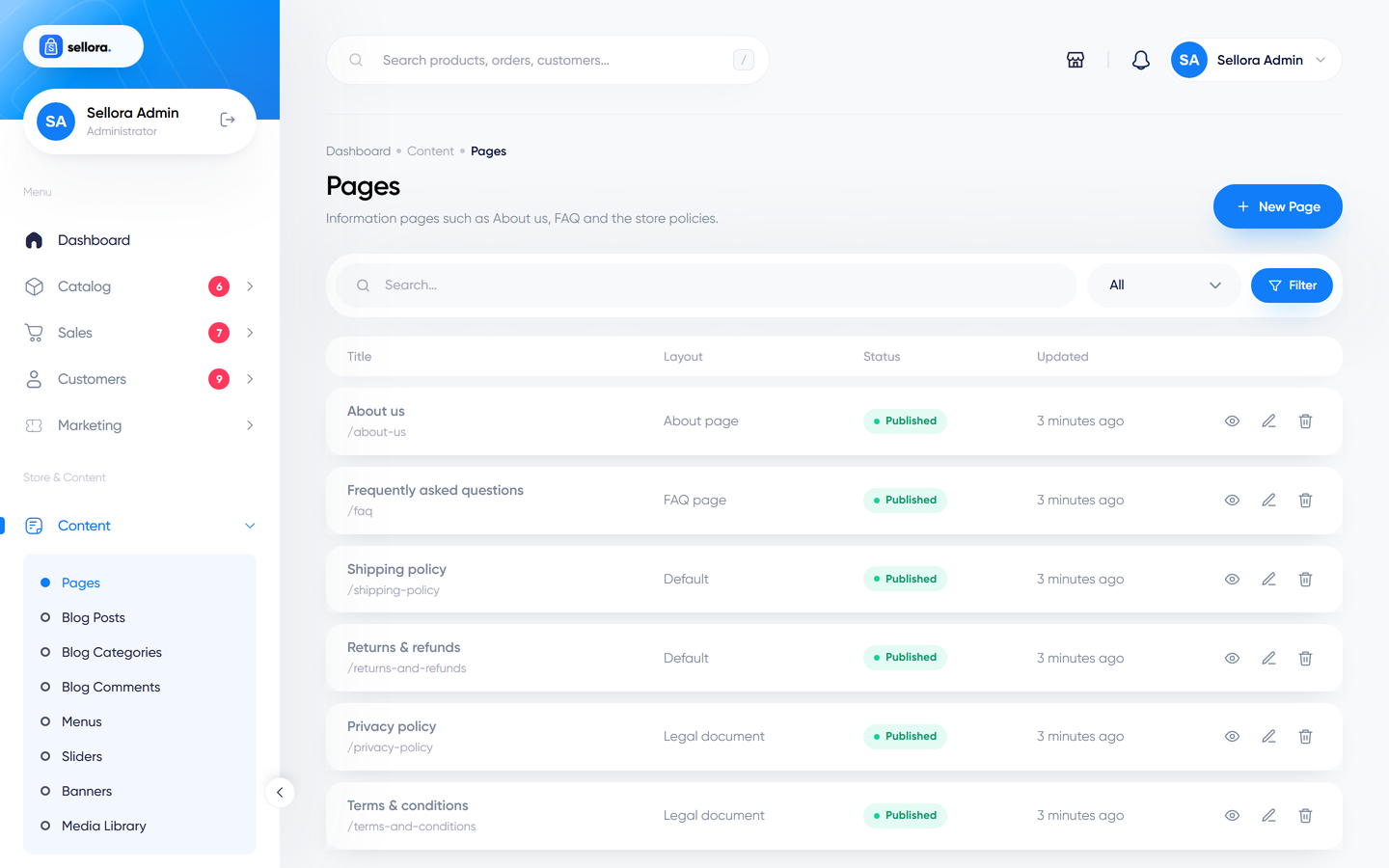
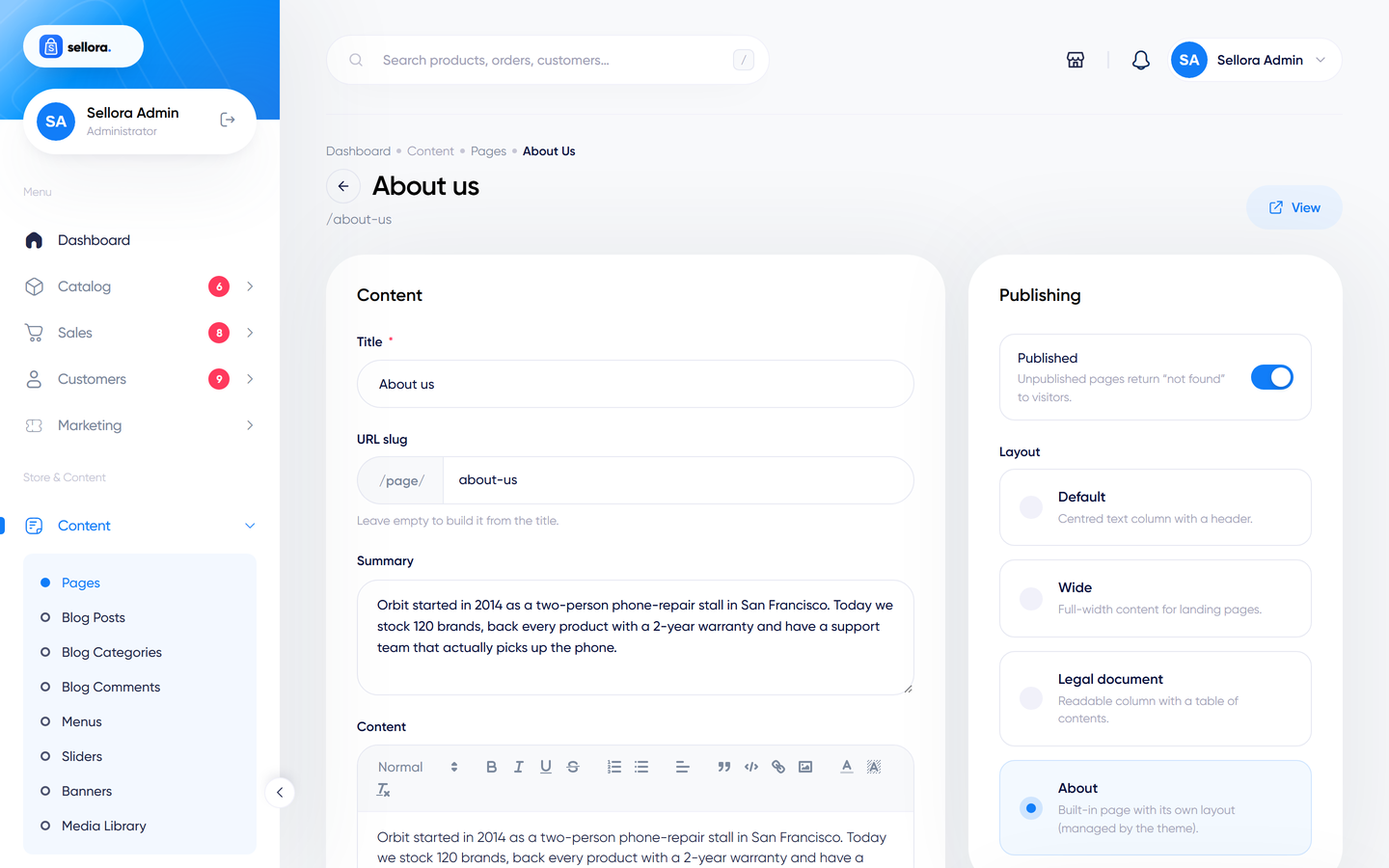
Edit a page to change its title, content (rich-text editor), slug, status, SEO fields and template (default, wide or legal). Pages are published at /page/your-slug. The Terms and Privacy pages are linked at checkout - choose which pages these are in Settings > Checkout.
Blog#
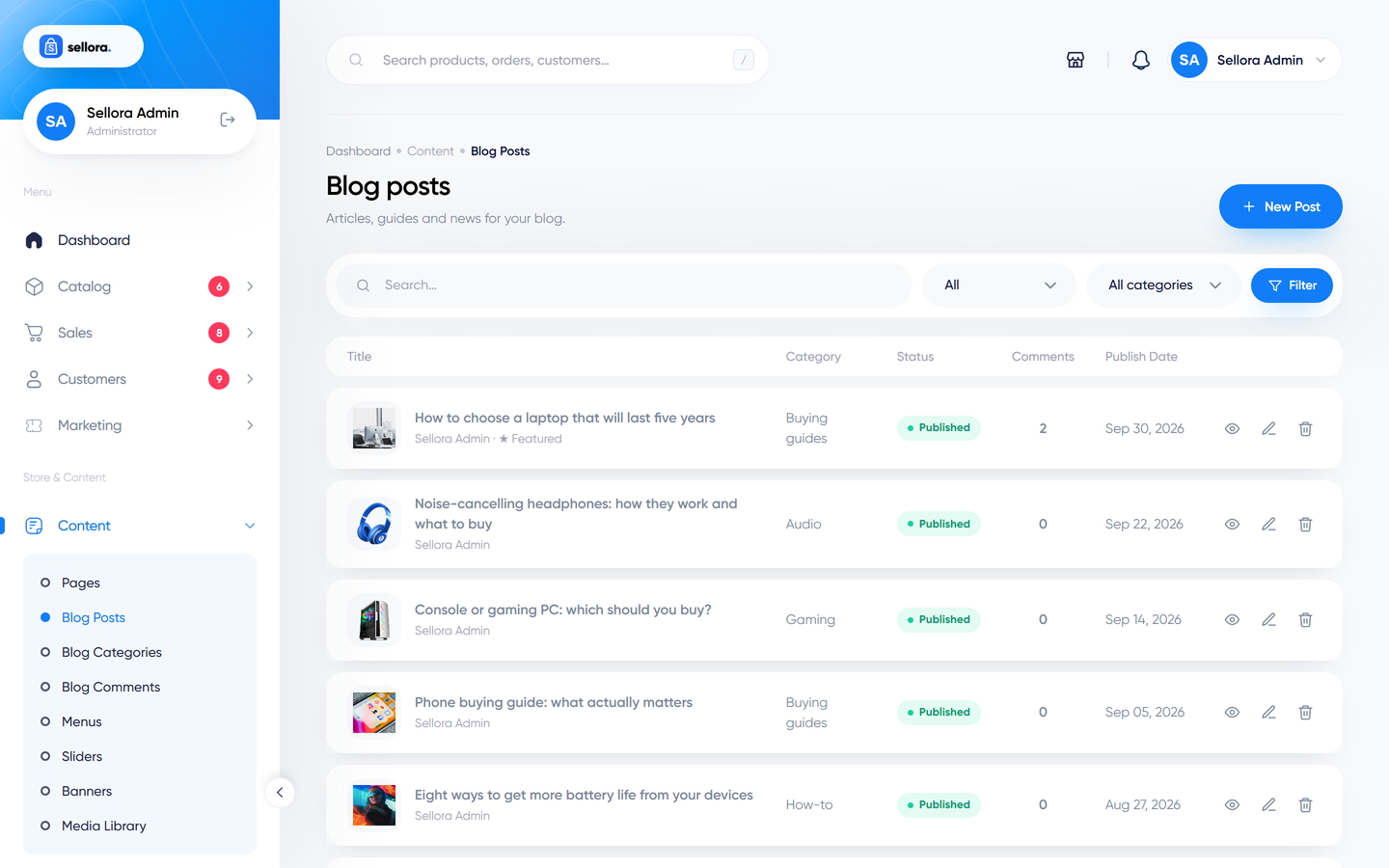
- Blog posts: title, excerpt, content, cover image, category, tags, author, publish date, status and SEO fields. Posts appear at
/blog. - Blog categories: organise posts; each has its own page.
- Blog layouts: the list and post designs are chosen in Settings > General > Blog - see Blog layouts.
- Blog comments: if comments are enabled (Settings > General), approve, hide, bulk-process or reply to them here.
Write with AI
With the AI Studio on, the post editor has a "Write with AI" button that fills in the title, excerpt, body and SEO fields from a topic. Review it before publishing.
Menus#
Content > Menus controls the navigation: main menu, categories menu, two footer columns and the mobile menu.
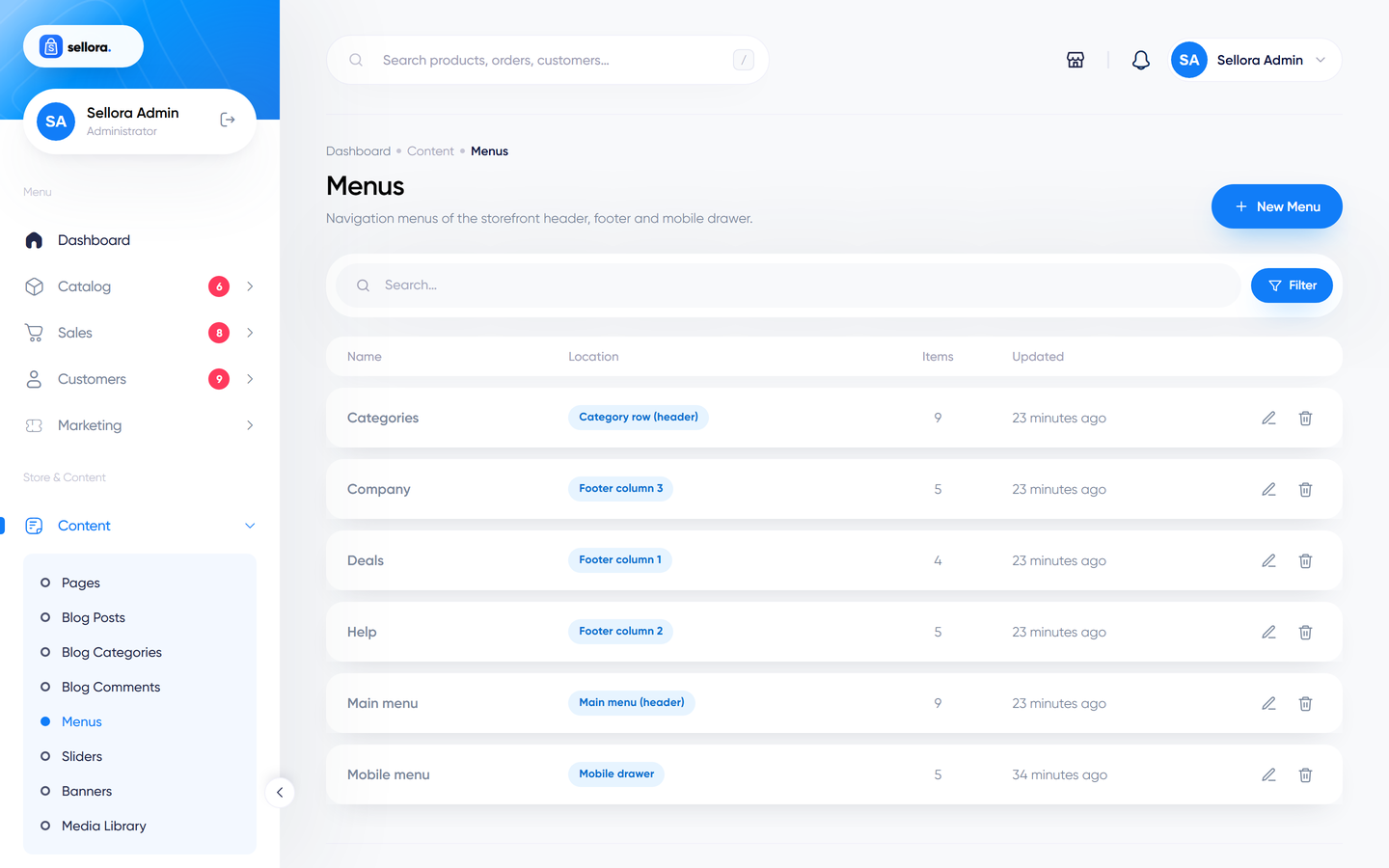
- Choose a menu.
- Add an item: pick the type (a store page such as Shop, Blog, Contact, Cart or Account; a category; a brand; a page; or a custom link), enter the label and save.
- Drag items to reorder and nest them to make drop-down sub-menus.
- Save the structure.
A menu item can also hold "mega menu" settings (columns, image). The marketplace-style headers render these columns as a mega menu (verified on the Fashion design: Women and Men drop-downs). Classic and studio headers use their own drop-downs, so test a mega menu on the design you use.
Sliders#
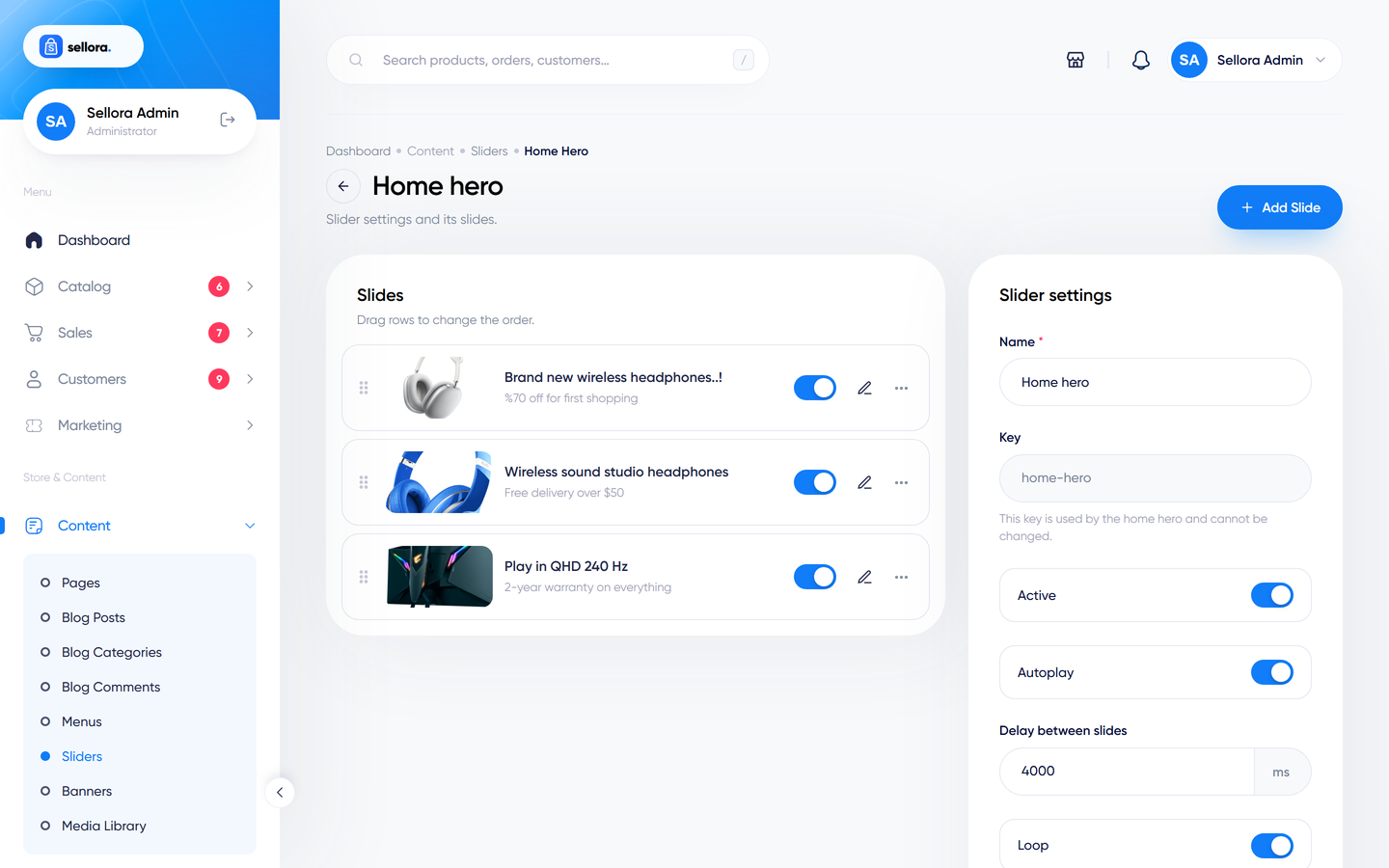
Content > Sliders holds the slideshows for the home-page hero. Create a slider, then add slides: image (desktop and mobile), heading, text, button label and link, text colour options and a background. Reorder slides by dragging. Which slider a home section uses is set in the Home builder.
Banners#
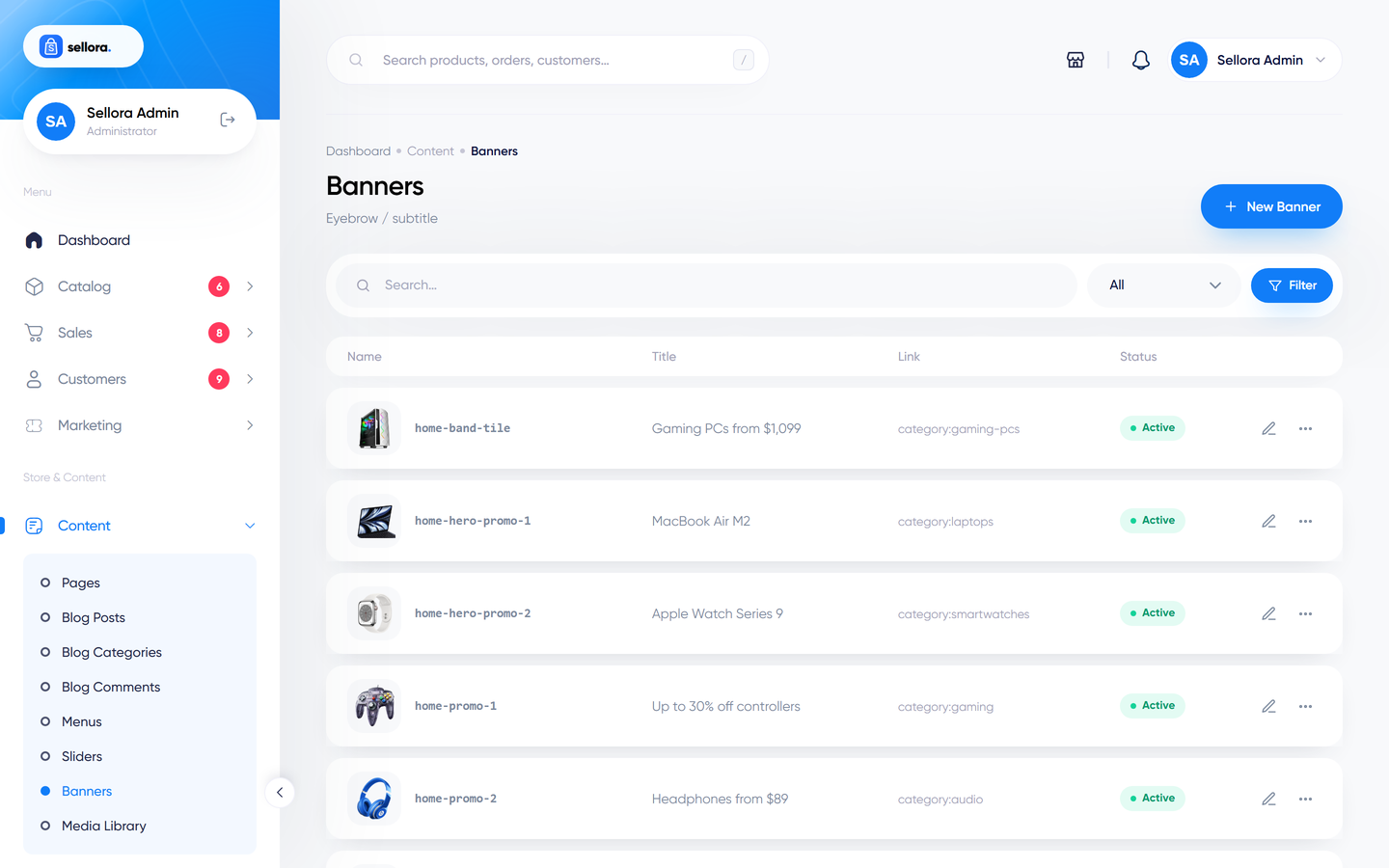
Content > Banners are the promotional image tiles shown in "promo banner" sections: an image, a title, a link and a style. Home-page sections refer to banners by name.
Note
Some banner presentation fields (scheme and alignment) are stored but not yet read by every home-page section, so they may not change the look in every design.