
Demo presets
The 19 ready-made storefront designs and how to choose, preview and switch between them.
A preset is a complete storefront design: header, top bar, footer, product cards, colours, fonts and a home page made of sections. Every preset works with your own catalogue and every page type (shop, product, cart, checkout, account). You pick one in the setup wizard and can change it at any time in Admin > Appearance > Demos.
Each preset has matching demo content (products, categories, brands, reviews, blog posts, banners, sliders, menus, coupons, a flash sale and CMS pages) that you can import to see the design filled in.
The 19 presets#
The presets come in three families. All of them work with your own catalogue and every inner page (shop, product, cart, checkout, account, blog). A new installation starts with Tech Store (Treva), the flagship of the classic family; the other 18 are one click away in Appearance > Demos.
Classic designs (10)#
The classic family is drawn from the original Sellora HTML template pages. Each design has its own header, footer, mobile bottom bar, product card and home page (sliders, banners, countdowns, tabbed products, blog teasers, newsletter form), but it reuses the demo catalogue of one of the marketplace-style designs (products, categories, brands, reviews and blog posts) with its own slides, banners and menus. The last column tells you what you will see when you import the demo content.
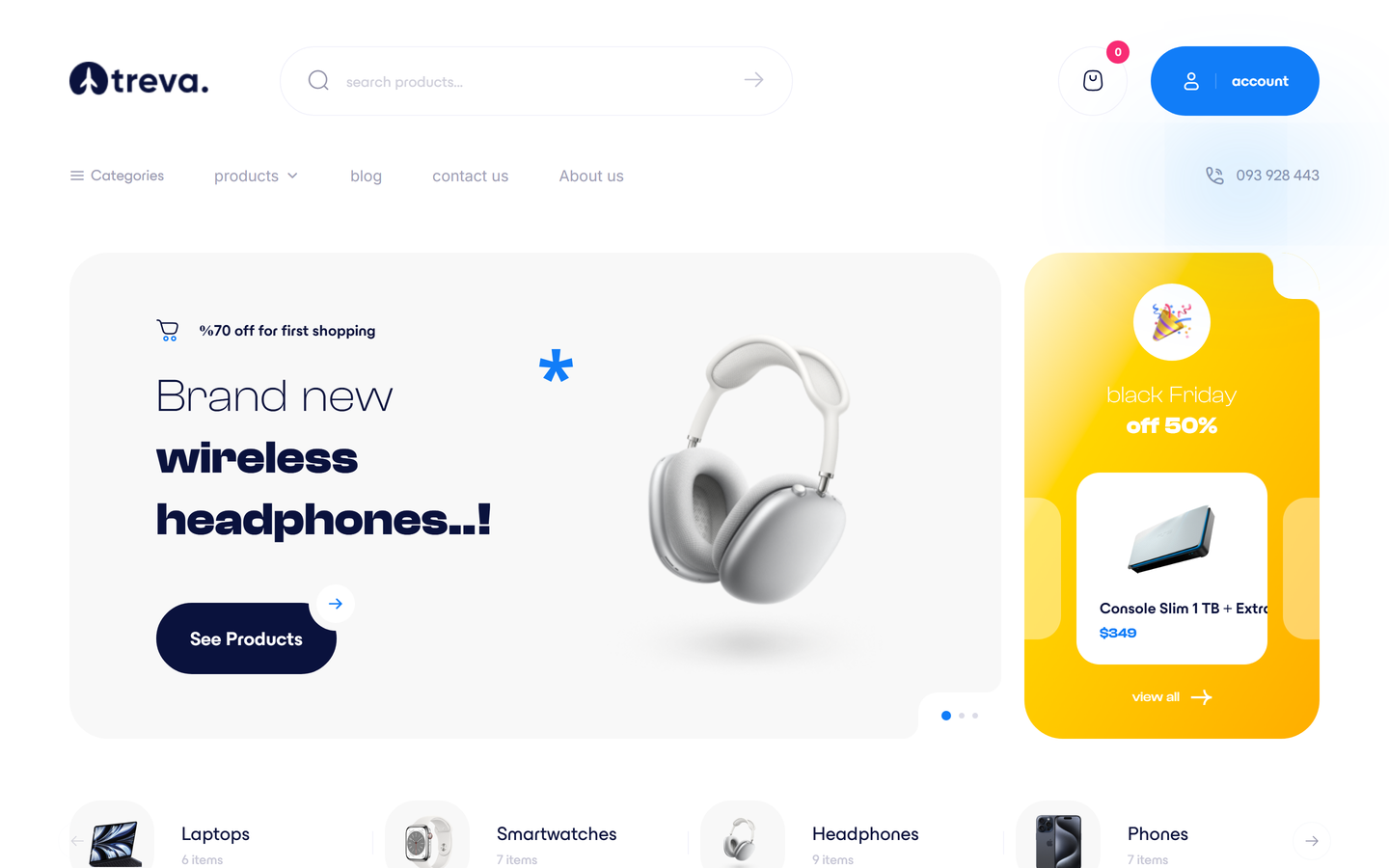
Tech Store (Treva) is the flagship: a light, airy electronics store with a pill-shaped search header and account button, a landing slider with a "black Friday" side deal, a category carousel, new products, trend brands, hot offers with a countdown, customer comments, suggestions with brand ratings, tabbed product carousels, the latest blog posts and a newsletter band. It is the design installed by default, and the screenshots in the storefront, account and blog chapters of this documentation show it.
| Design (name in Appearance > Demos) | Style | Demo catalogue used |
|---|---|---|
| Tech Store (Treva - Tech Store) - default | Light, pill search header, landing slider with side deals, offer countdown | Electronics |
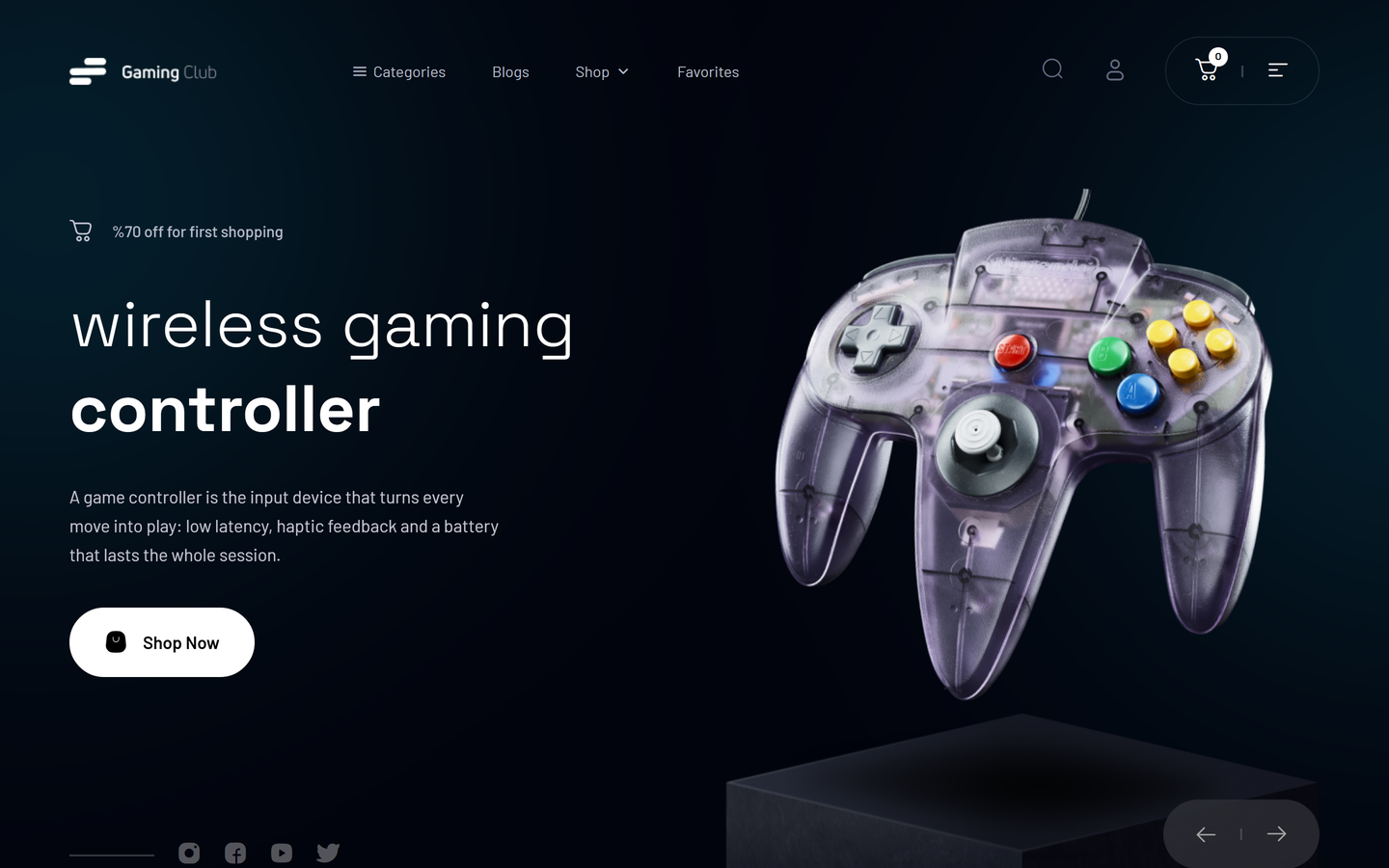
| Gaming Store (Gaming Club, dark) | Dark, full-screen menu overlay, animated slider, custom-desktop plans, video block | Electronics |
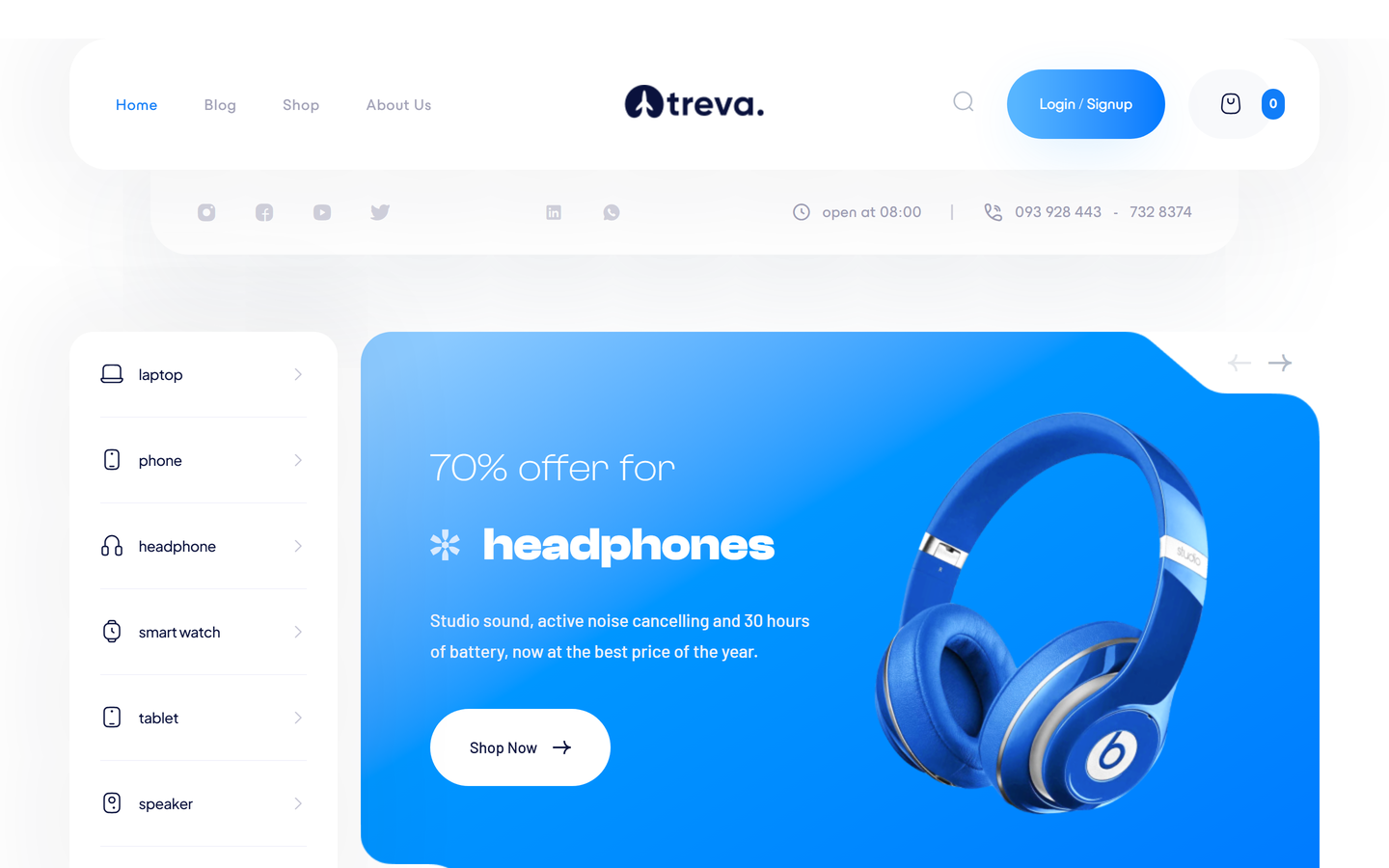
| Electronics Store (Treva Digital) | Light, left off-canvas menu, category sidebar with gradient slider, weekly offers, compare | Electronics |
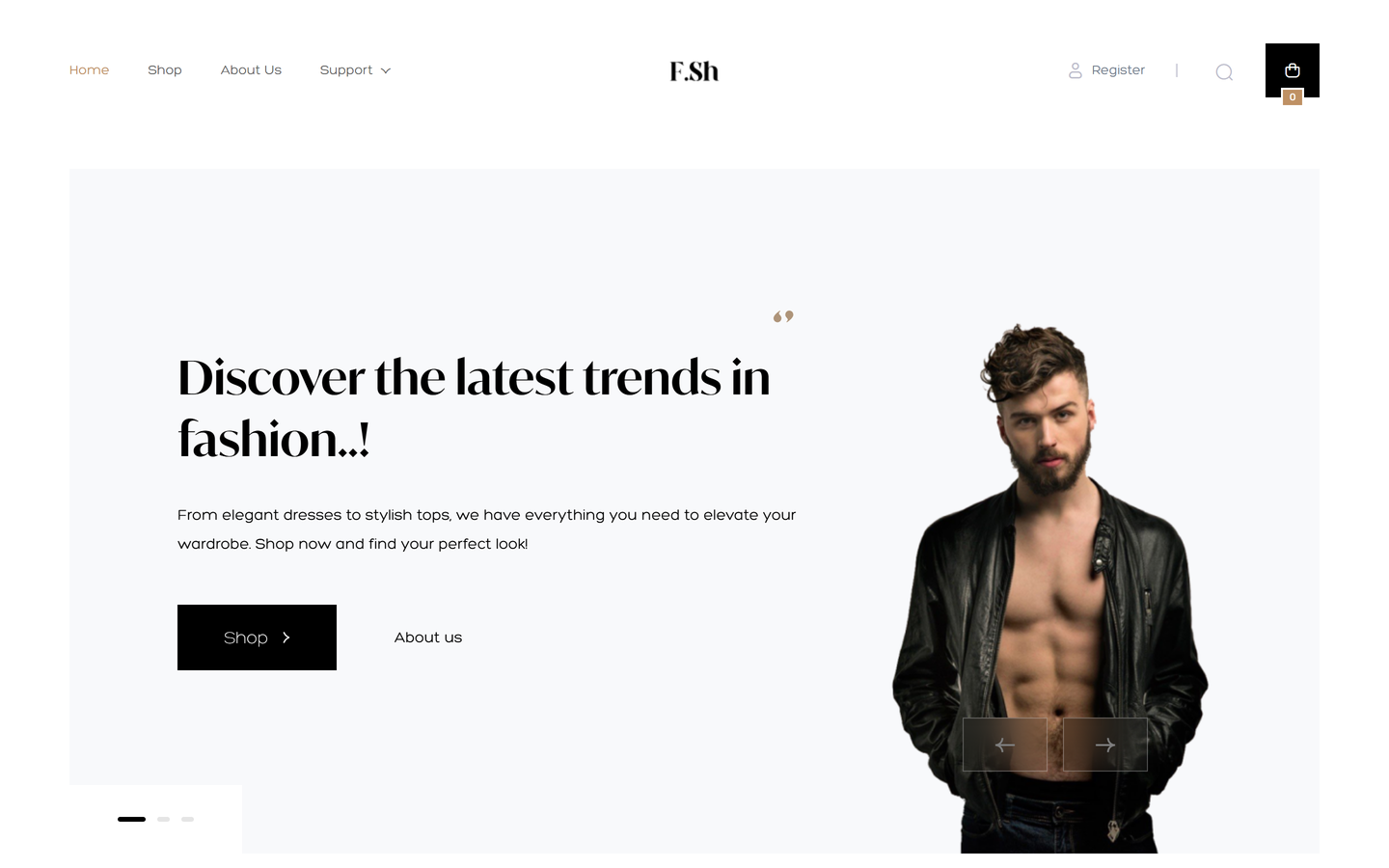
| Fashion Store (F.Shop) | Centred logo, fade slider, offer banners with countdown, winter style carousel | Fashion |
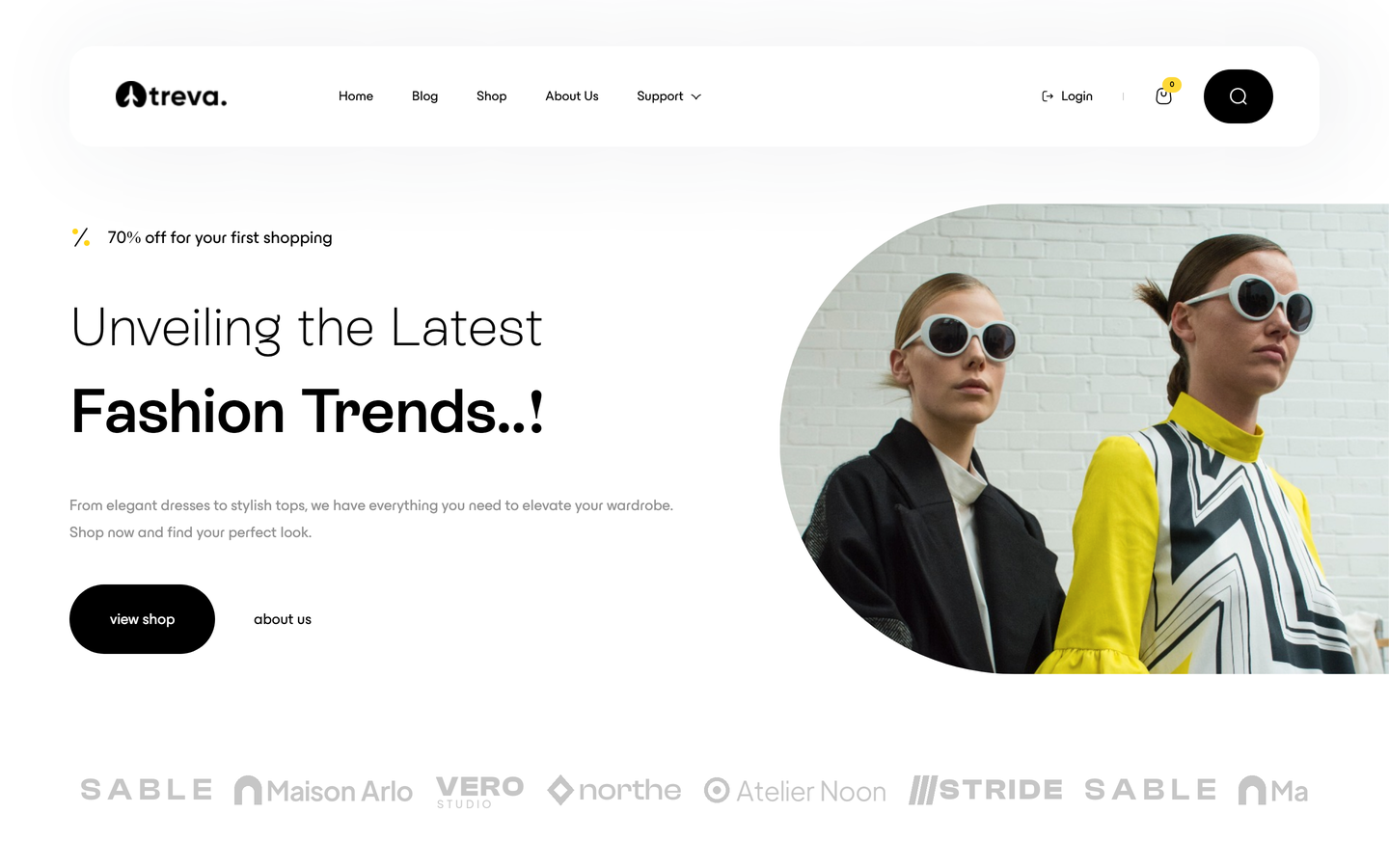
| Fashion Minimal (Treva) | Floating rounded header, half-round slider, brand strip, offers with countdown | Fashion |
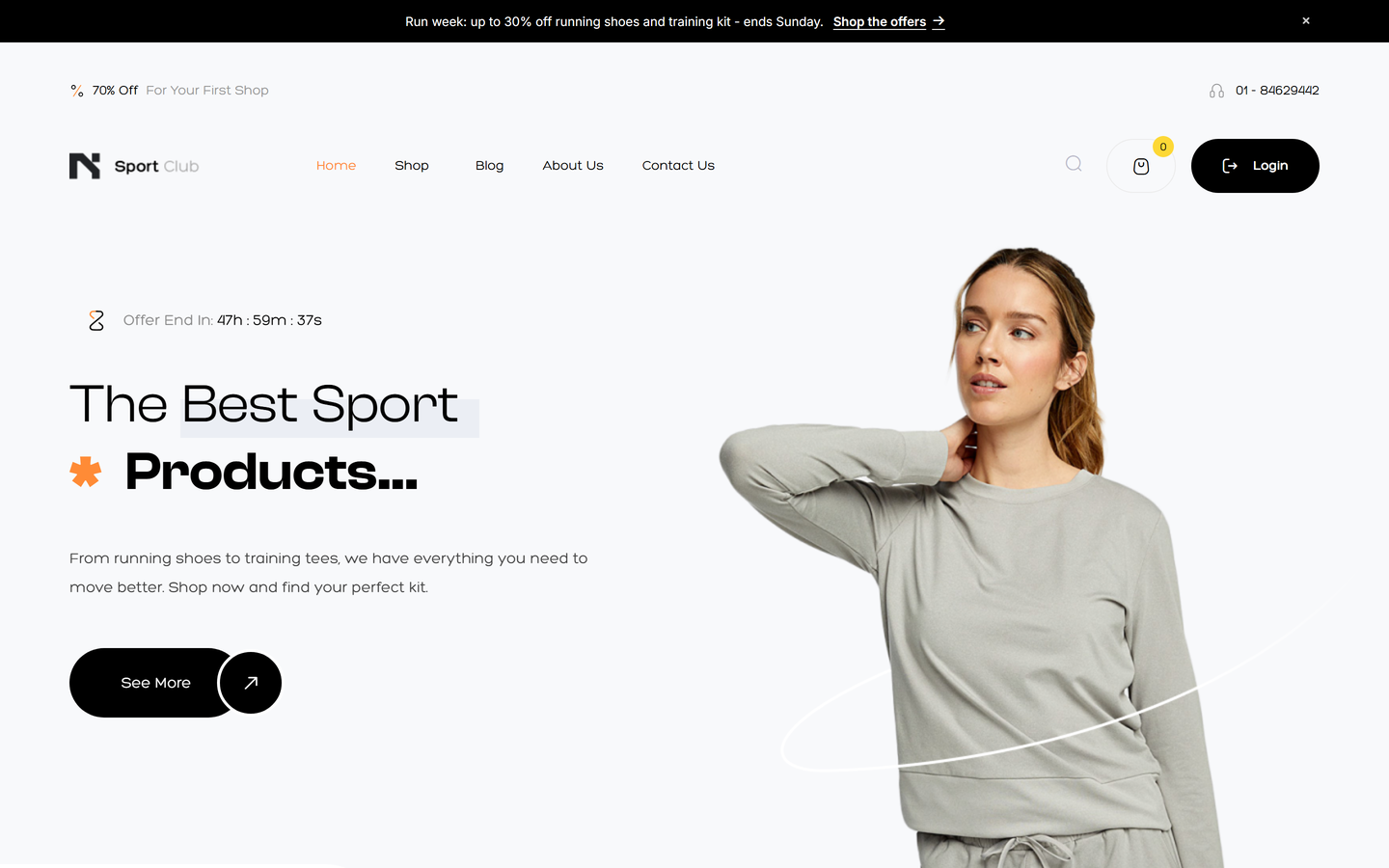
| Sport Store (Sport Club) | Top bar with offer, language and phone, slider with countdown, GYM banner, brand marquee | Fashion catalogue plus a small sport catalogue (6 categories, 15 products) |
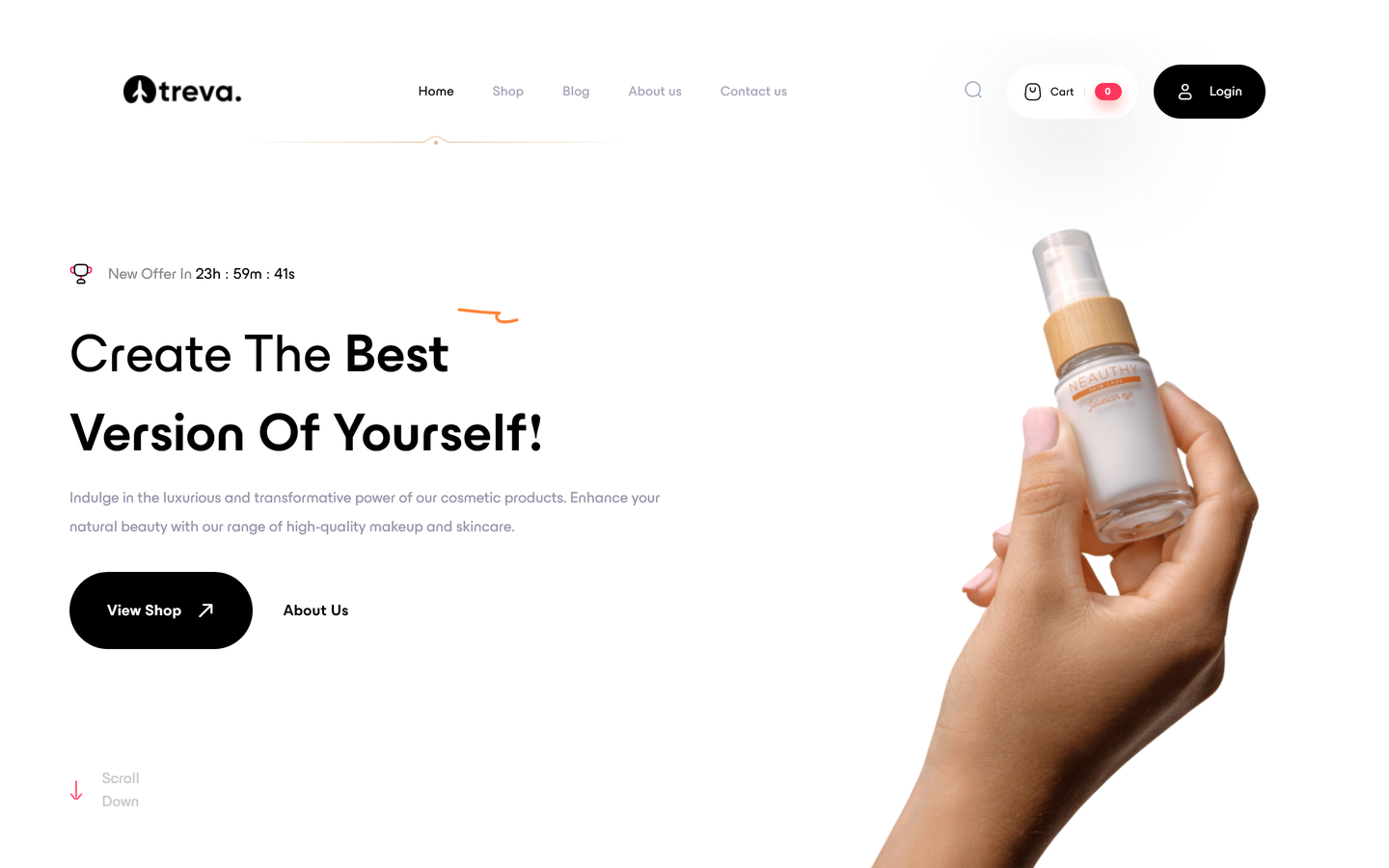
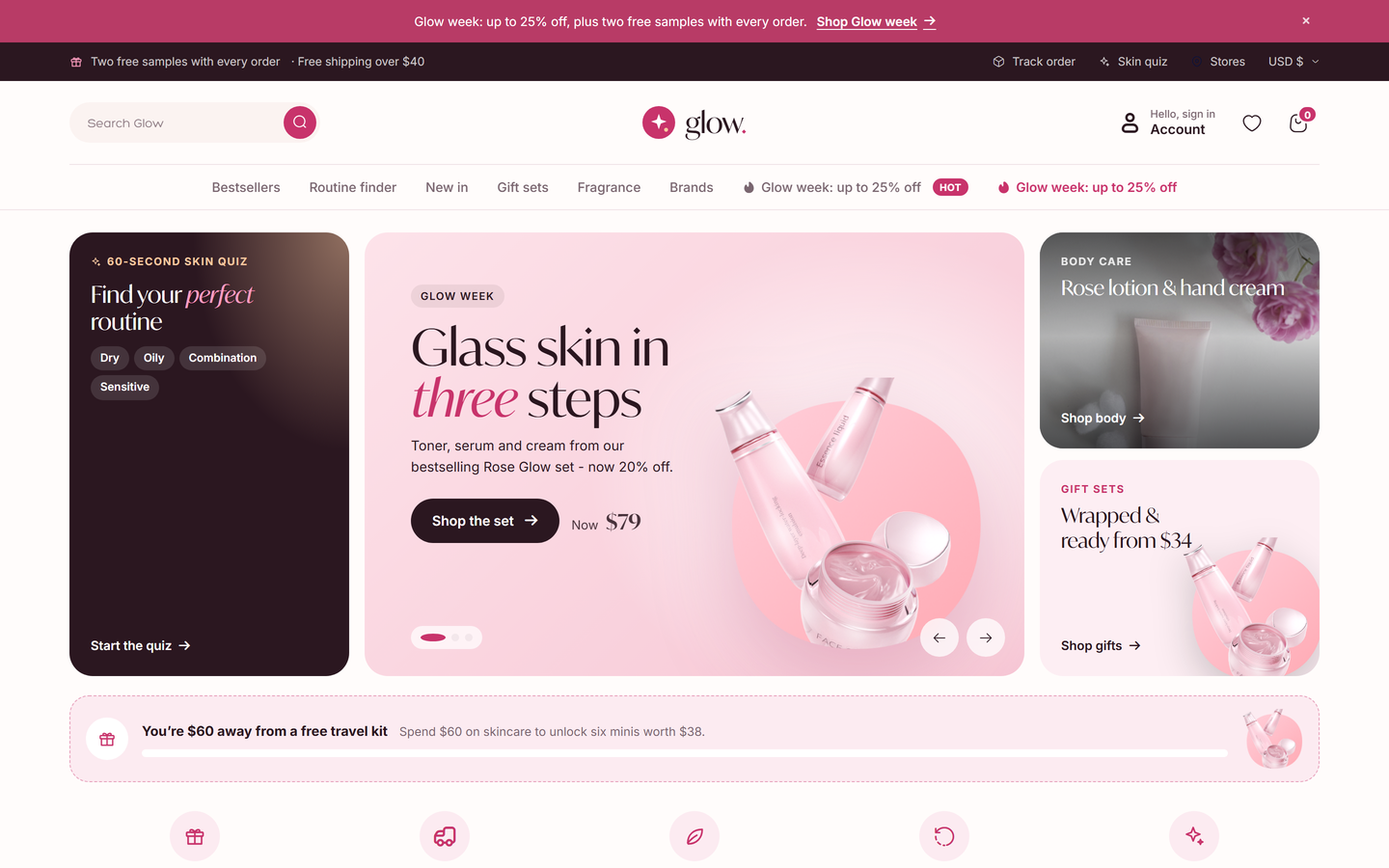
| Cosmetic Store (Treva Beauty) | Soft, floating header with moving underline, offer countdown, video about block | Beauty |
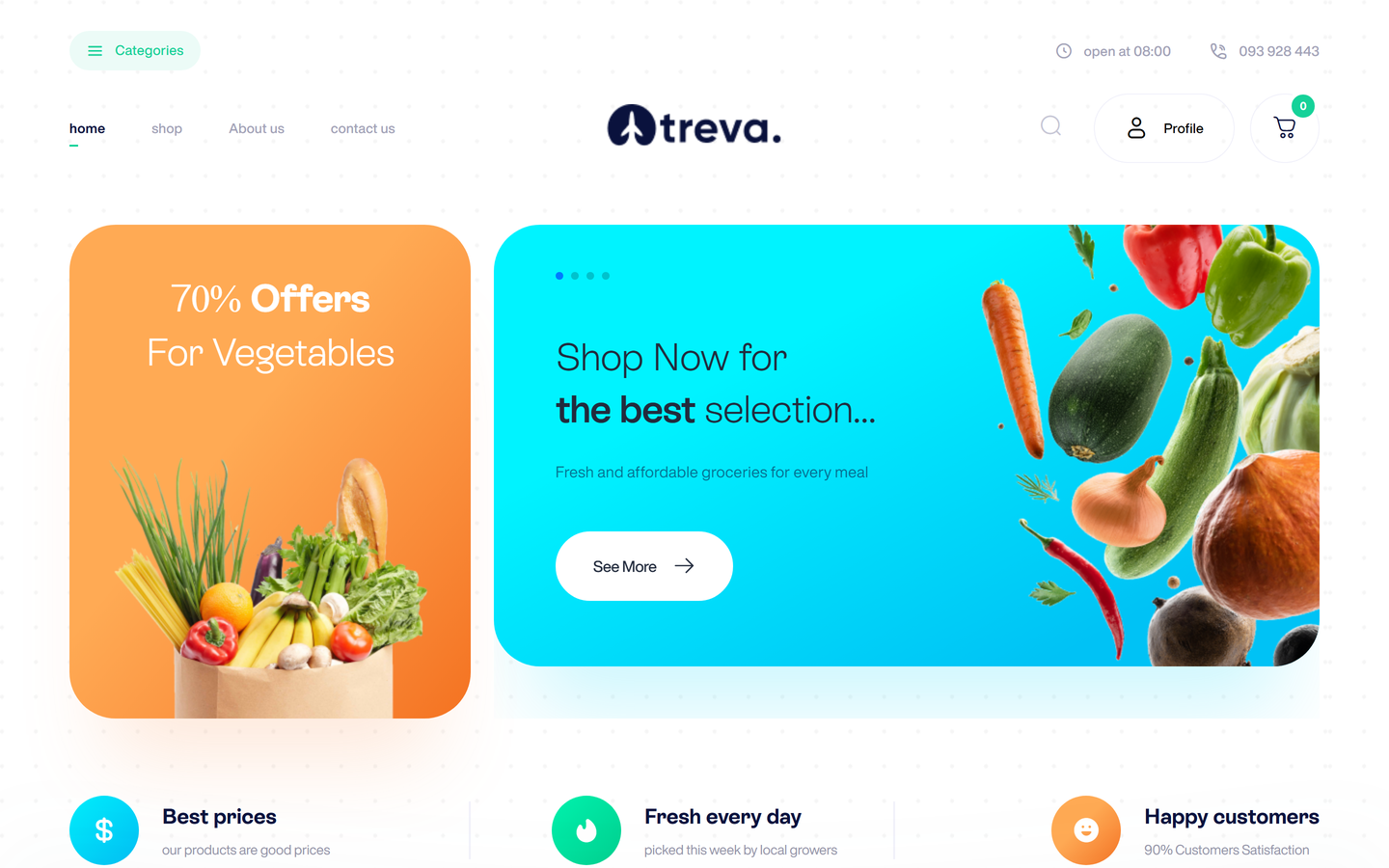
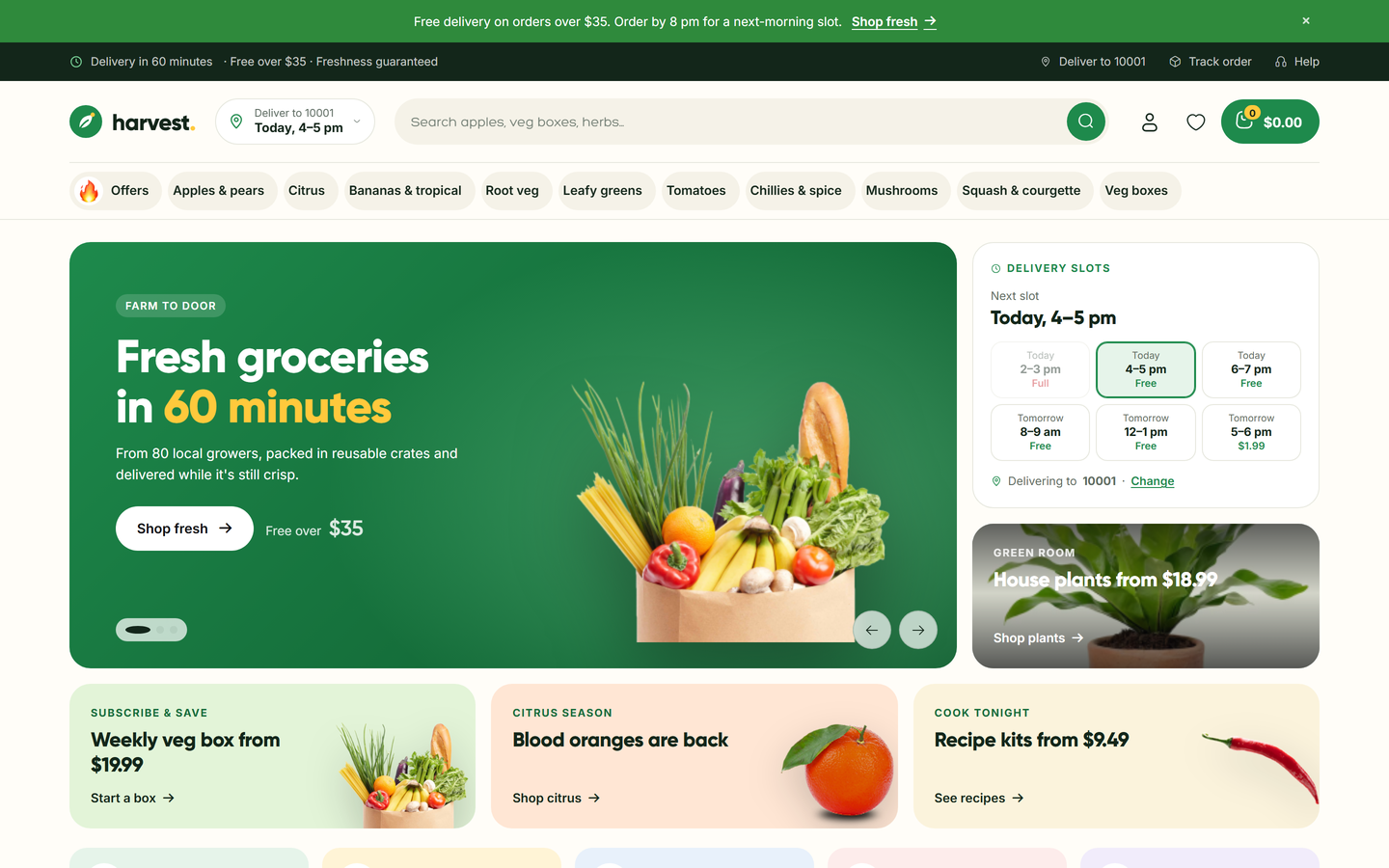
| Fruits & Vegetables (Harvest) | Centred logo with opening hours, offer banner with gradient slider, perks row, timed offers | Grocery |
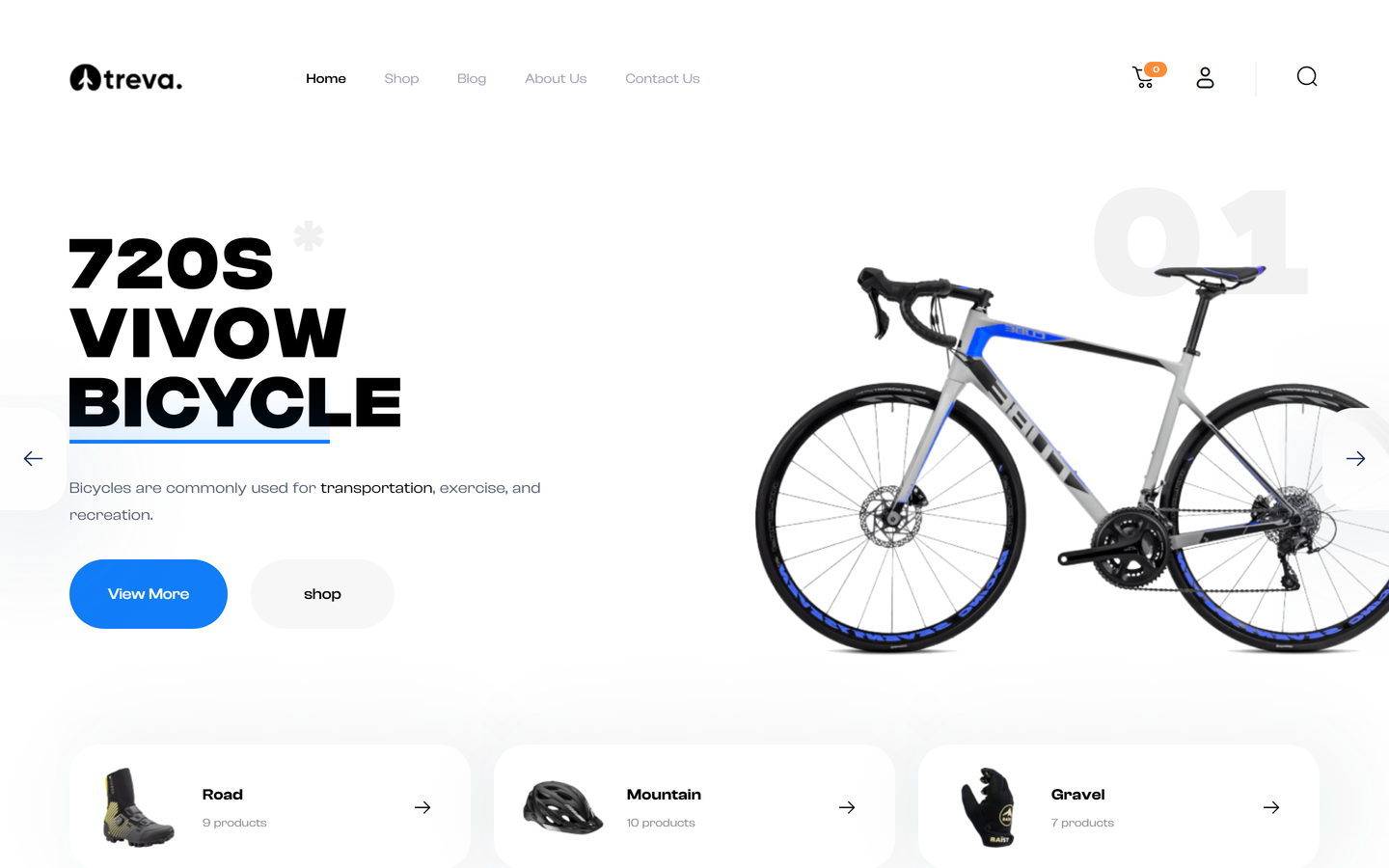
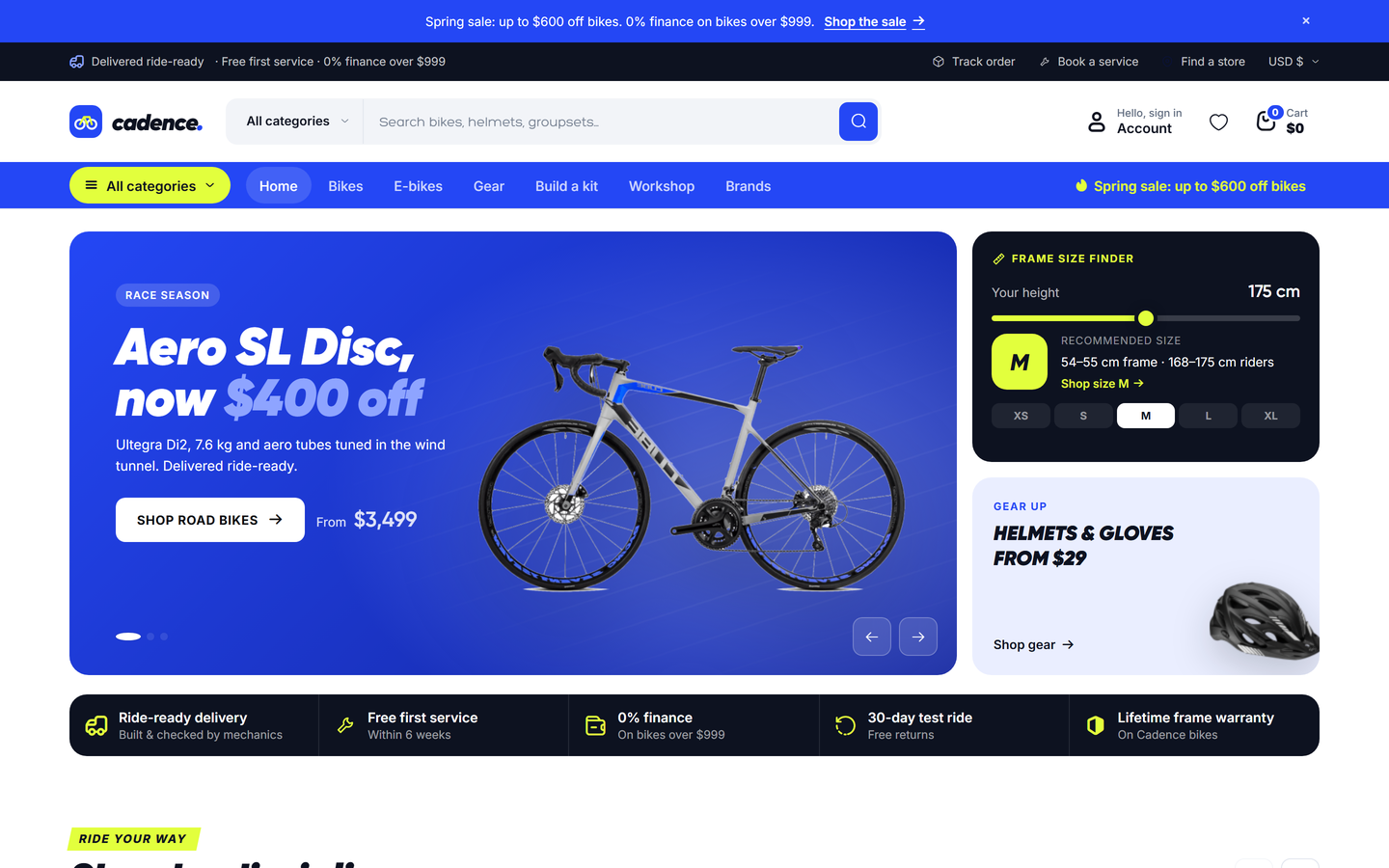
| Bicycle Store (Cadence) | Numbered full-width bike slider, category cards, wave section, five-icon mobile bar | Bicycle |
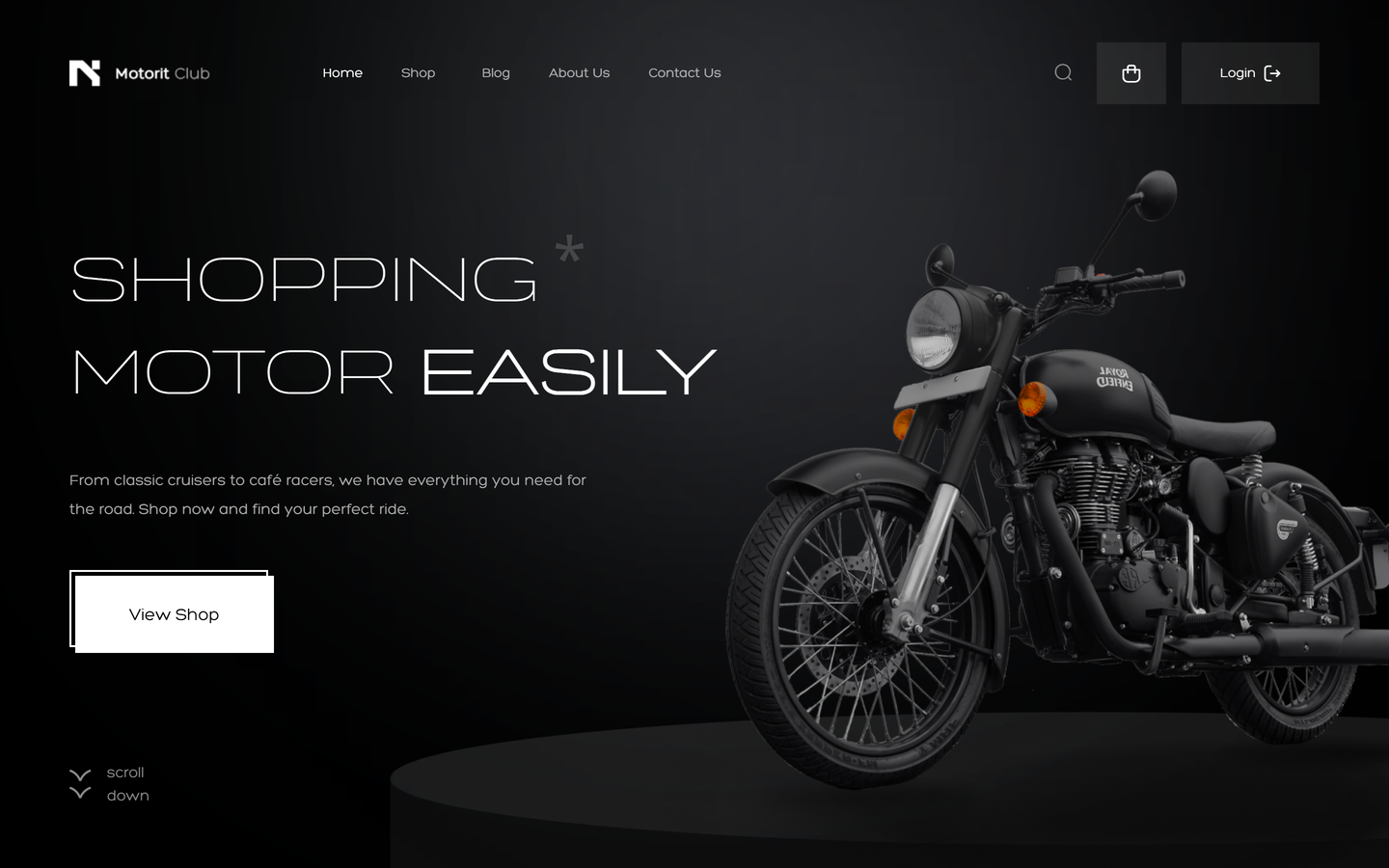
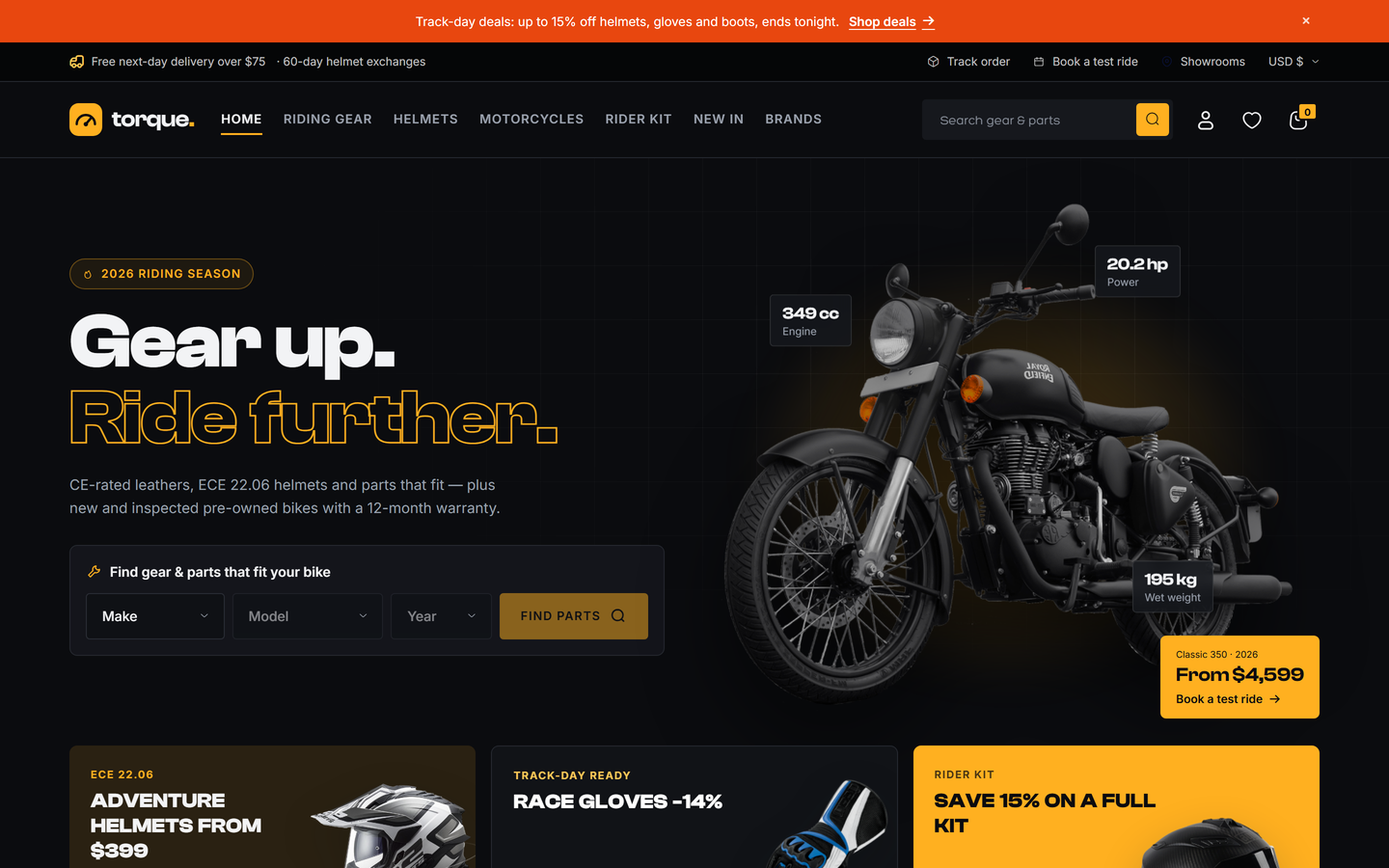
| Motorcycle Store (Torque, dark) | Dark, animated slider, category grid, animated counters, reviews | Motor |
Classic designs: honest limits
- Because a classic design borrows another catalogue, its home page shows that catalogue's products. Your own products appear in the same sections once you import or create them; sliders, banners and menus are edited in the admin.
- Every design now opens products in the Sticky layout by default. The standard (kit) page, with questions and answers and bought-together, is one click away: see Product page layouts.
- The Sport Store demo adds its own sport products (shown first and featured on the home page) on top of the fashion catalogue. Fashion products can still appear in the shop listing, so remove them if you want a sport-only store.
- Gaming Store and Motorcycle Store are dark designs. The Sticky and Gallery product pages follow their dark colours; the classic blog layouts were drawn light, so on a dark design use the standard blog.
- Several classic designs use template fonts that are trial, demo or commercial licensed: Tech Store, Fashion Minimal and Cosmetic Store use ES Build TRIAL, Fashion Minimal and Fruits & Vegetables use ES Rebond Grotesque TRIAL, and Motorcycle Store uses the Organetto demo font (see Credits). Buy the font licences, or pick a free font in Appearance > Colours, before you keep them on a live store.
- The Electronics demo catalogue (used by Tech Store, Gaming Store and Electronics Store) and the Tech Store slides name well-known product brands, as the original template does. Replace them with your own products and slides before going live.
- Always check the design you choose on your own server, with your own content.
Marketplace-style designs (6)#
Fashion (Loom), Bicycle, Motor, Grocery, Beauty and Electronics share one component kit (cards, drawers, compare tray, bottom bar) and differ in layout, colours and special widgets. Their demo catalogues are also the ones the classic designs reuse.
| Preset | Best for | Highlights |
|---|---|---|
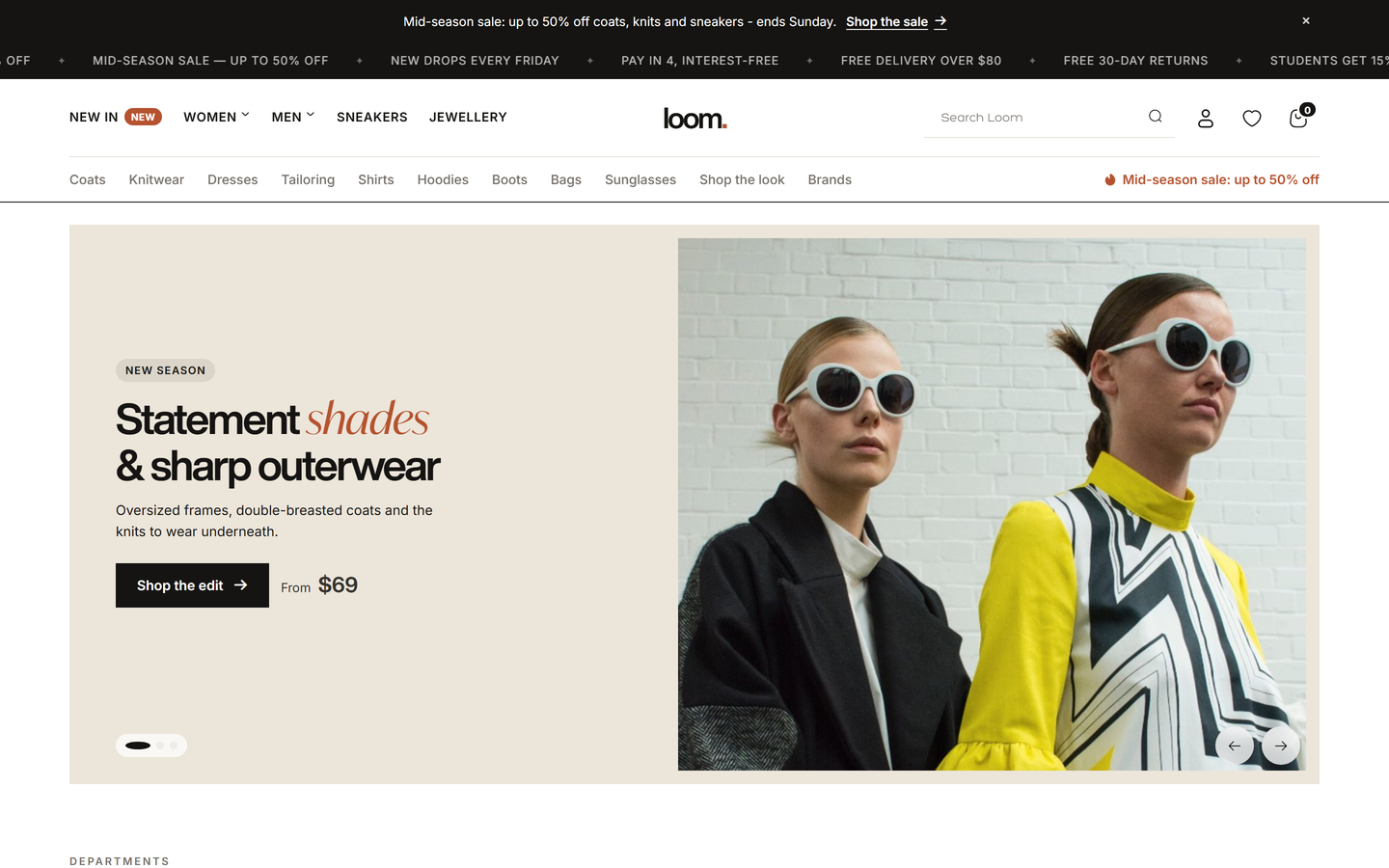
| Fashion (Loom) | Clothing, shoes, accessories | Split header and scrolling top bar, tall borderless product cards with quick-add sizes, shop-the-look hotspots, light footer with oversized wordmark. |
| Bicycle | Bike and gear stores | Bar header with category search, frame-size finder in the hero, spec chips and compare tray on cards, workshop booking cards. |
| Motor | Motorcycle and parts | Dark theme, fitment finder (make / model / year), helmet sizer, bike listings with specs, compare tray. |
| Grocery | Food and delivery | Deliver-to pill, image aisle bar, delivery-slot picker, pack-size pills with quantity steppers, pick-your-own box and recipe kits. |
| Beauty | Cosmetics and skincare | Centred logo header, three-column hero with skin quiz tile, free-gift progress meter, story-style category circles, routine finder. |
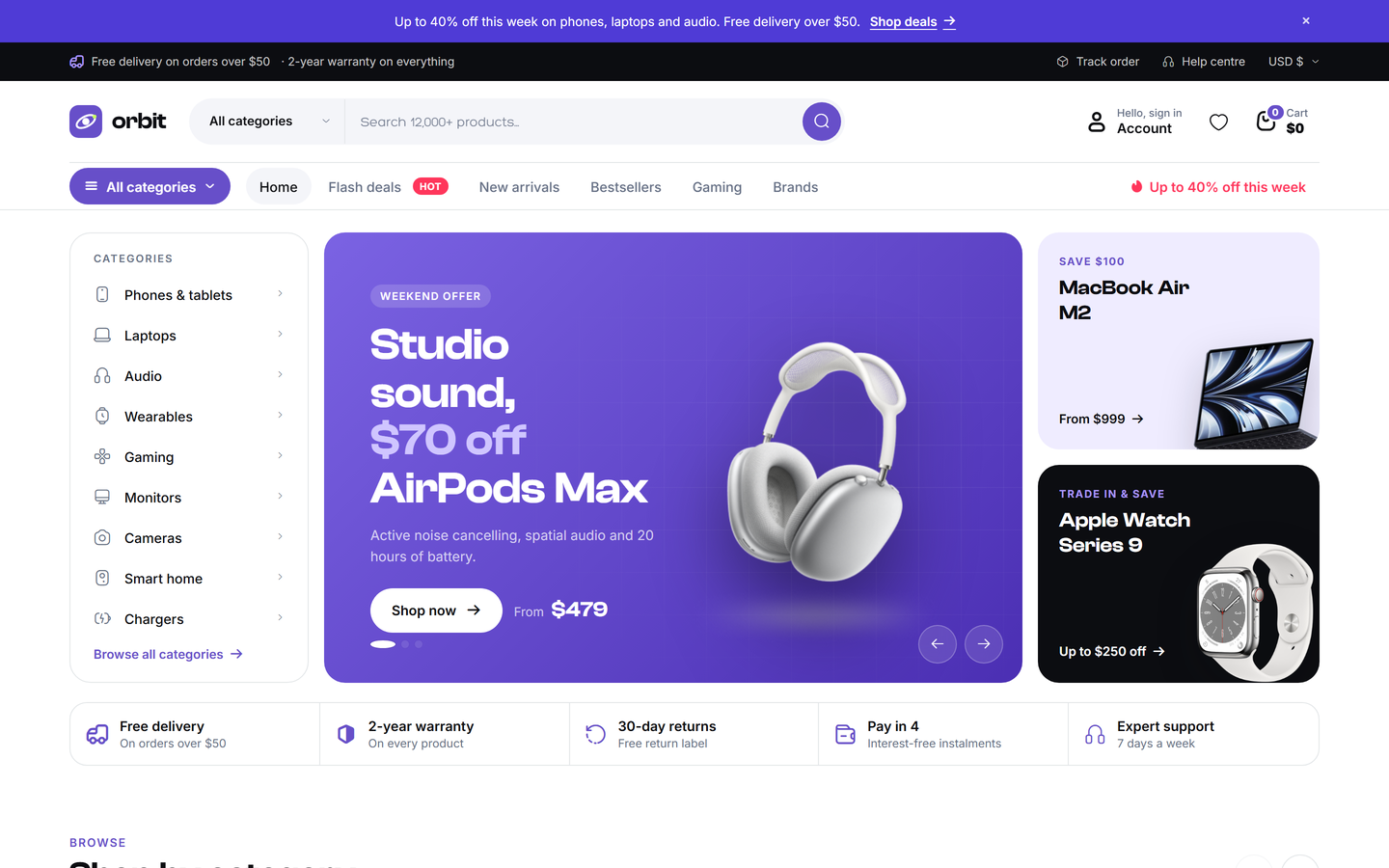
| Electronics | Gadgets and computers | Category sidebar hero, flash deals, compare tray, dark gaming band. |
Studio designs (3)#
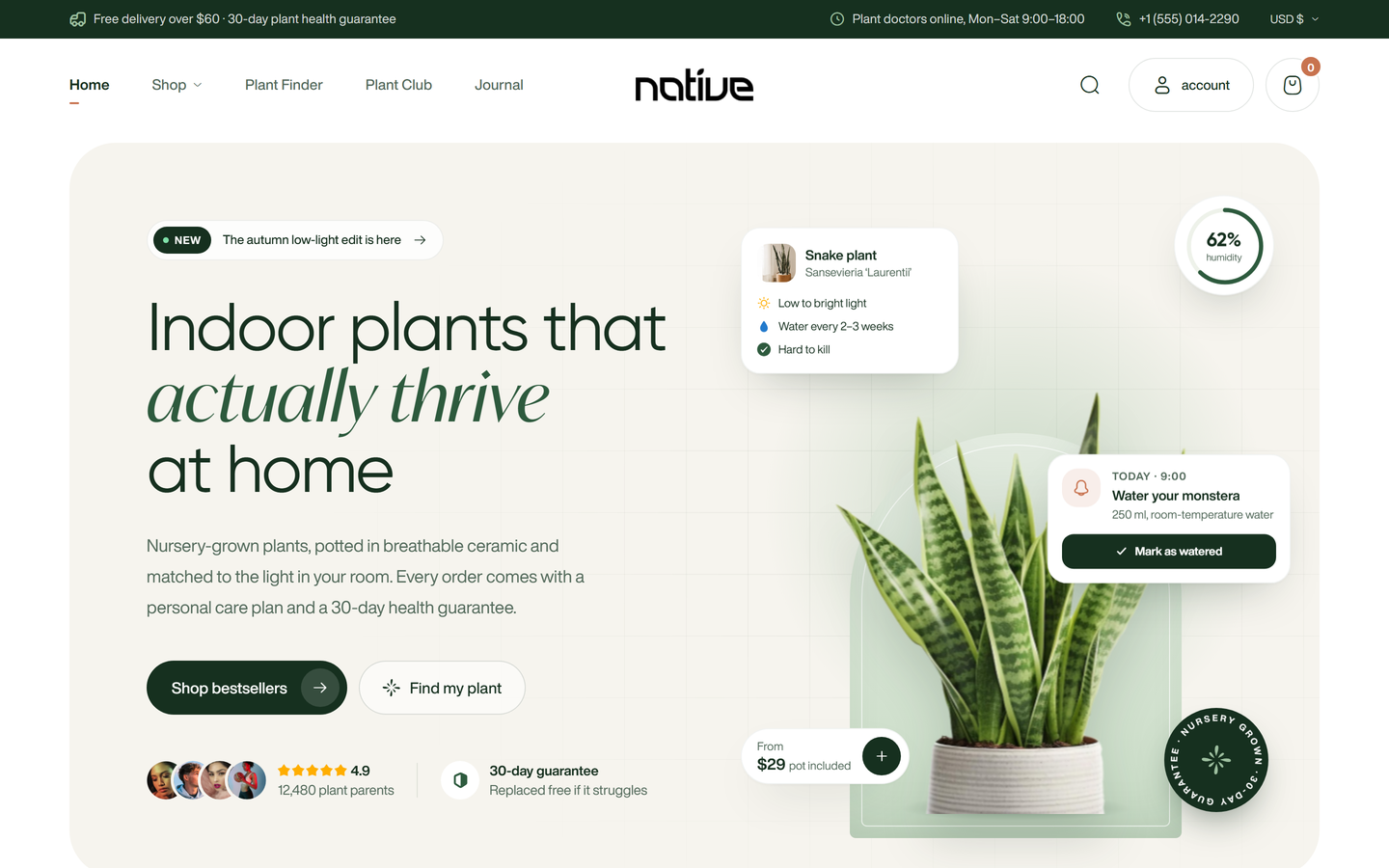
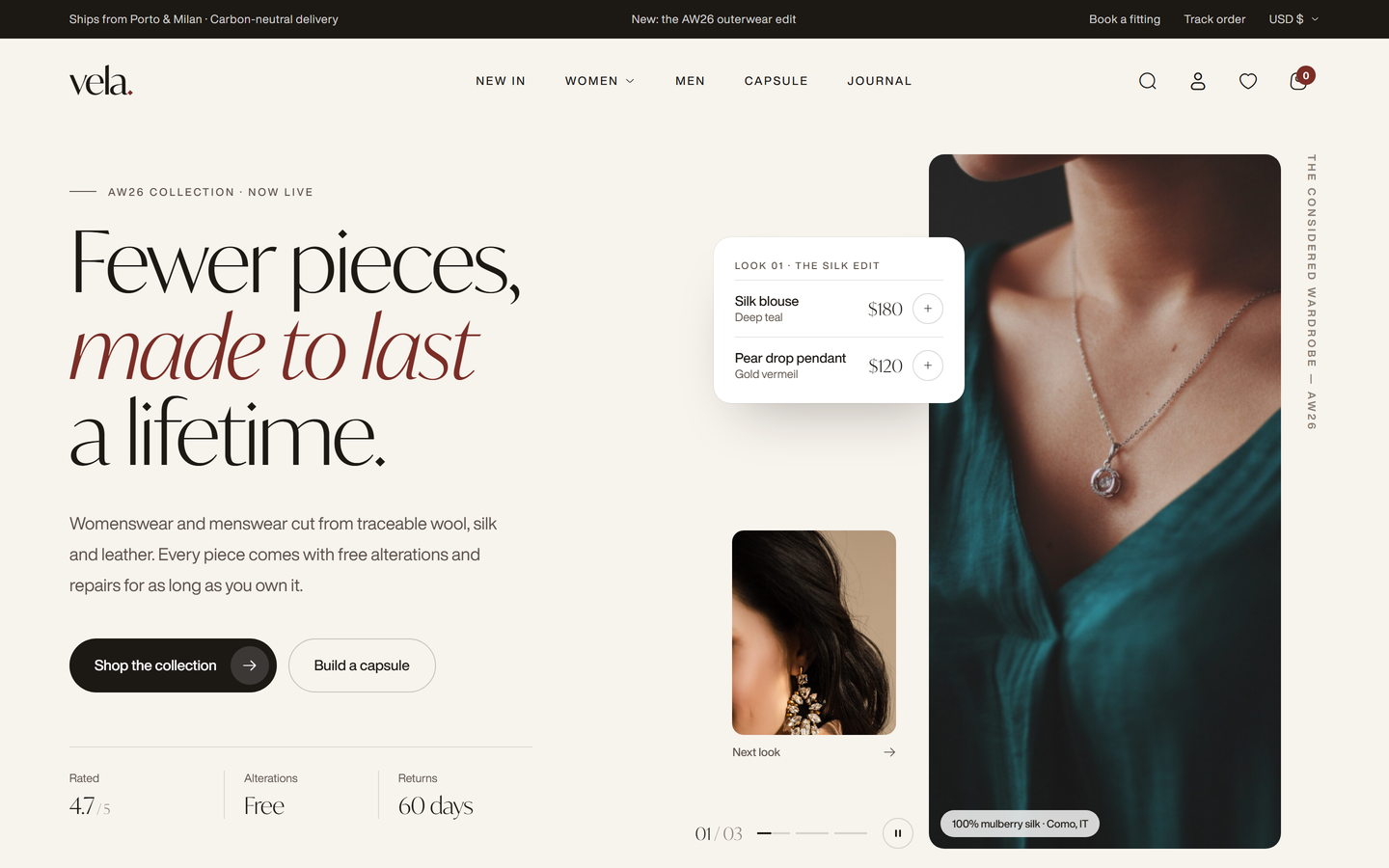
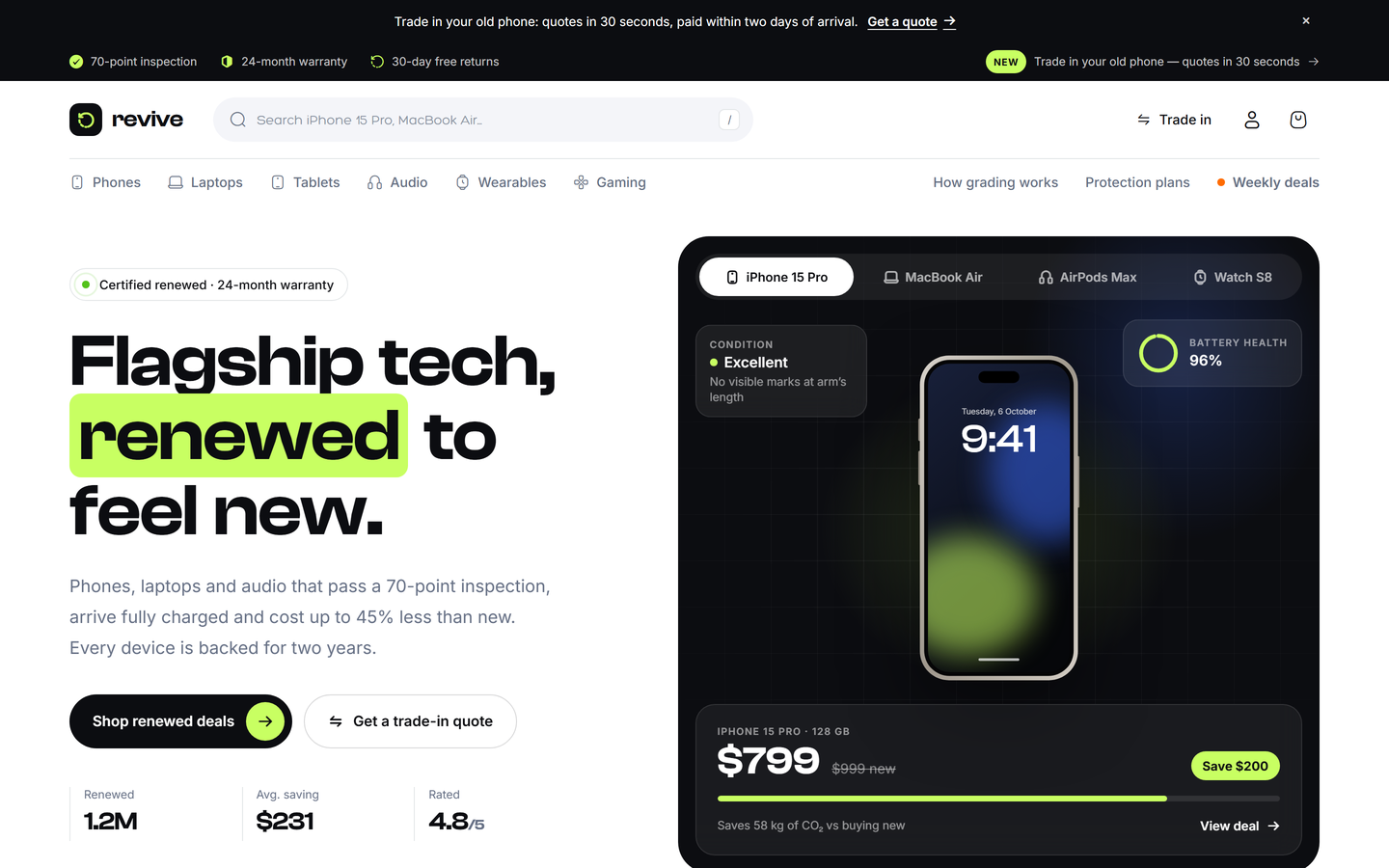
Plants, Editorial and Renewed are stand-alone art-directed designs with their own header, footer and home sections.
| Preset | Best for | Highlights |
|---|---|---|
| Plants | Plant shops and studios | Interactive hero stage, plant finder quiz, care bento, shop-by-space carousel, plant club. |
| Editorial | Premium fashion and lifestyle | Warm ivory with a serif display face, look-switcher hero, capsule wardrobe builder, lookbook hotspots, fit finder. |
| Renewed | Refurbished devices | Ink and lime palette, device-switcher hero, condition grade configurator, trade-in estimator, inspection and protection plans, price-drop alerts. |
What the interactive widgets do
All presets use your real products, cart and checkout. The special widgets of the marketplace-style and studio designs (finders, sizers, builders, configurators) add real products to the cart. Some pieces of content are illustrative text that you edit in the Home builder rather than live data: for example the "bento" tiles and hero statistics in Plants and Renewed, and review-count headlines. In Editorial, the capsule discount only applies when you give the section the code of a valid percentage coupon.
Product page layouts#
There are five product page layouts. Sticky is the default for every design and for new installs. The other three classic layouts and the standard "kit" page (gallery, buy box, Q&A, bought together, recently viewed) can be chosen store-wide or per product. All of them render inside whichever header and footer your active design uses.
| Layout | What it looks like |
|---|---|
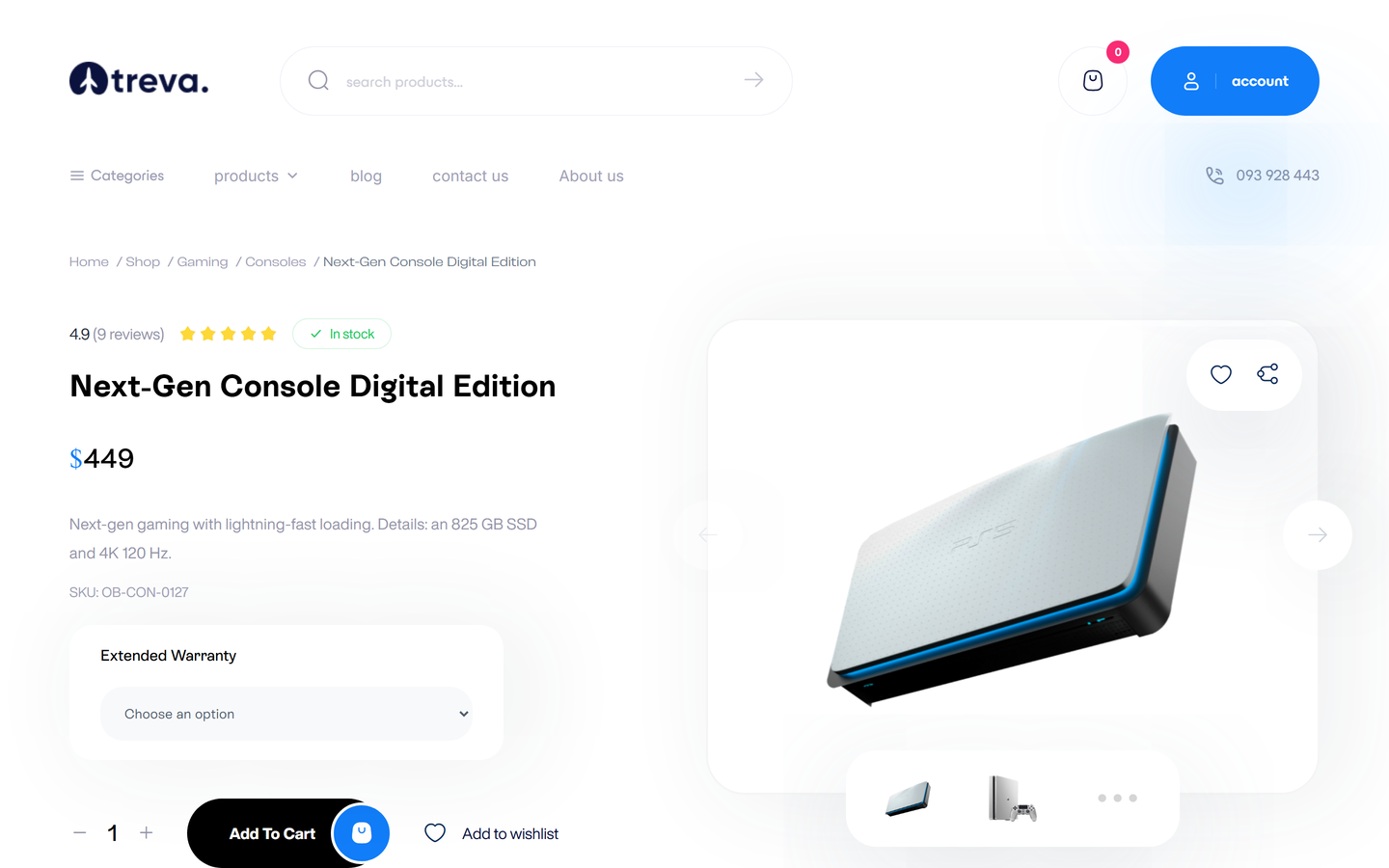
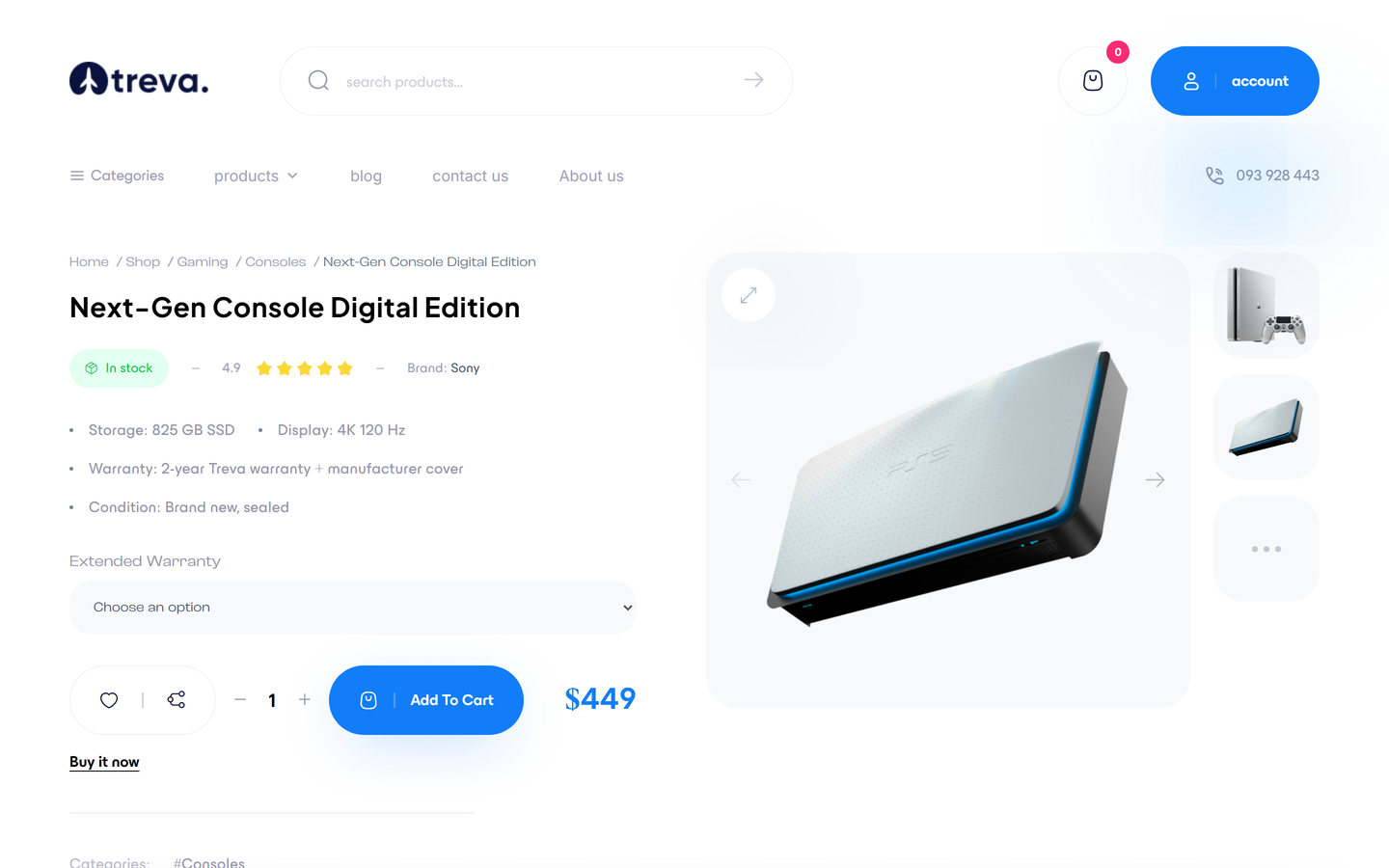
| Sticky (default) | Product details and buy box on the left, a large image card with thumbnails on the right, the rating summary with star distribution, a review carousel and a rounded review form. |
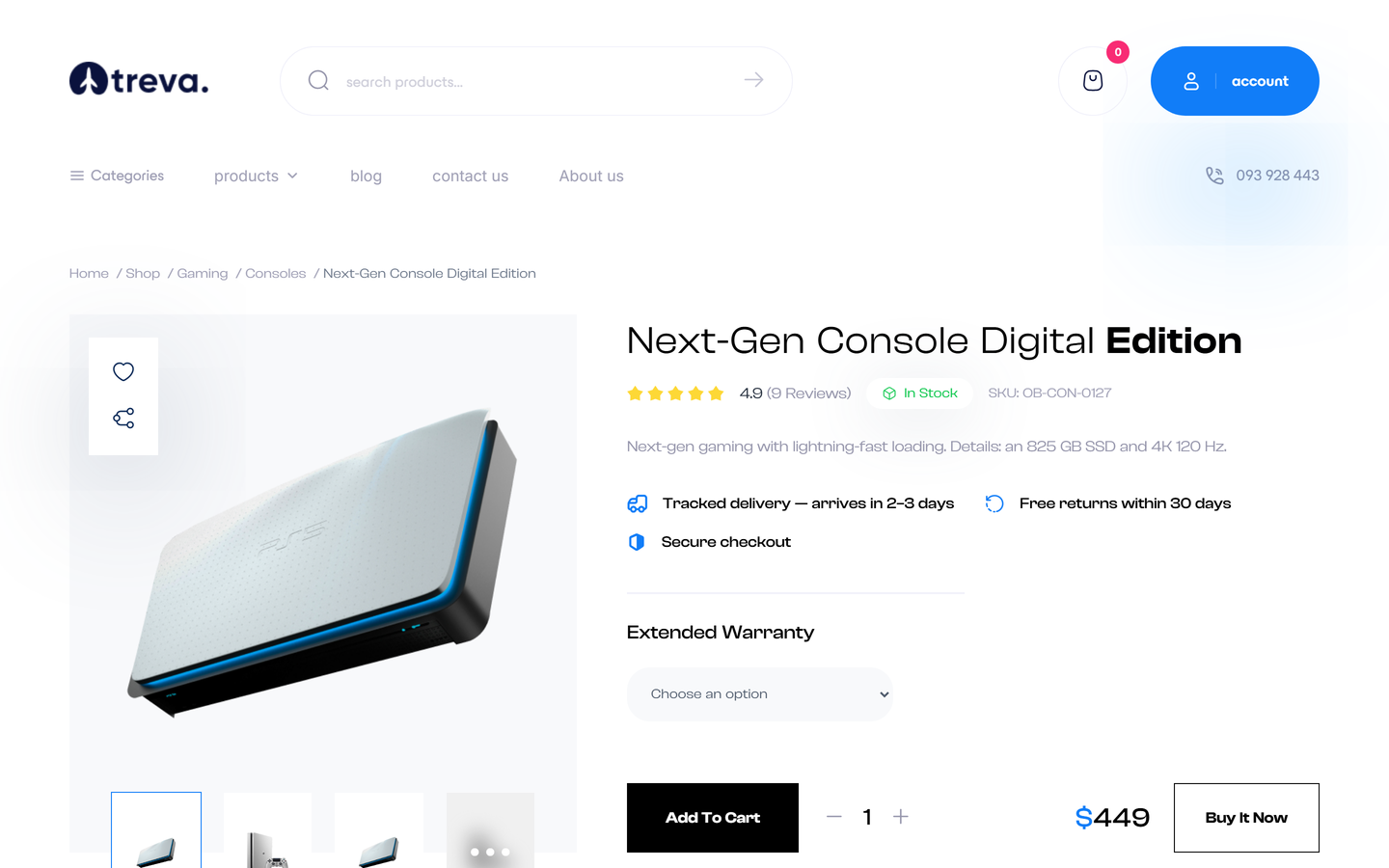
| Gallery | Large image with thumbnails and a "more" tile that opens a gallery modal, side icons for wishlist, compare and share, tabs for Description, Additional information and Reviews, related carousel. |
| Full width | Side thumbnails, a perks band, then description, additional information, reviews carousel and a review form with star picker stacked at full width. |
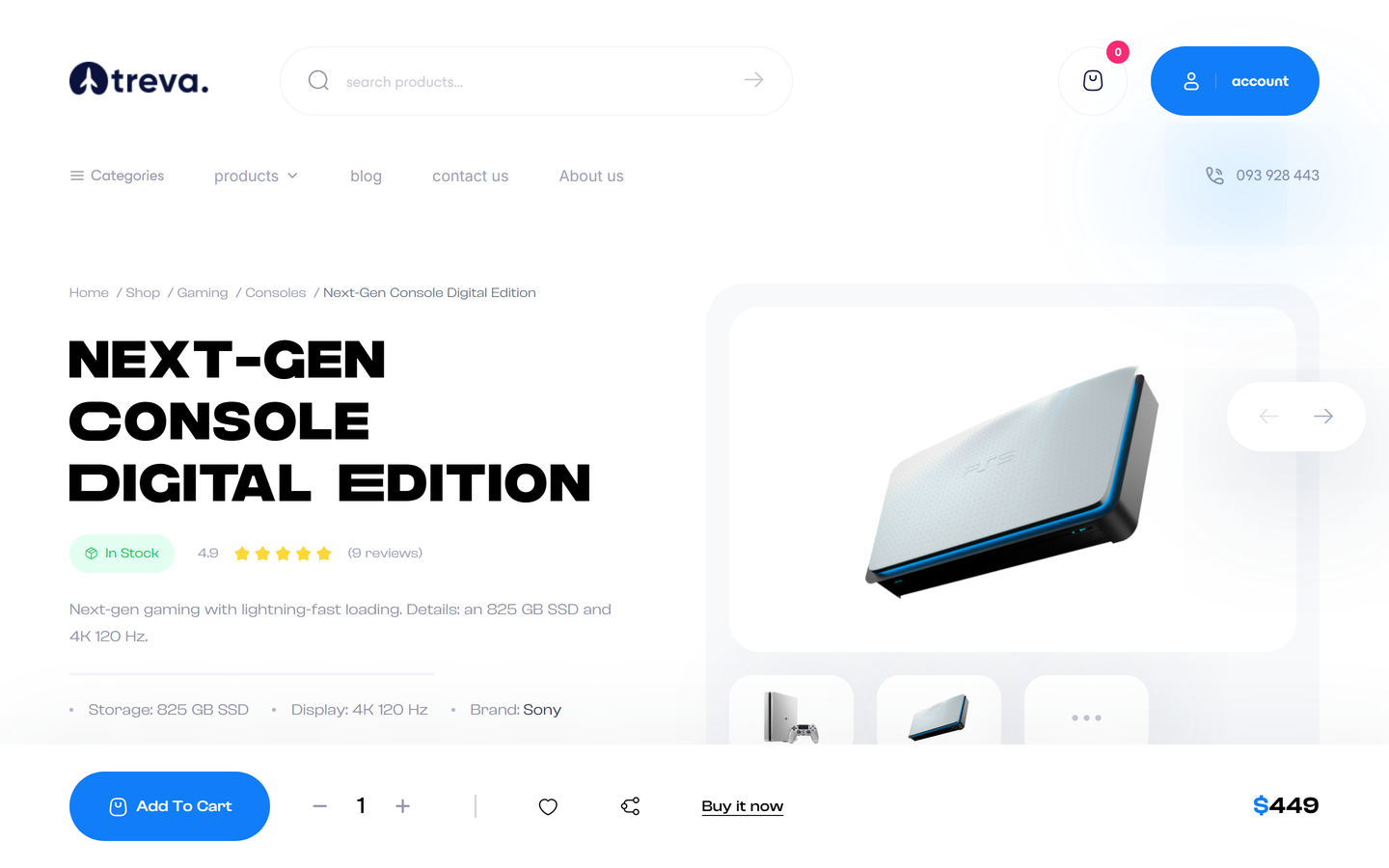
| Tabs | Thumbnail row, tabs, a video block when the product has a video URL, and a fixed bottom price bar with quantity, add to cart, wishlist, compare and buy-now. |
Choose a layout
- Store-wide: Settings > Catalog > Product page layout. The picker lists Sticky first (marked Default), then Gallery, Full width, Tabs, Kit (the standard page) and Theme default (the layout your active design names; Sticky for all bundled designs).
- Per product: the Product page layout select in the Catalog card of the product editor overrides the store setting for that product only.
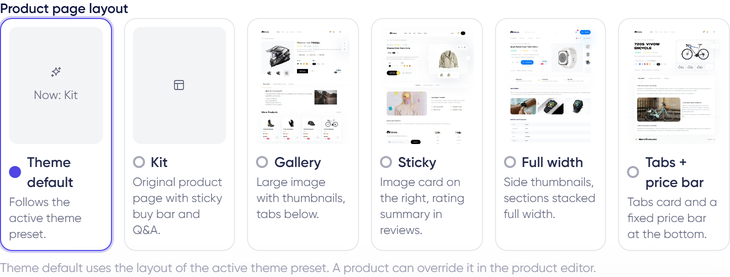
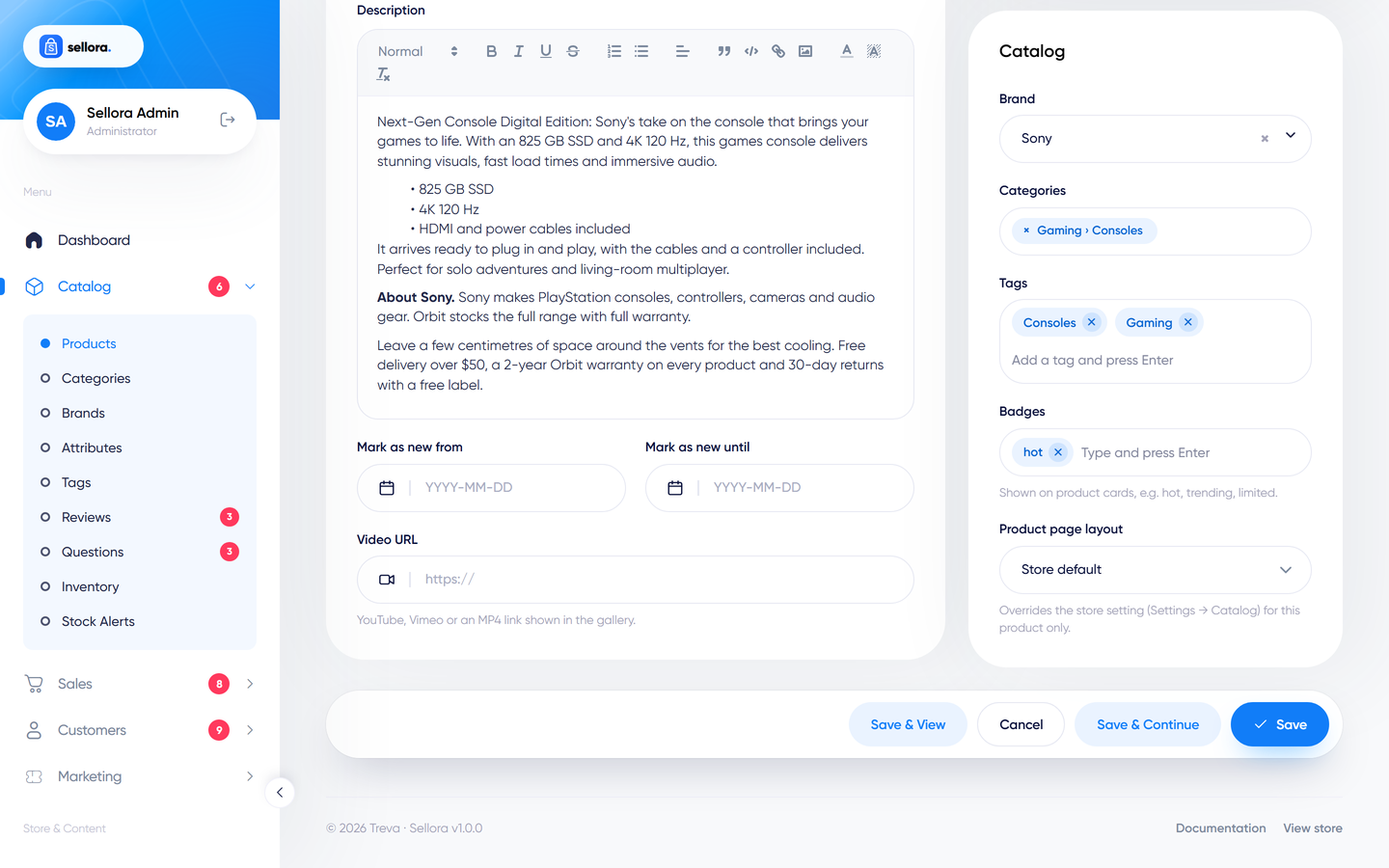
The order of precedence is: product override, then the store setting, then the design's default, then Sticky.
All four layouts use the same cart, variation selector, custom options, stock alert, wishlist, compare and review submission as the standard page. They were tested at 1440 and 390 px on the Fashion and Electronics designs (add to cart, variations, custom options, sold-out state, review form). The screenshots above show them inside the Tech Store (Treva) design.
Known limits of the classic layouts
- Reviews show the first page (10) only: no "load more" or star filter. A review you submit shows a confirmation and appears after moderation.
- Questions and answers, bought together, more from the brand, recently viewed and the delivery cut-off line belong to the standard page only.
- Right-to-left layout, tablet widths, a product with a video URL and variations that have their own image or price were not exercised on these layouts.
- Gallery was checked at 1440 and 390 px on Treva, F.Shop, Treva Beauty, the dark Gaming Store and Motorcycle Store, and on the Loom, Orbit, Native and Harvest designs. Sticky (the default) was checked at 1440 and 390 px on Treva, F.Shop, Treva Beauty, the dark Gaming Store and on the Loom and Native designs (variant switch and add to cart included). Full width and Tabs were drawn light and were not tested on the dark designs.
Blog layouts#
The blog list and the blog post have their own design pickers in Settings > General > Blog (Blog list design and Blog post design). Each offers Theme default, Journal (the standard blog) and four classic styles, which render inside the active header and footer.
| Style | List page | Post page |
|---|---|---|
| Classic | Wide article rows with a sidebar (categories, popular posts, tags). | Article with an "On this page" contents list, author box, comments and related carousel. |
| Style 2 | Wide hero, category tabs and a card grid. | Image-led post with sticky sidebar and comments. |
| Style 3 | Soft cards with overlay titles, editors' picks and trending lists. | Full-bleed hero post with the same comment block. |
| Style 4 | Dark glass cards on a black band, large type. | Dark long-read post. |
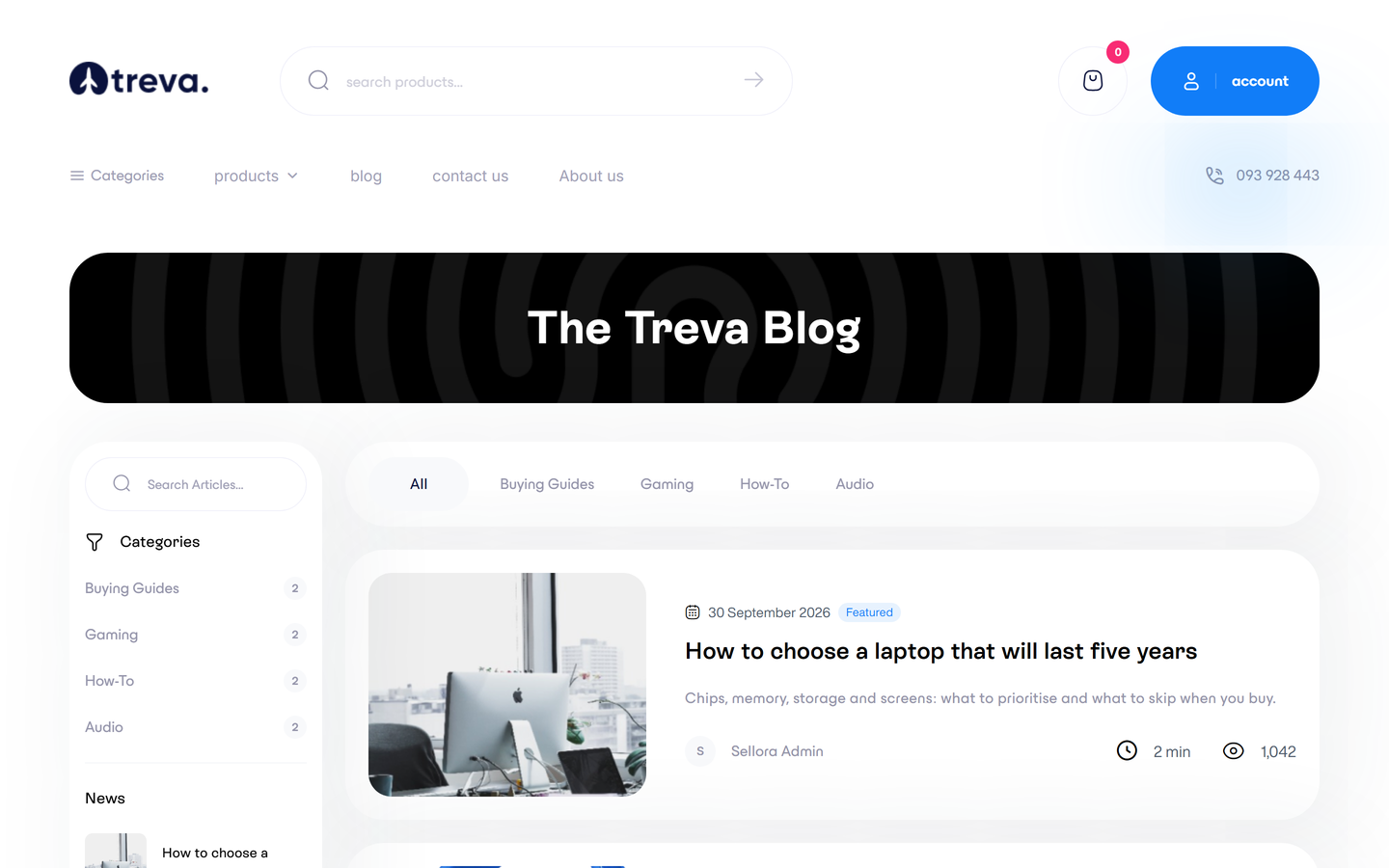
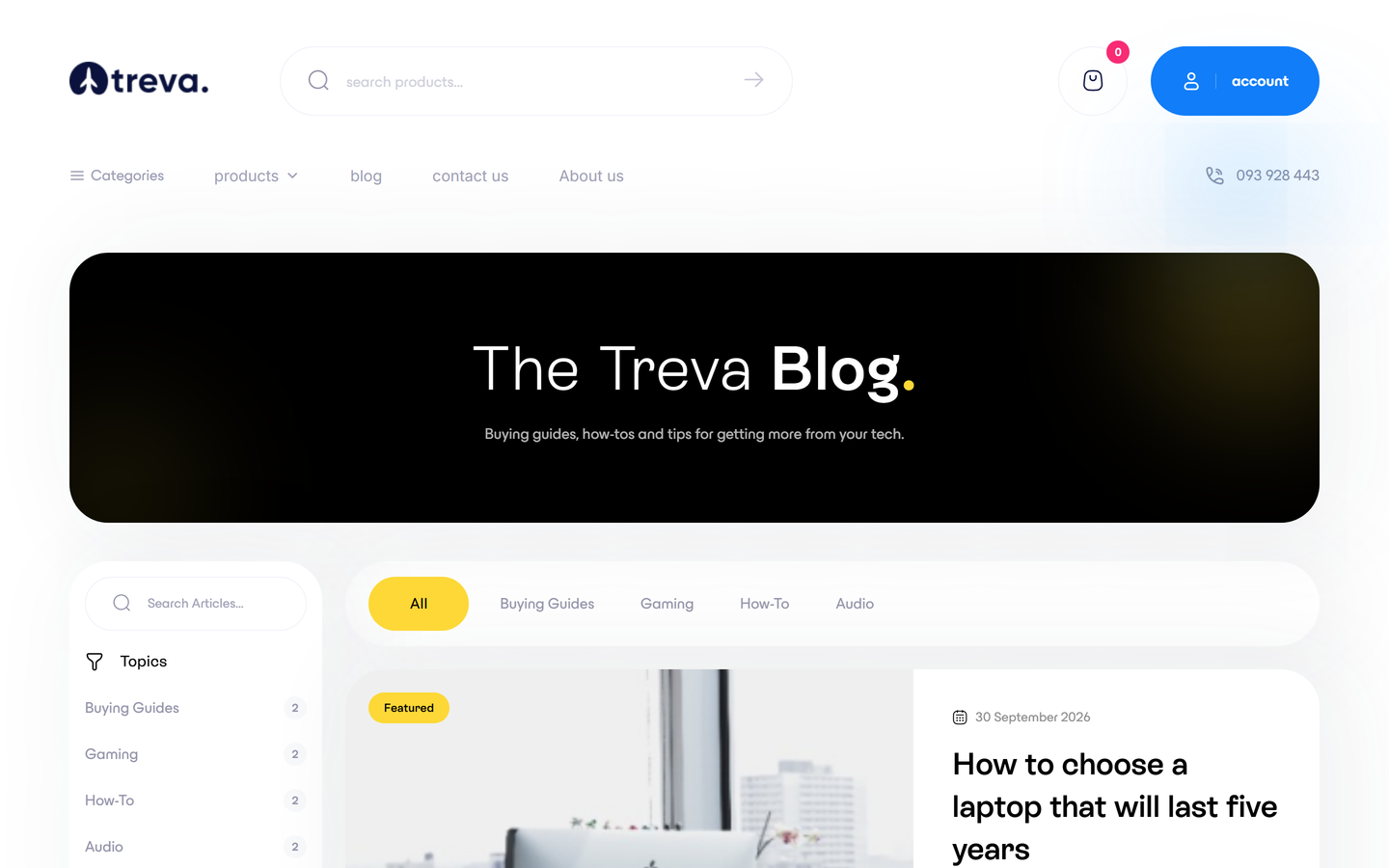
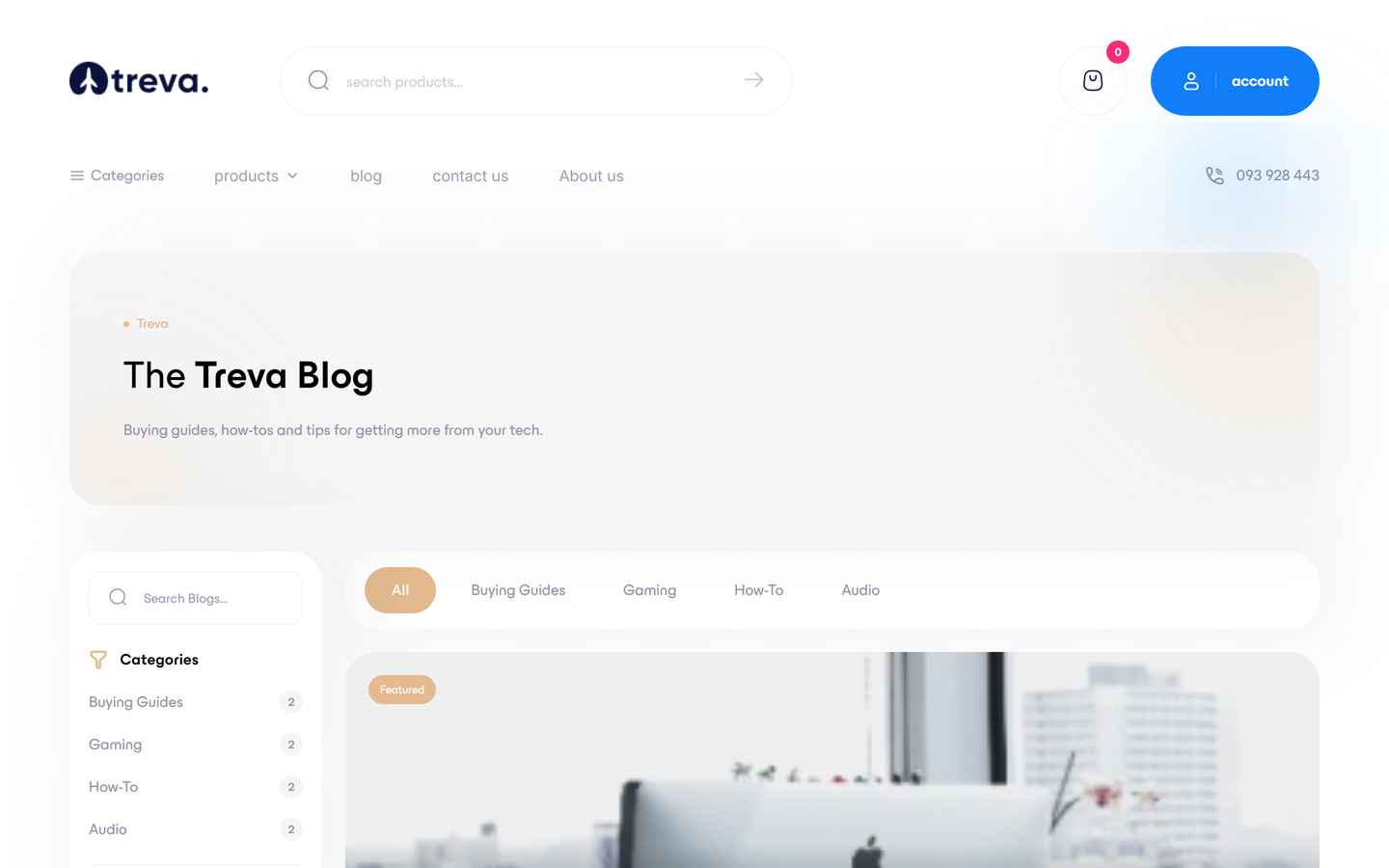
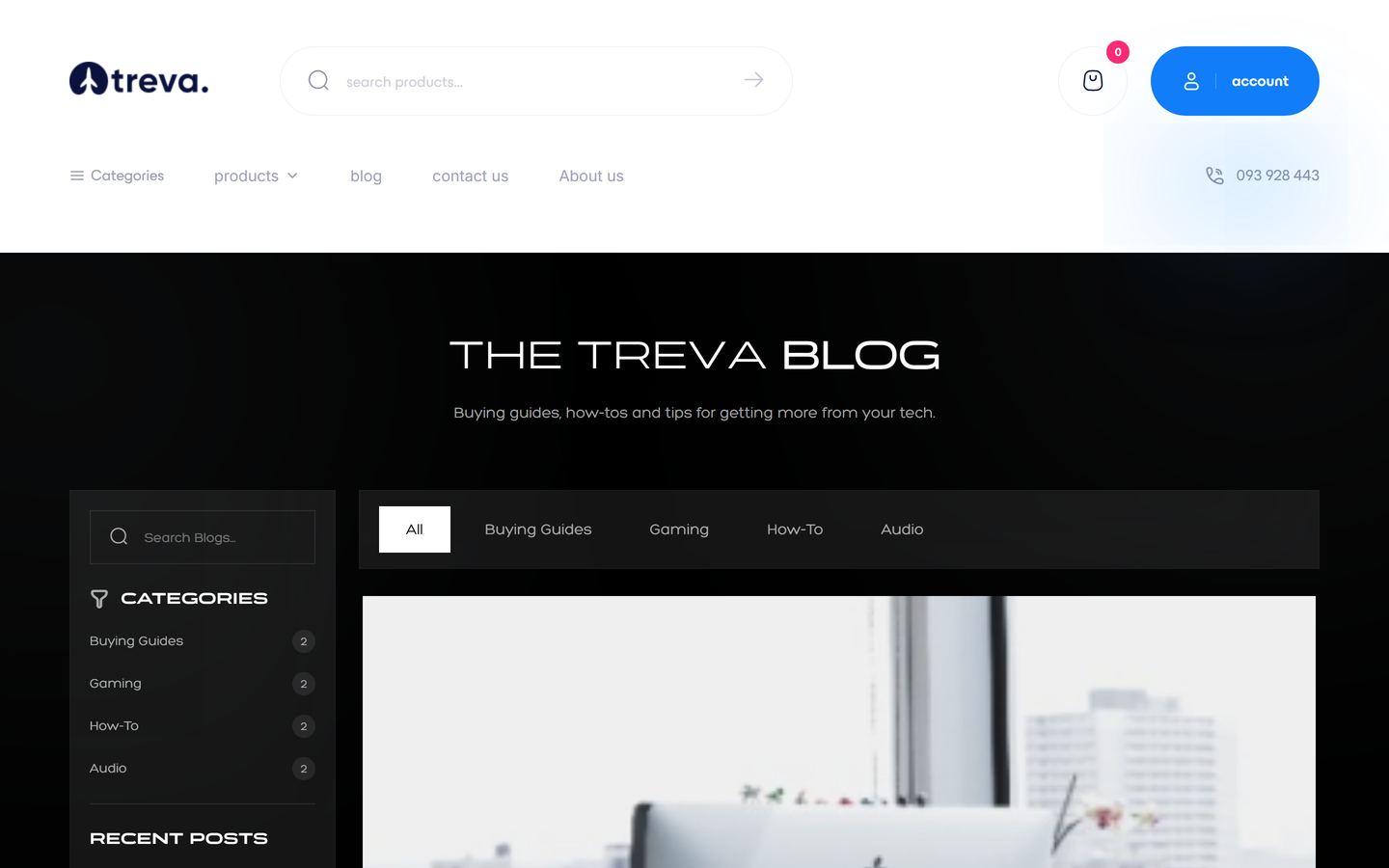
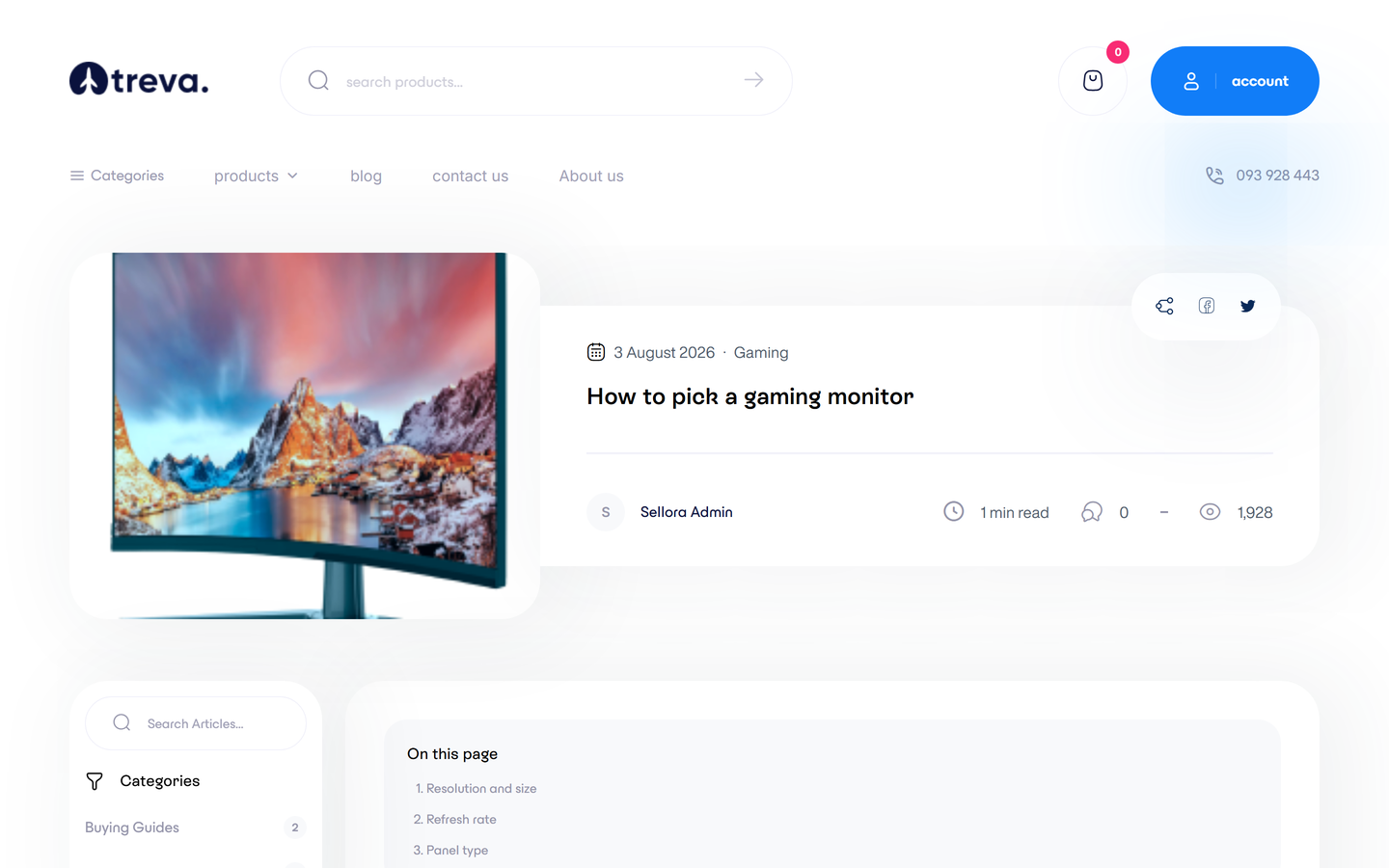
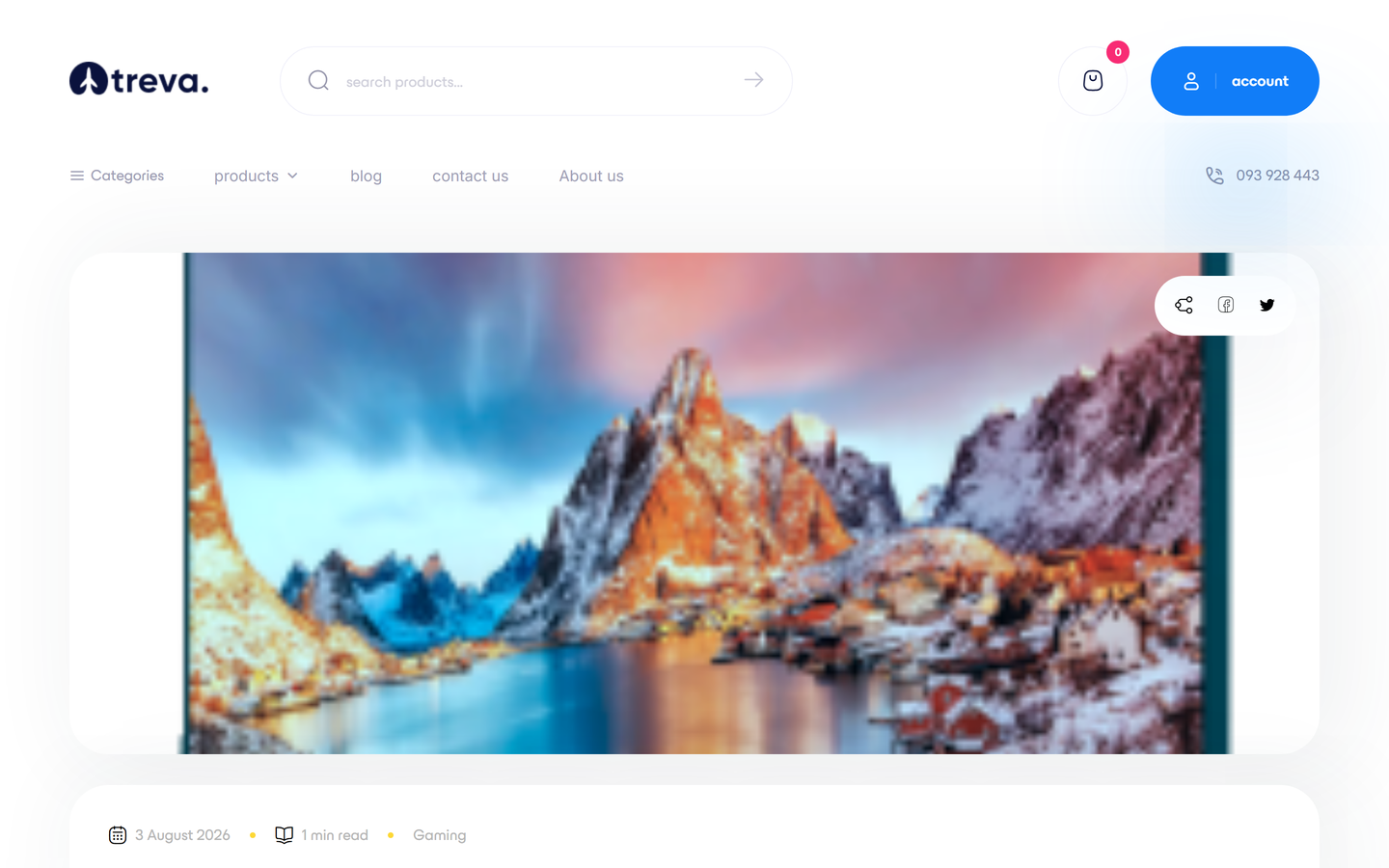
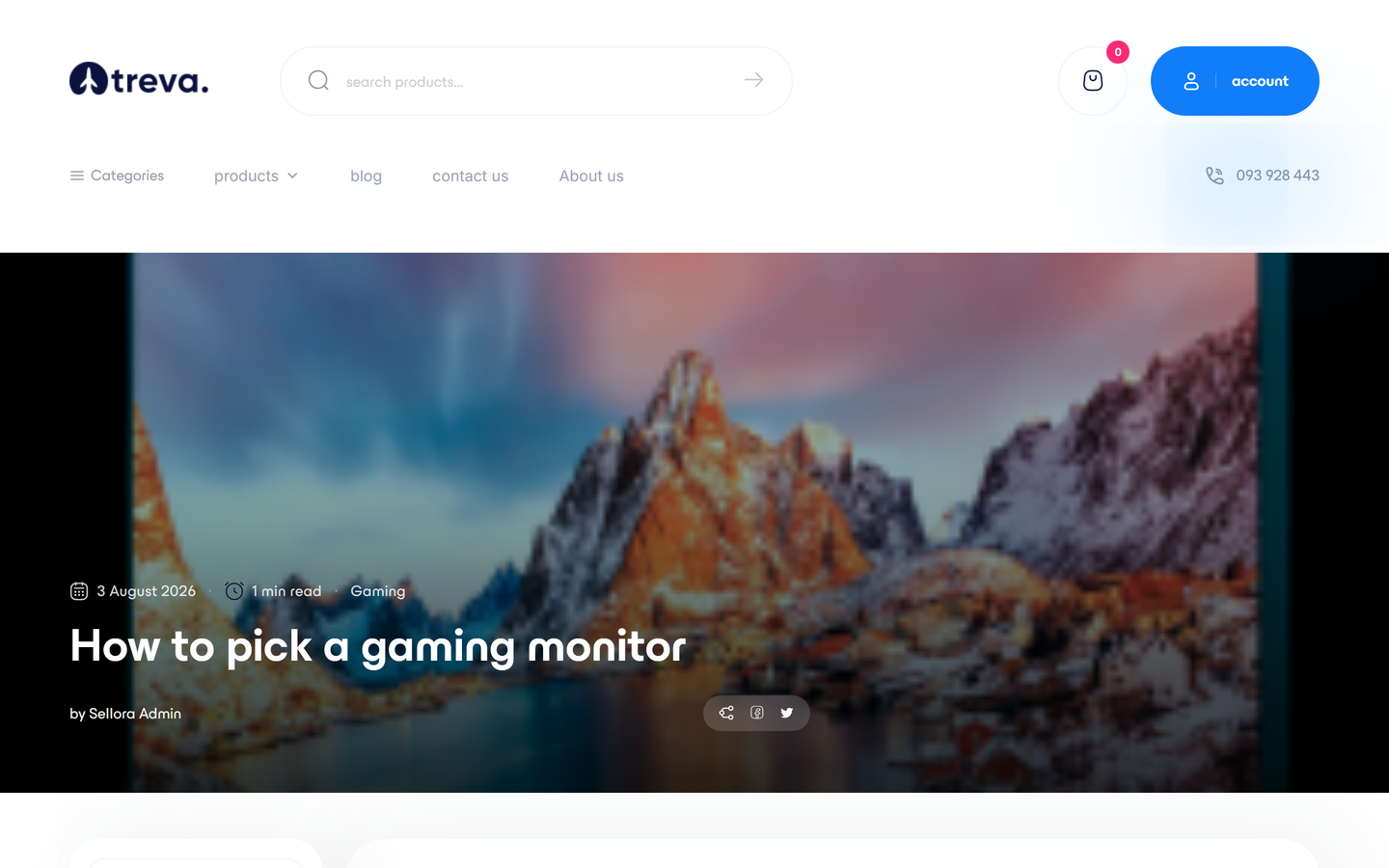
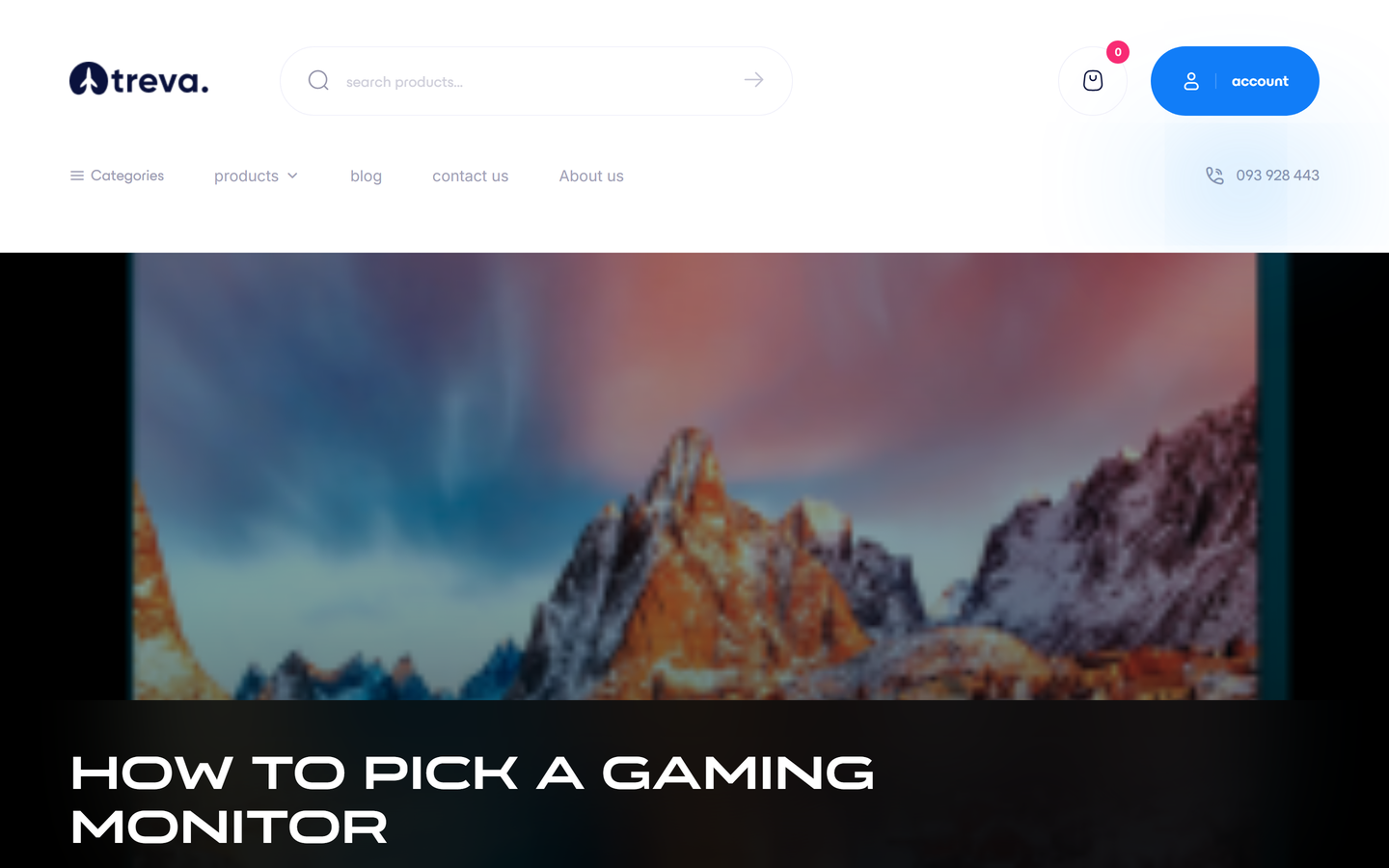
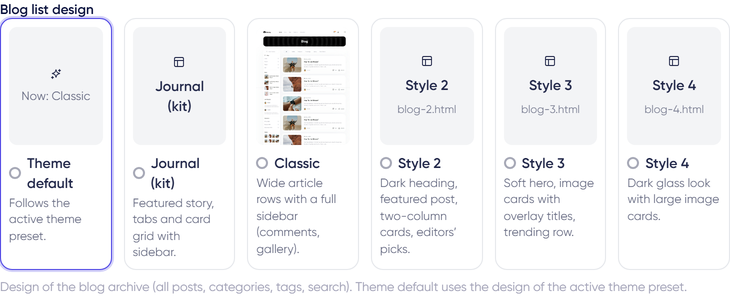
Theme default follows the active design: Cosmetic Store uses Style 3, Motorcycle Store uses Style 4, Fashion Minimal uses Style 2, the other classic designs use Classic, and the marketplace-style and studio designs use Journal.
Comments work in every style (AJAX submit, replies, moderation as set in General settings). All styles were tested on the Fashion and Beauty designs at 1440 and 390 px; right-to-left layout was only spot-checked. The screenshots above show them inside the Tech Store (Treva) design with the Electronics demo posts.
Blog style limits
- Styles 3 and 4 use display fonts from the template (es-build trial and Organetto, both demo-licensed - see Credits). They only load if the active design ships them; otherwise text falls back to the default font.
- Product shortcodes inside a post body (
[products:slug,slug]) show as plain text in every style, including the standard blog.
Preview before you apply#
In Appearance > Demos click Preview on a preset. Your visitors keep seeing the live design; only your session shows the preview. Visit /?theme_preview=0 to stop previewing. Apply makes the change live.
Applying a preset#
When you apply a preset you choose whether to keep your current home-page sections. Your products, categories and orders are never touched by switching a preset. Colour, font and header/footer changes you made under Appearance are stored as overrides on top of the active preset.
Demo content#
Import demo content from the same page, or with the command line:
php artisan sellora:install-demo tech3 --fresh
Replace tech3 with any preset key (for example fashion, electronics, cosmetic or motor_classic); a classic key imports the catalogue it borrows plus its own slides, banners and menus. Use --fresh to remove earlier demo content first, --no-common to skip the sample customers and orders, and --all to install every preset in turn (for testing). Only records marked as demo content are removed, never your own products.
Warning
The demo catalogue includes sample customers with the password password, including customer@sellora.com. Remove demo content (or those customers) before going live.
Quirks to know#
- Bundles (shop-the-look, kits, boxes, recipes, routines, capsules) show a saving only when they name a valid percent coupon, and that saving is real: the coupon is applied to the cart when the bundle is added. See Bundle coupons. A cart holds one coupon, so a bundle coupon replaces one the shopper entered earlier, and it discounts the whole cart.
- Some presets show widgets (finders, sizers, configurators) that are driven by the settings and products you provide in the Home builder.