
Install on shared hosting (cPanel)
Upload Sellora to a typical shared host and run the setup wizard - no command line needed.
This is the most common way to install Sellora. It takes about five minutes once your database is ready.
Before you start
Have your database details and purchase code ready (Database and purchase code) and make sure your host runs PHP 8.3 or newer (Server requirements).
Step 1 - Unzip the package on your computer#
Unzip the file you downloaded from CodeCanyon. You will see the folders sellora and Documentation.
Step 2 - Upload the application#
- In cPanel open File Manager and go to your web root. For your main domain this is
public_html. - Upload the contents of the
sellorafolder into it - not the folder itself. After uploading you should seeapp,bootstrap,config,public,vendor,artisan,index.phpand.htaccessdirectly insidepublic_html. - Make sure the hidden files
.htaccessand.env.examplewere uploaded. In File Manager click Settings and tick Show Hidden Files (dotfiles).
Faster upload
Zip the contents of sellora on your computer, upload the single ZIP file and use File Manager's Extract button. Thousands of small files upload much faster this way than one by one over FTP. Delete the ZIP afterwards.
The .htaccess file in the web root forwards every request to the public folder and blocks access to private folders (app, config, storage, .env and so on), so you do not need to change your document root on shared hosting.
If your host lets you set the document root
Pointing the domain's document root directly at the public folder is slightly faster and safer, because the application files then sit outside the web-accessible folder. Do this if your host offers it (cPanel: Domains > Manage > Document Root). The root .htaccess is then simply ignored.
Step 3 - Choose PHP 8.3#
In cPanel open Select PHP Version (or MultiPHP Manager), choose PHP 8.3 or newer for the domain, and enable the extensions listed in Server requirements.
Step 4 - Run the setup wizard#
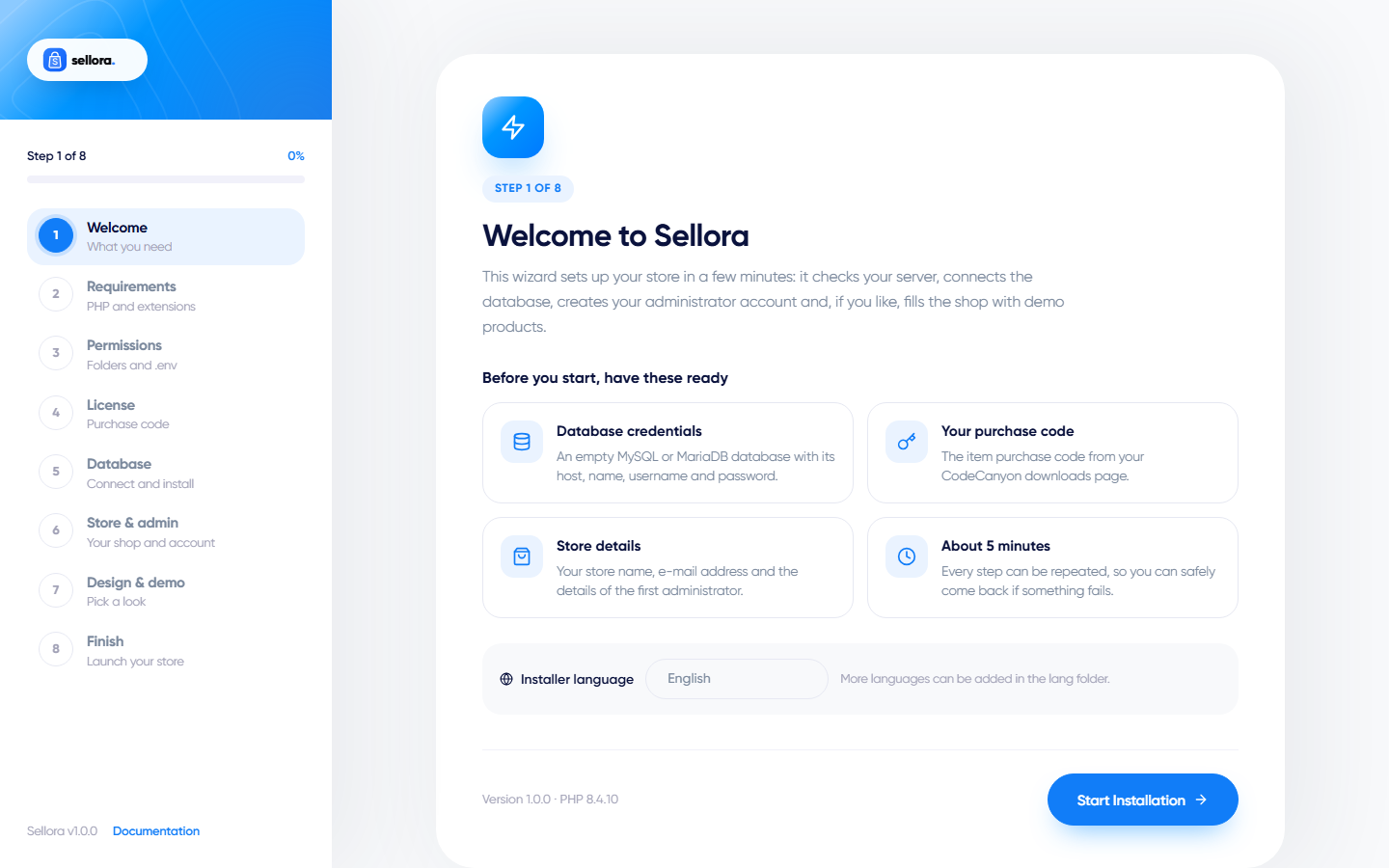
Open your domain in the browser. Sellora detects that it is not installed and redirects you to the wizard (https://your-domain.com/install). Follow Setup wizard, step by step.
Step 5 - Add the cron job#
On the last screen the wizard shows a cron line. Add it in cPanel under Cron Jobs - see Cron job.
Step 6 - Log in#
Go to https://your-domain.com/admin and sign in with the administrator account you created. Then follow the After-install checklist.
If something goes wrong#
| Problem | Fix |
|---|---|
| Blank page or "500 Internal Server Error" | Check that PHP is 8.3+, that .htaccess was uploaded and that storage and bootstrap/cache are writable. Details in Troubleshooting. |
| The wizard says a folder is not writable | Set permissions to 755 for folders and 644 for files (775 / 664 if the web server runs as a different user). The wizard has a Try to fix automatically button. |
| Pictures or CSS are missing | Make sure the public folder contents (including assets) were uploaded and that APP_URL in .env matches your real address. |