
Setup wizard, step by step
Every screen of the installer explained, with screenshots and what to do when a step fails.
The wizard has eight steps and takes about five minutes. Every step can be repeated, so you can safely go back if something fails, and finished work is not repeated. When you finish, the wizard locks itself and cannot be run again.
1. Welcome#
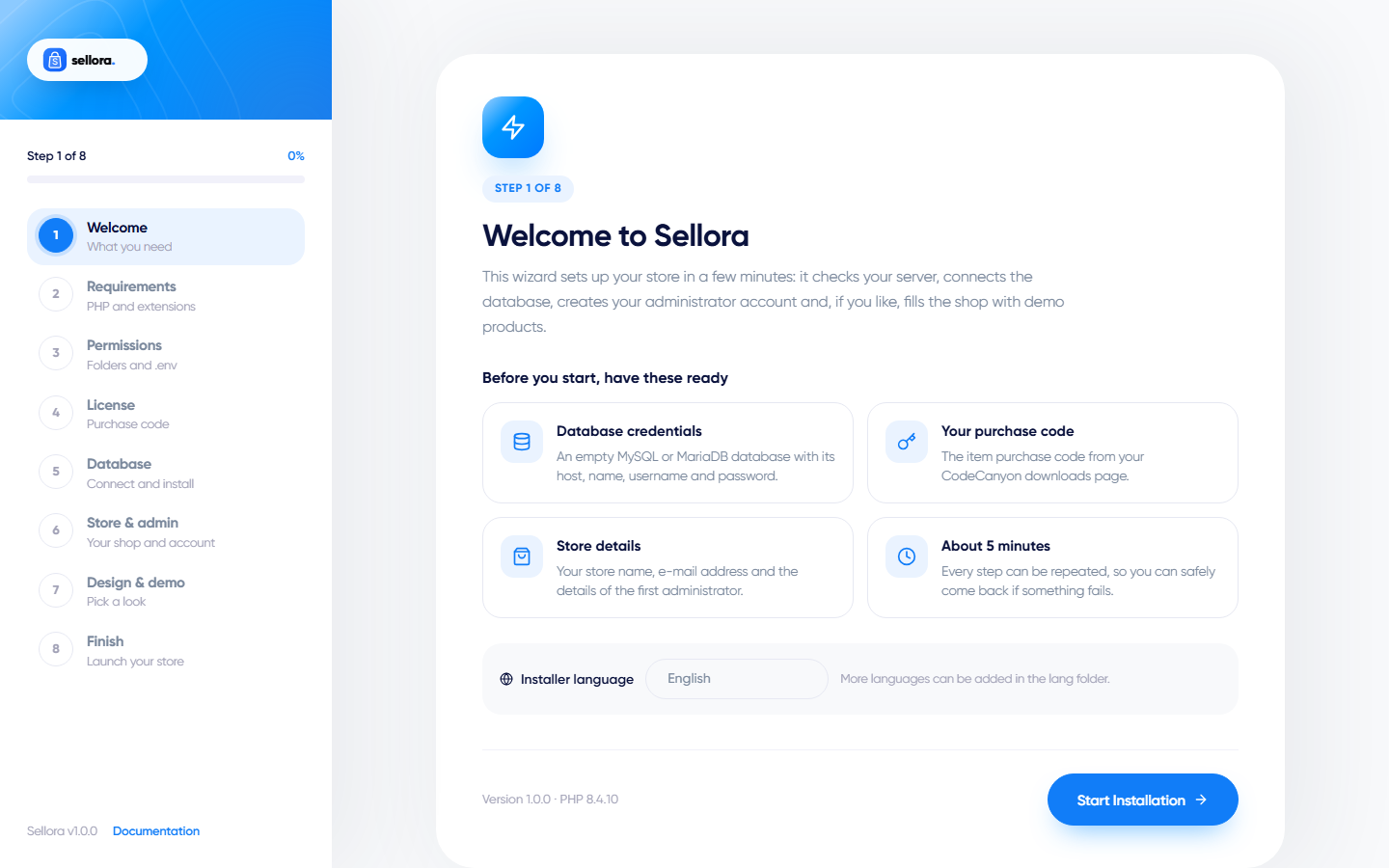
Choose the installer language (more can be added by copying lang/en/install.php to lang/<code>/install.php) and read the list of things to have ready: database credentials, your purchase code and your store details. Click Start installation.
2. Requirements#
The wizard checks your PHP version, every required PHP extension and some recommended settings. Items marked in red must be fixed (ask your host or see Server requirements); amber items are recommendations and do not block you. Click Re-check after fixing something.
3. Permissions#
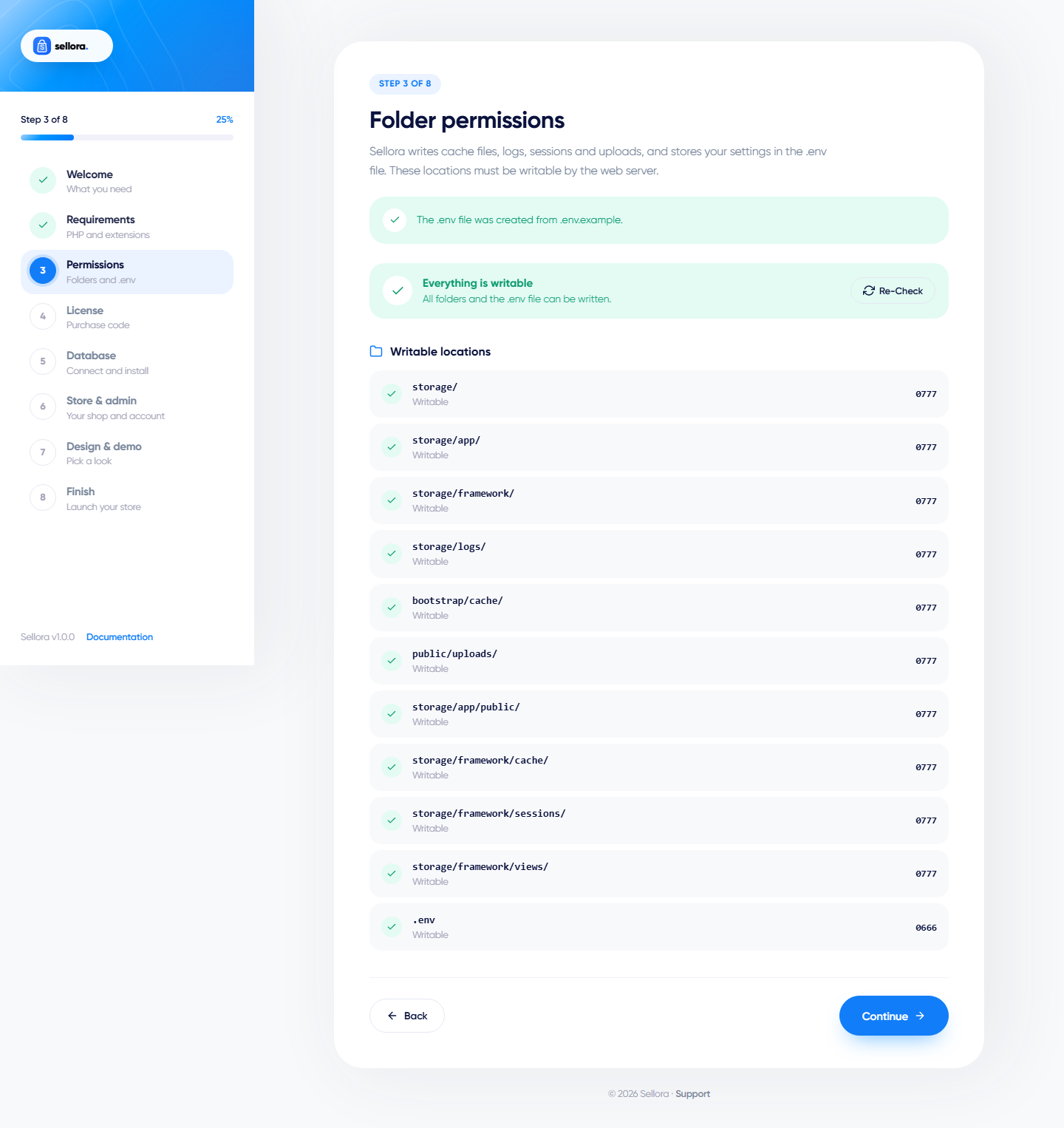
Checks that storage, bootstrap/cache, public/uploads and the .env file are writable. The wizard creates .env from .env.example for you. If an item is red, click Try to fix automatically; if that is not enough, change the permissions in your file manager (775 for folders, 664 for the .env file).
4. License#
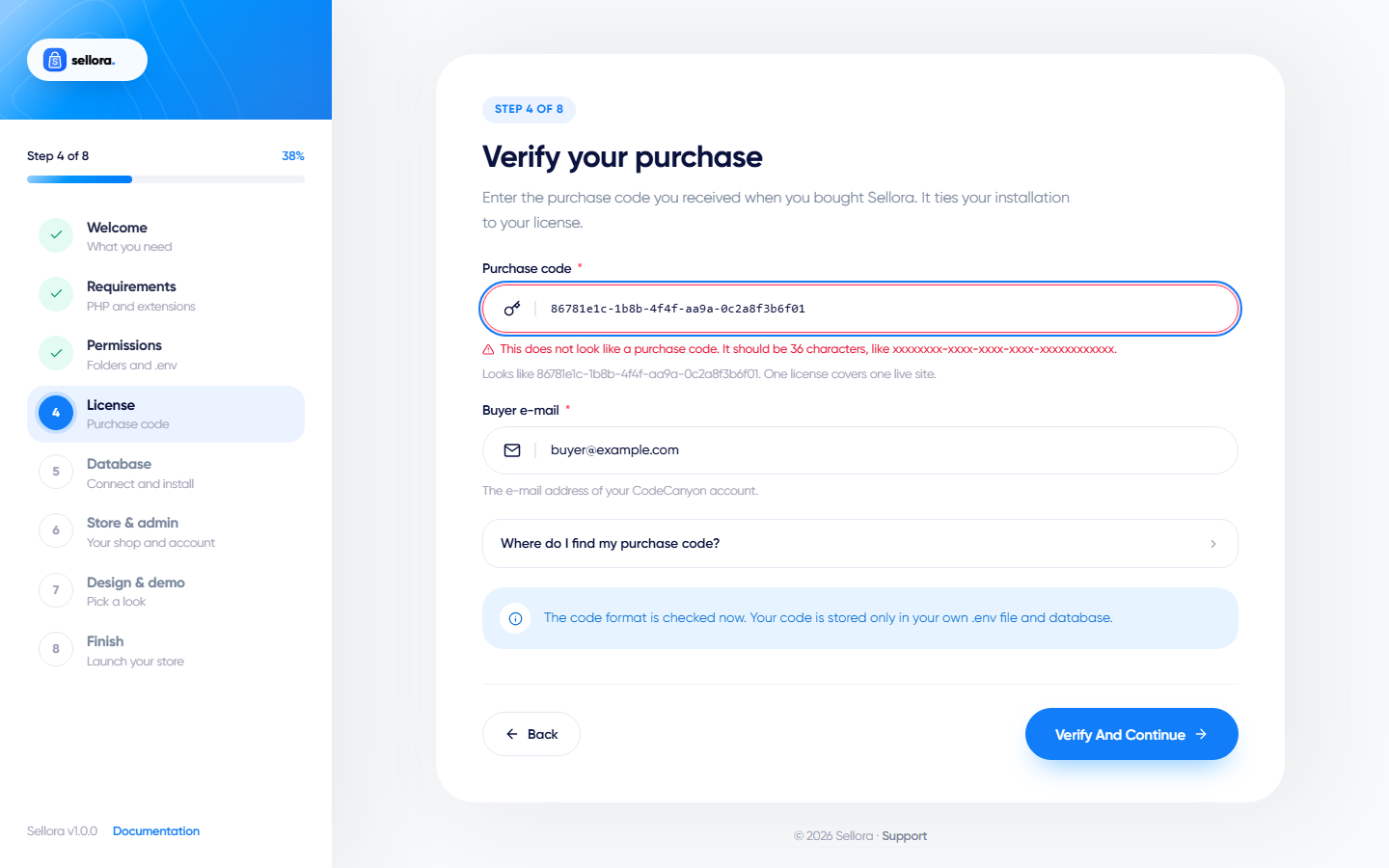
Enter your purchase code (36 characters, see Database and purchase code) and the e-mail address of your CodeCanyon account. A wrongly formatted code is rejected immediately with an explanation.
5. Database#
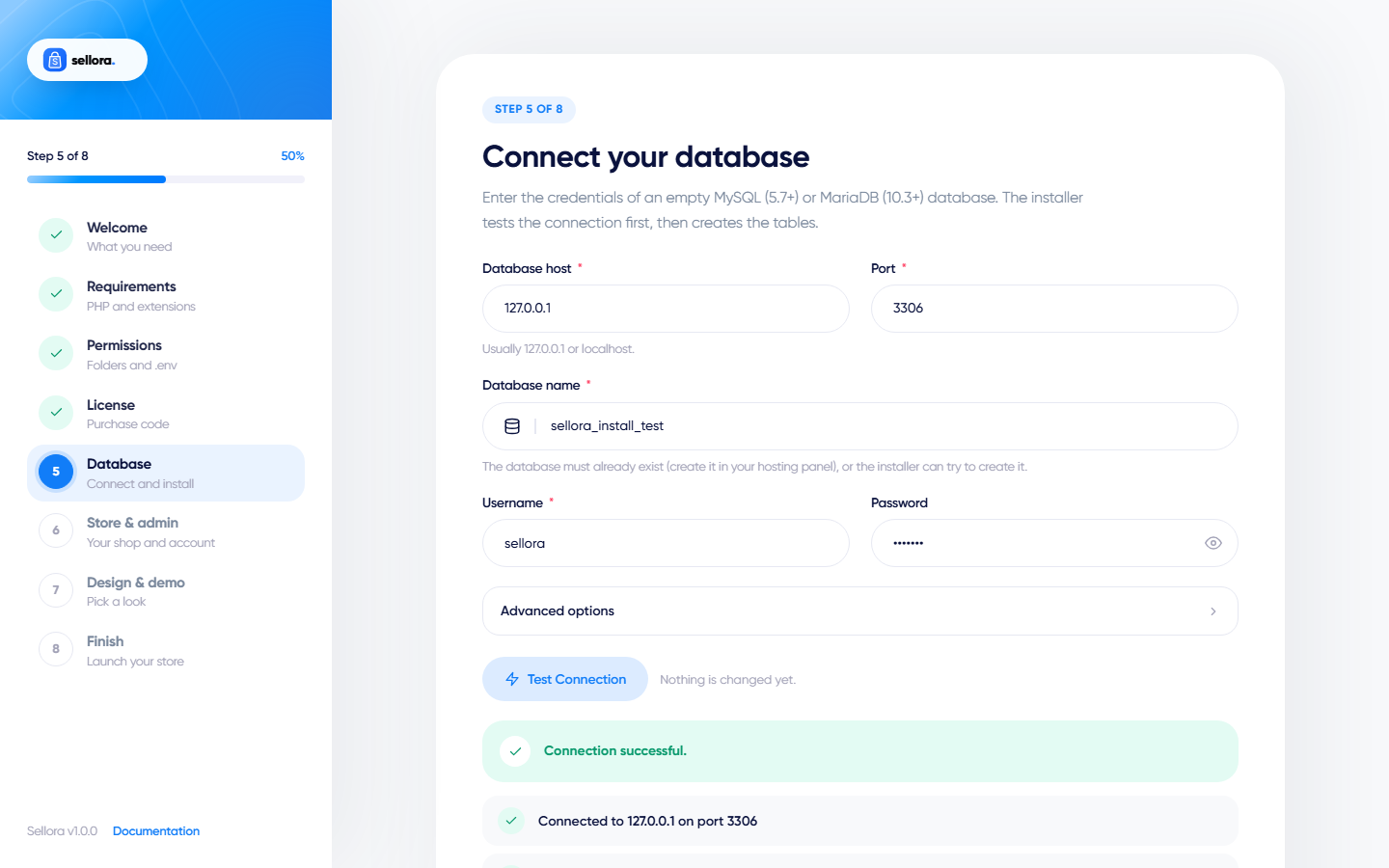
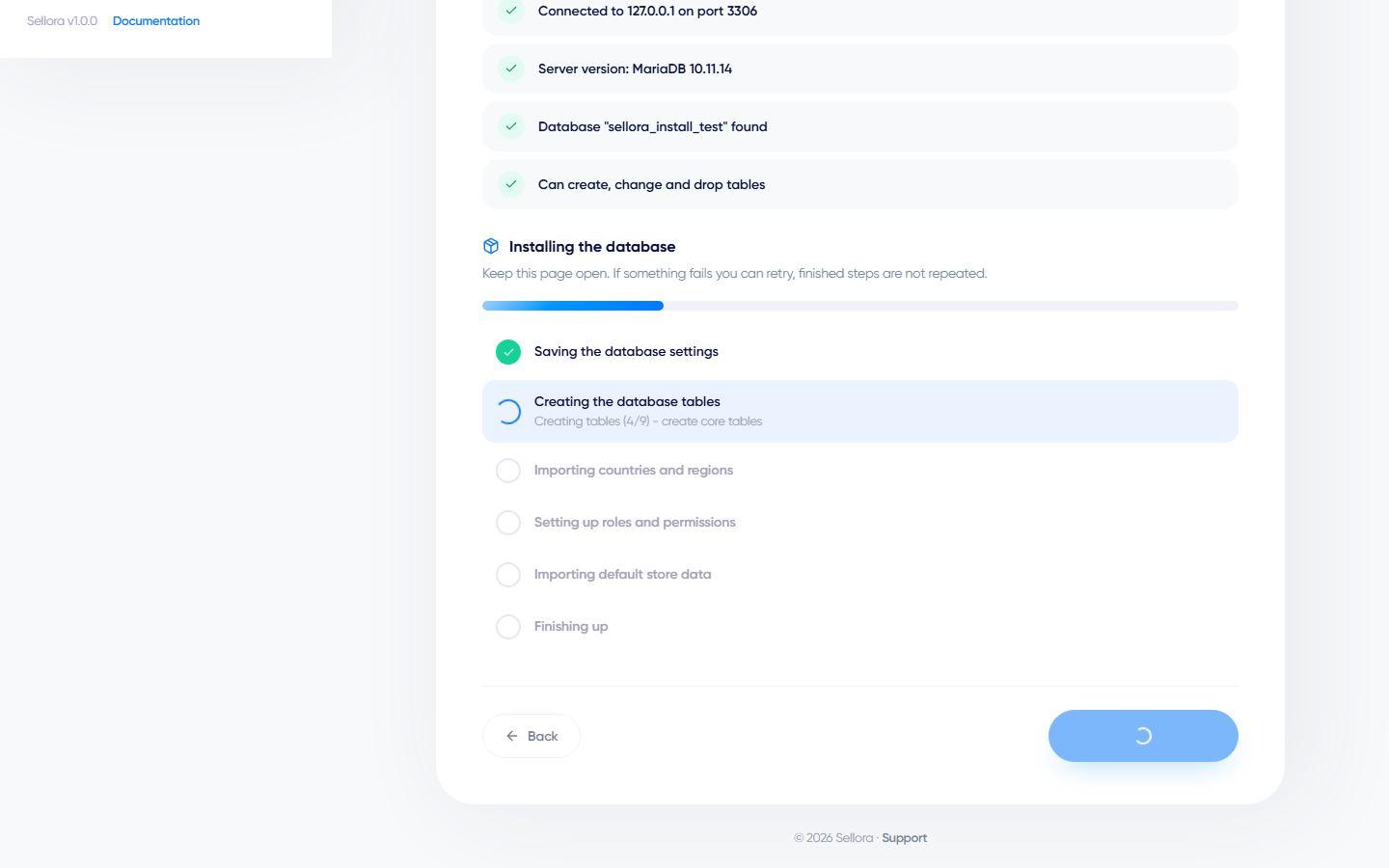
Enter the database host (usually 127.0.0.1 or localhost), port, database name, user name and password. An optional table prefix is only needed if the database is shared with other applications - leave it empty otherwise. The wizard tests the connection and tells you exactly what is wrong: wrong password, missing database, missing privileges or an unsupported server version.
If the database already contains tables, you choose:
- Use existing data - keeps everything and resumes an interrupted installation.
- Wipe and install fresh - deletes every table in that database. You must type the database name to confirm, and this cannot be undone.
Then the wizard creates the tables, imports countries and regions, and sets up roles and permissions. Keep the page open; if something fails you can retry and finished steps are not repeated.
6. Store and admin account#
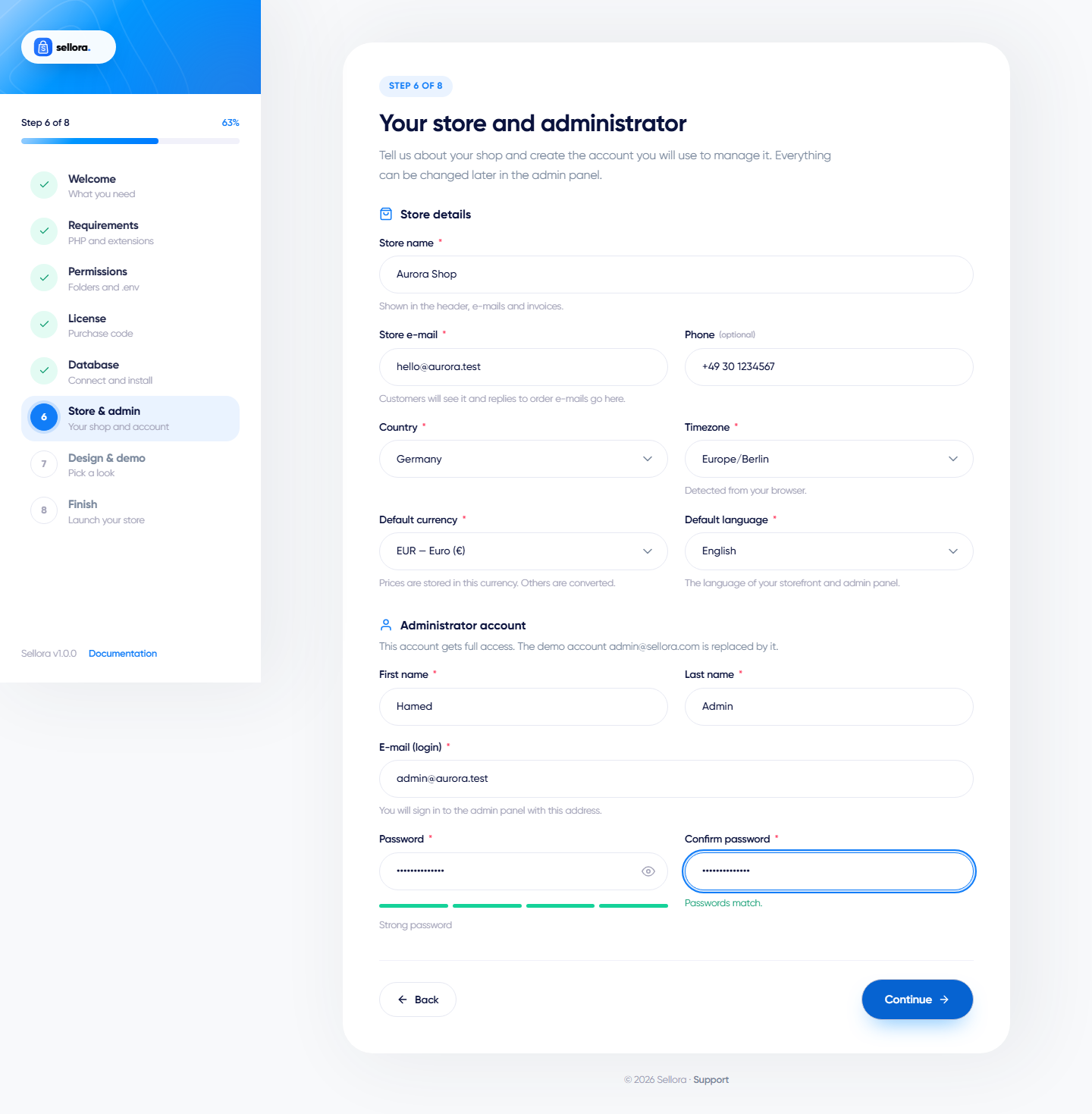
Enter your store name, e-mail, phone, default language, timezone and the base currency, then create the administrator account (name, e-mail, password of at least 8 characters with letters and numbers).
- Prices are stored in the base currency; other currencies are converted from it.
- The demo login
admin@sellora.comis replaced by the account you create here.
7. Design and demo#
Pick the look of your storefront from the 19 designs (see Demo presets). The classic family is listed first and Tech Store (Treva) is pre-selected; keep it or click another card. Then choose whether to import demo content (sample products, categories, brands, reviews, blog posts, banners and orders).
- Demo on - the store looks finished right away. Remove the demo content later with one click (Admin > Appearance > Demos) before you add your own products.
- Demo off - the store starts empty with only the design and your settings applied.
You can change the design at any time. Importing demo content takes about a minute.

8. Finish#
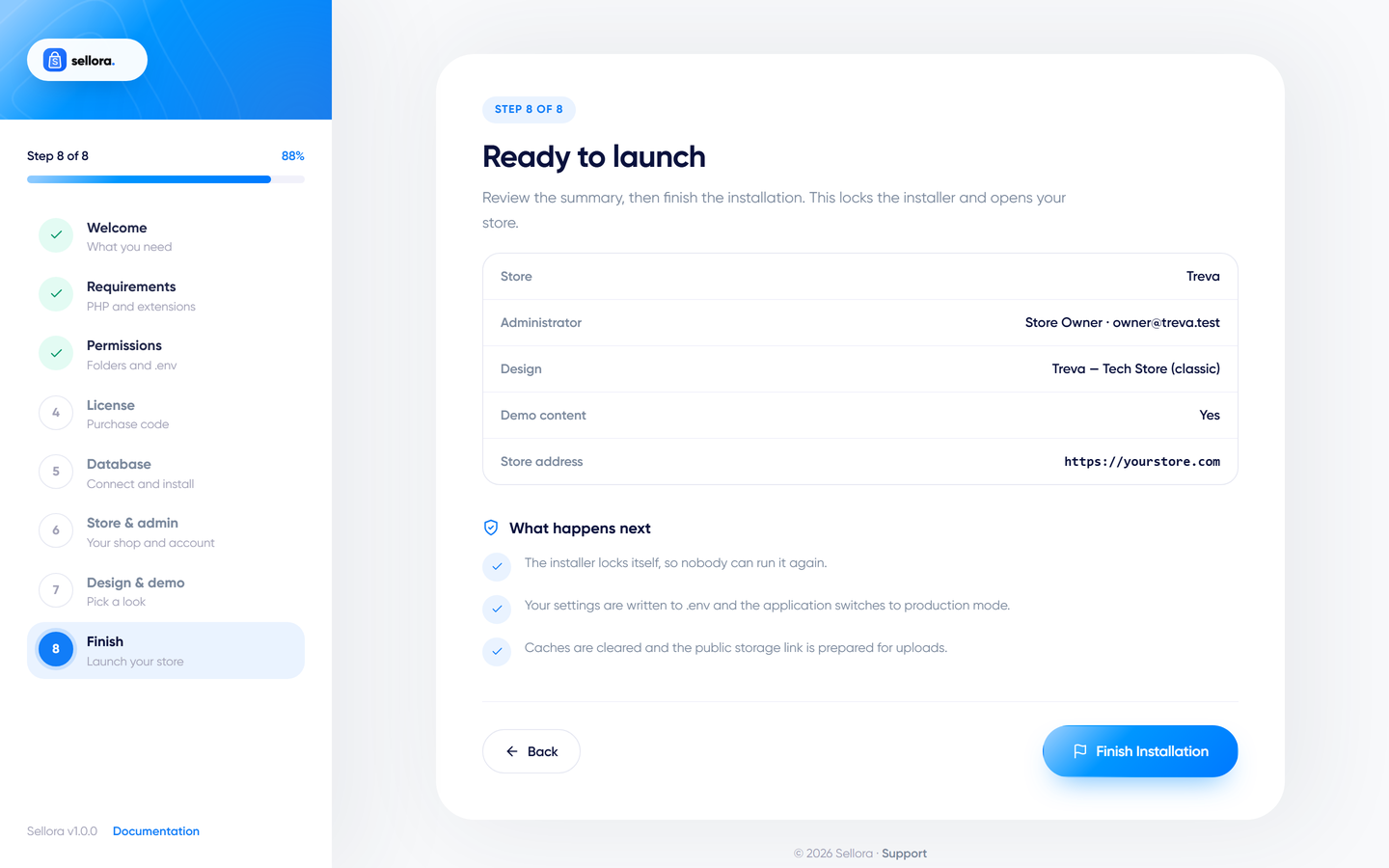
Review the summary and click Finish. The wizard locks itself, writes your settings to .env, switches the application to production mode, clears caches and prepares the public storage link for uploads.
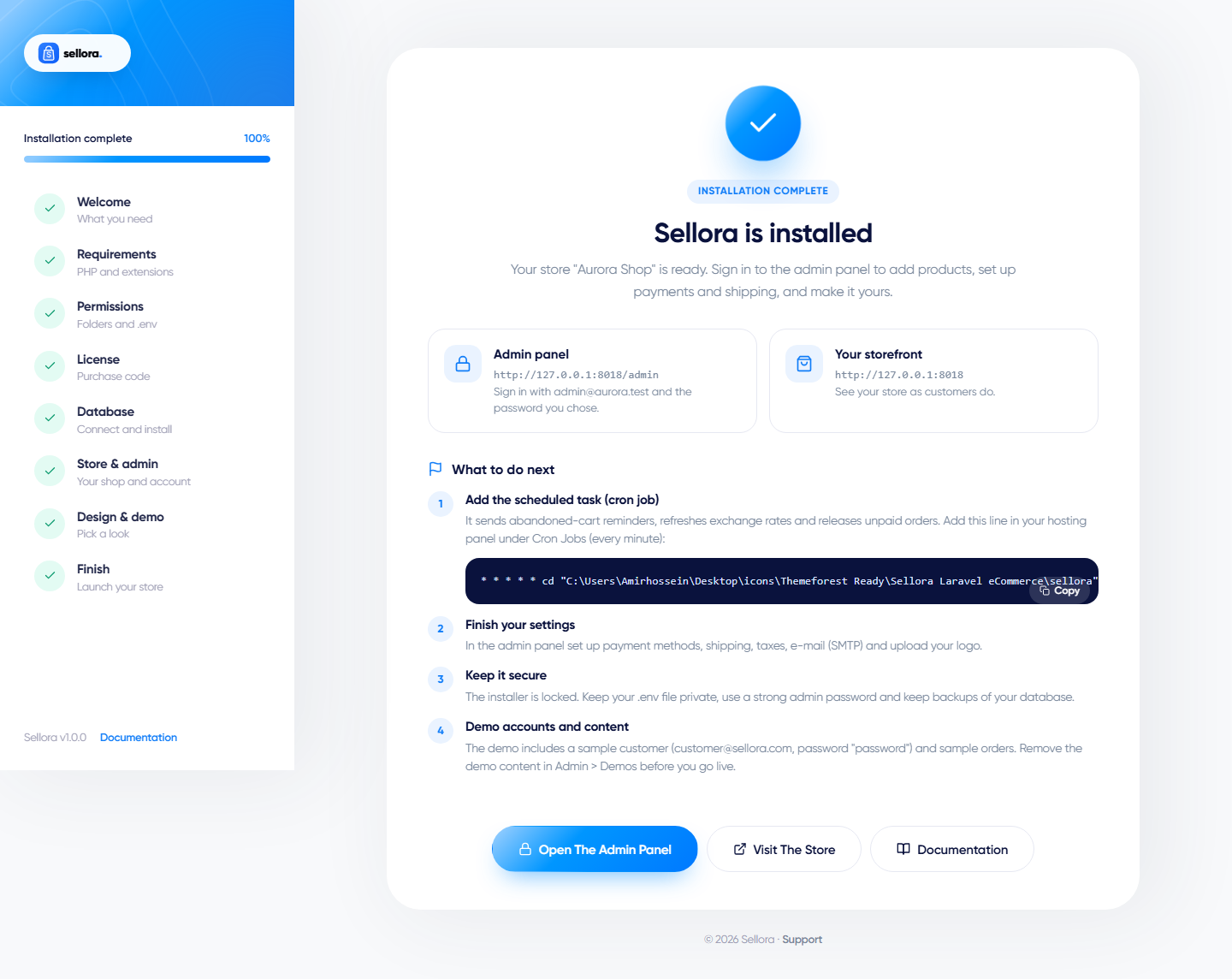
The completion screen shows:
- A link to the admin panel and to the storefront.
- The cron line to add in your hosting panel - see Cron job.
- A reminder that, if you imported the demo, a sample customer
customer@sellora.com(passwordpassword) and sample orders exist.
Sign in at https://your-domain.com/admin.

Your storefront opens with the design you chose. With the default design and demo content it looks like this:

If the wizard cannot write .env#
On a few hosts the .env file cannot be written. The wizard then shows the contents to paste: create an empty file named .env in the folder that contains artisan, make it writable (permission 664), paste the contents and click I saved the file, check again.
If the public storage link fails#
Servers that disable symbolic links make the wizard fall back automatically: uploads are then served from public/uploads. If you see a warning instead, create the link by hand (php artisan storage:link over SSH).