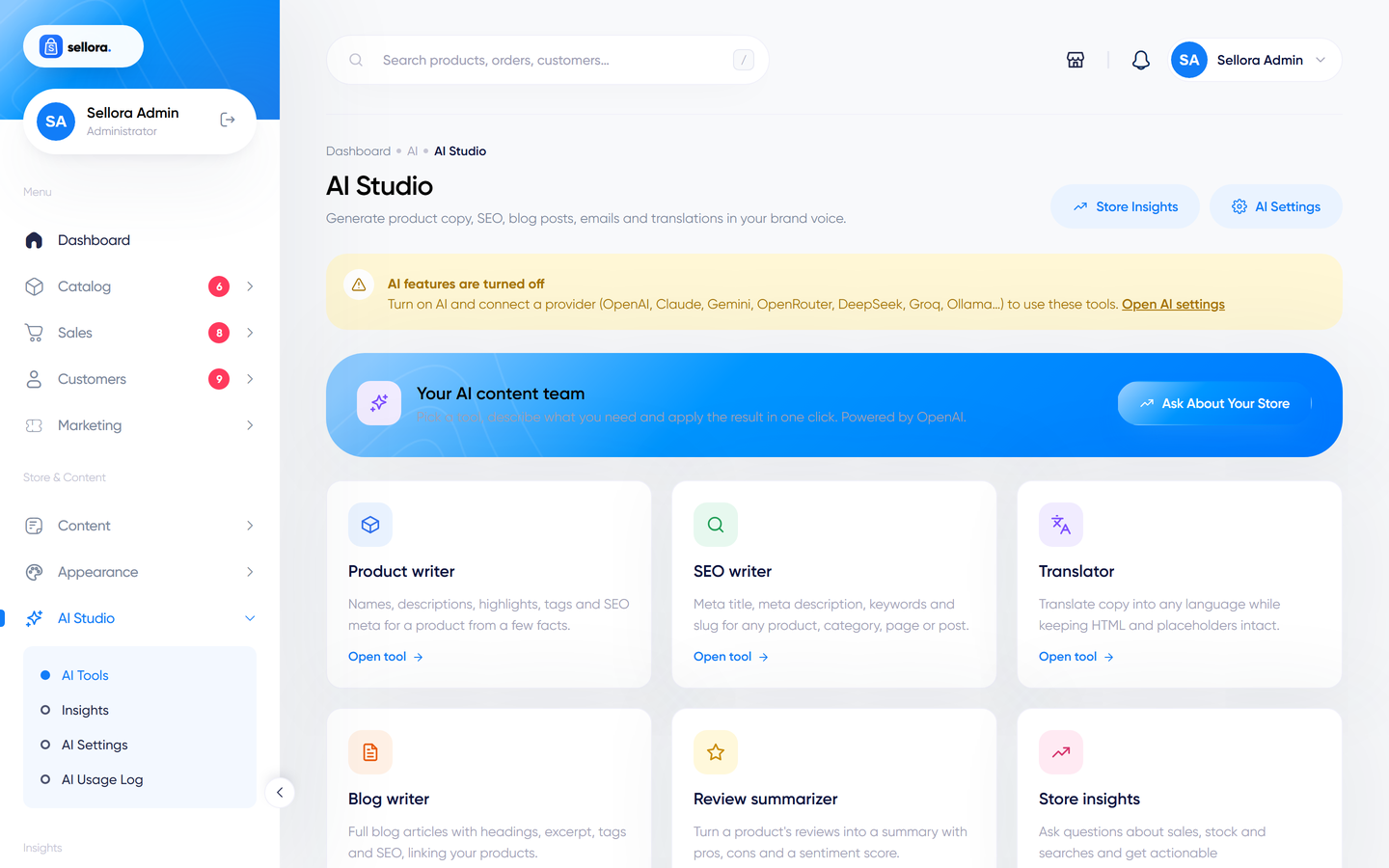
AI Studio tools
The ten AI tools - what each does, what to enter and how to apply the result.
Open AI Studio > AI Studio for the tool gallery.
Every tool page has a form on one side and the result on the other. After generating you can copy the text, refine it (shorter, longer, or a different tone) or apply it to your store with one click. Only the fields you fill in are sent to the AI provider.
| Tool | What it does | Apply action |
|---|---|---|
| Product writer | From a name, category, brand, attributes and keywords: name ideas, short description, full description, highlights, tags, meta title and description. | Fills a product. |
| SEO writer | Meta title (clipped to 60 characters) and meta description (155) for a page, product or category. | Fills SEO fields. |
| Translator | Translates texts between languages. Placeholders like :name, {name} and %s and HTML are protected. |
Used by the translation editor. |
| Blog writer | A draft post from a topic, outline, keywords and tone: title, excerpt, body, tags and SEO. | Create draft post (an unpublished post you edit and publish). |
| Review summariser | Pros and cons from approved reviews. | Shown on the product page (products with at least 3 approved reviews). |
| Insights | Answers questions about your store's numbers and writes a daily briefing. | None (read only). |
| Assistant | The storefront chat brain (see Storefront assistant and privacy). | None. |
| Image alt writer | Alt text for product images. | Fills image alt fields. |
| Category writer | Category descriptions. | Fills a category. |
| E-mail writer | Campaign e-mails. | Create draft campaign. |
Where the tools appear in the admin#
- Product editor: "Write with AI" next to the description, short description, SEO and tags.
- Blog post editor: "Write with AI" fills title, excerpt, body and SEO.
- Translation editor: draft translations.
- Dashboard: a daily AI briefing card.
The buttons only show when AI is enabled and you have permission to use it.
Insights#
AI Studio > Insights (reachable from the Studio page header) lets you ask in plain language: "Which products are low on stock and selling fast?" The AI only receives aggregated numbers from your store (never customer names, e-mails or addresses). The daily briefing is cached for six hours. When AI is off, a template briefing built from real metrics is shown instead.
Good practice#
- Treat AI output as a draft. Check facts (sizes, materials, claims), brand voice and spelling.
- Never publish medical, legal or safety claims you have not verified.
- Add your own keywords and details in the form for better results.
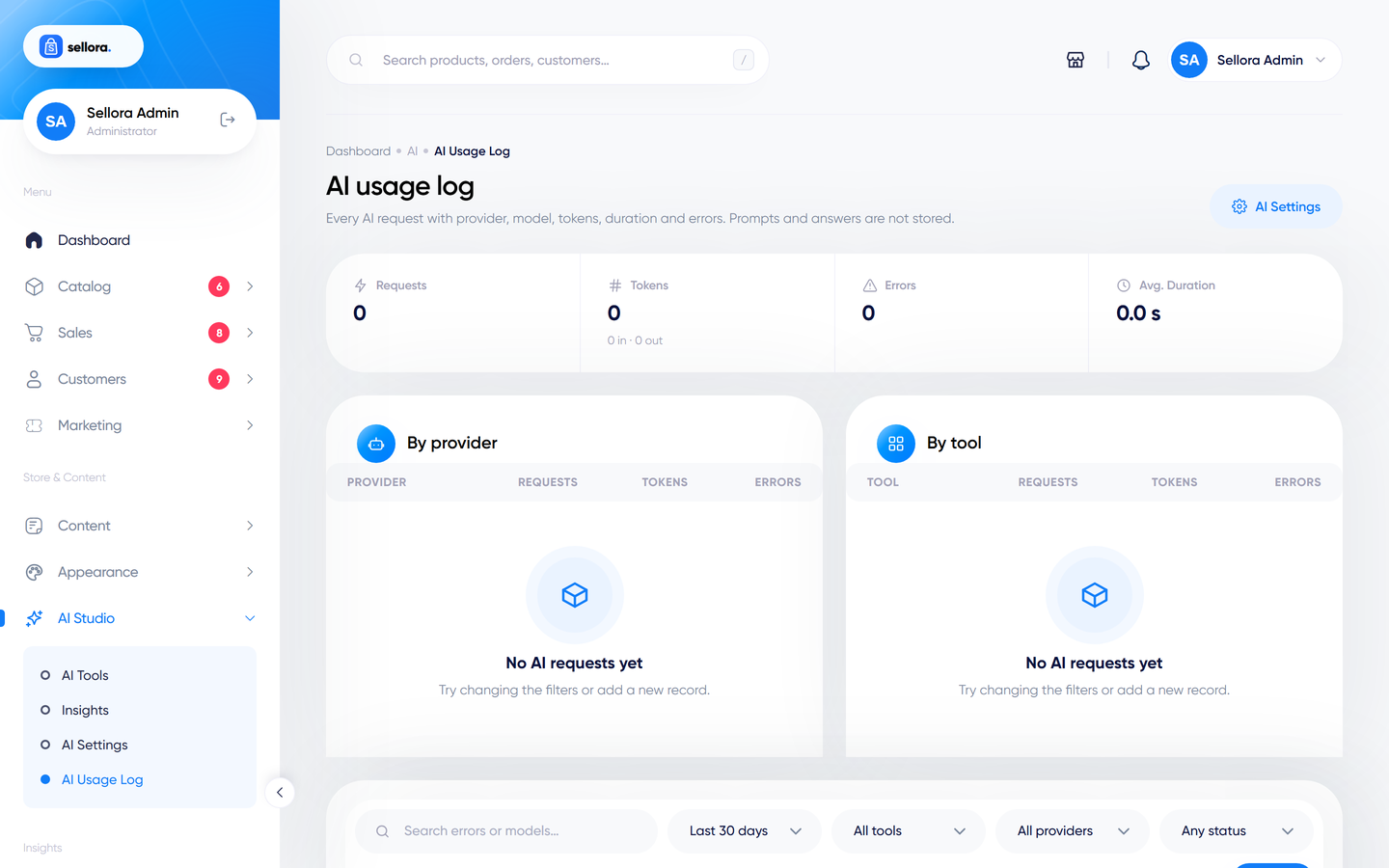
- Use the AI Logs page to see usage and errors.