
Payments overview
How payment methods work in Sellora, how to enable them, webhook URLs, and why you must test in sandbox first.
Open Settings > Payments.
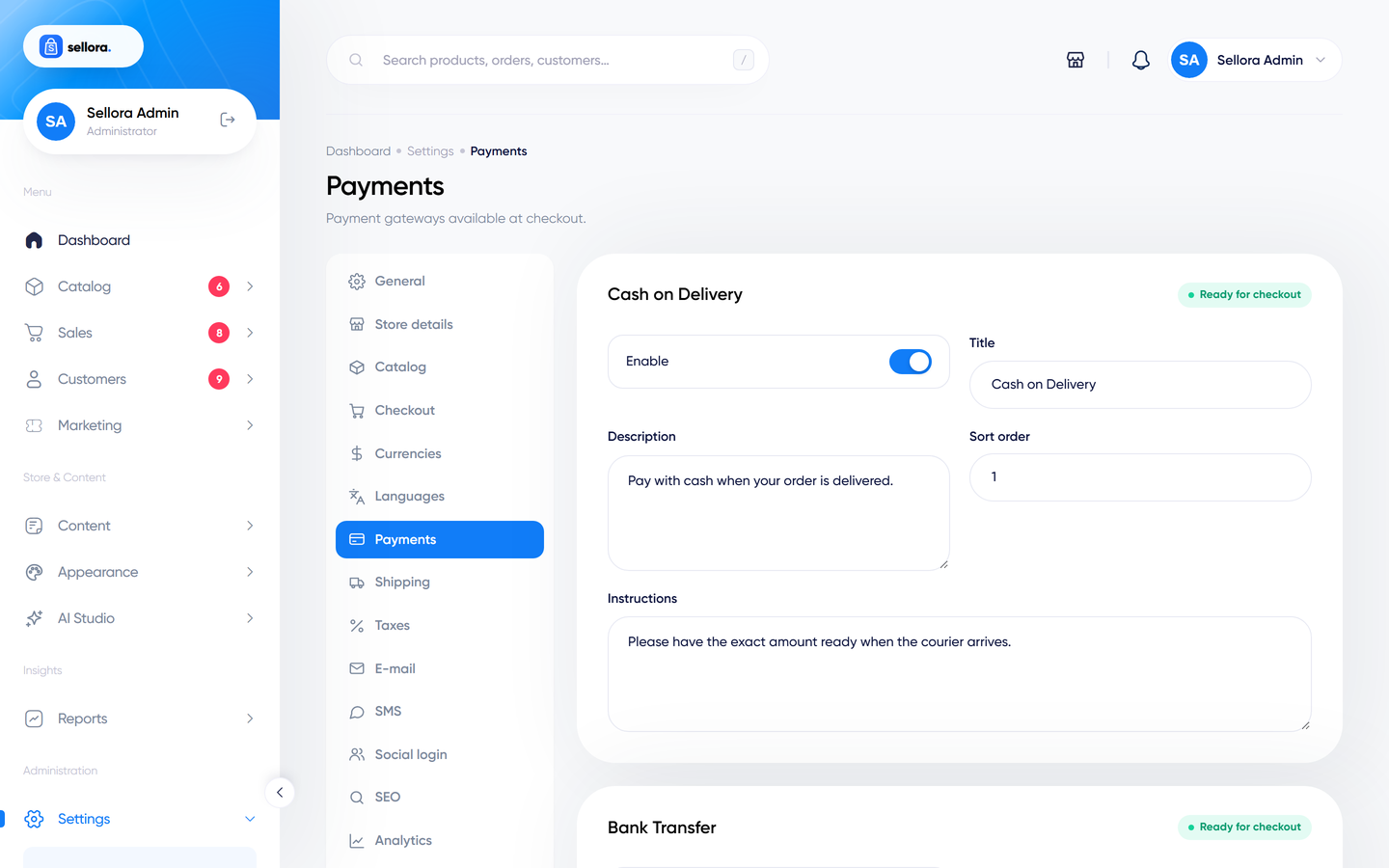
Sellora supports thirteen payment methods:
| Type | Methods |
|---|---|
| Offline | Cash on Delivery, Bank Transfer, Cheque / Money Order |
| Cards and wallets | Stripe, PayPal, Razorpay, Paystack, Flutterwave, Mollie |
| Regional | Paytm, SSLCommerz, Instamojo, iyzico |
You must test every gateway in sandbox mode before going live
The online gateways were written against each provider's published documentation and verified with simulated (mocked) provider responses. No live provider account was available during development, so they have not been exercised against real sandboxes by the author. Before you accept real money you must:
- Enter the provider's test / sandbox credentials.
- Place a test order and pay with the provider's test card or test account.
- Confirm that the order becomes Paid in Sales > Orders, that the transaction appears in Sales > Transactions, and that the customer receives the e-mail.
- Test a failed or cancelled payment and a refund (where supported).
- Only then switch to live credentials and run one small real purchase.
Enabling a gateway#
Each gateway has its own card on the Payments page:
- Switch Enable on.
- Enter a Title and Description shown to customers at checkout, and a Sort order (lower numbers first).
- Enter the credentials from your provider (each gateway chapter lists exactly which). Secret values are encrypted and not shown again.
- Where the gateway has a Sandbox mode switch, turn it on while testing.
- Copy the webhook URL shown on the card into your provider's dashboard (see below), then Save.
The card shows a status pill: whether the gateway is available (enabled and complete) and whether it is in sandbox mode, plus the currencies it supports.
A gateway is offered at checkout only when it is enabled, fully configured and supports the currency the customer is paying in.
Webhook URLs#
Online providers confirm payments by calling your store directly (a webhook, sometimes called IPN or notification). The URL always has this form:
https://your-domain.com/payments/{gateway}/webhook
where {gateway} is one of stripe, paypal, razorpay, paystack, flutterwave, mollie, paytm, sslcommerz, instamojo, iyzico. For example https://your-domain.com/payments/stripe/webhook. The exact URL for your site is displayed on each gateway card.
Requirements:
- It must be HTTPS with a valid certificate, and publicly reachable (not
localhost). - Do not block these URLs with a firewall or a "maintenance" page.
- If you change your domain, update the URL at every provider.
Mollie, SSLCommerz and Instamojo receive the notification URL with each payment automatically, but only when your site is not on localhost or a *.test domain.
How a payment is confirmed#
Sellora never trusts the customer's browser. Before an order is marked paid it checks with the provider (an API call or a signature) that the payment exists, belongs to this order, and that the amount and currency match. Webhooks and customer returns are processed safely if both arrive (no double charge or duplicate transaction), and failed or cancelled payments leave the order unpaid so the customer can retry from their account (Pay now).
Every payment event is written to storage/logs/payments-*.log (secrets removed) - the first place to look when something does not work.
Currencies#
Customers pay in the currency they selected if the gateway supports it. Orders always store amounts in your base currency plus the rate used. See Currencies, languages and translations.
Refunds#
Refunds made from the order page are sent to the provider for Stripe, PayPal, Razorpay, Paystack, Flutterwave and Mollie. For Paytm, SSLCommerz, Instamojo, iyzico and the offline methods you refund through the provider or by hand. See Orders.
Security tips#
- Never share secret keys; use restricted keys where the provider offers them.
- Turn sandbox mode off only after live testing, and keep separate test and live accounts.
- Set
APP_DEBUG=falseon a live site.